# How to do Deposit using Agent Wallet?

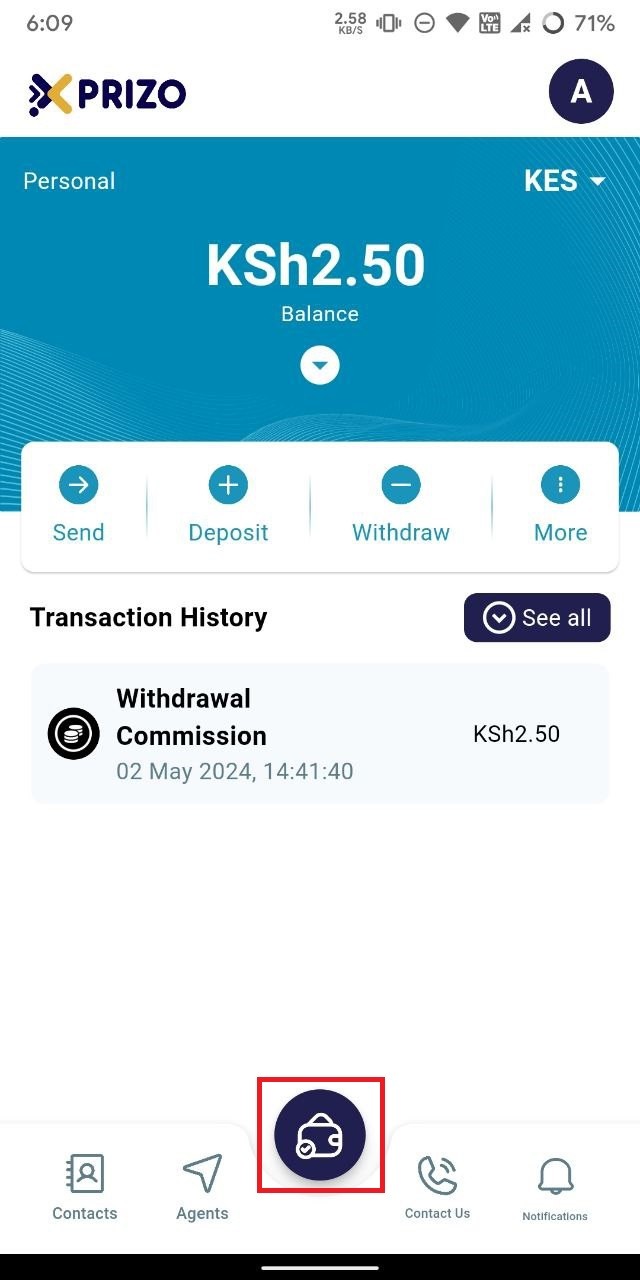
- Sign in to your account using your credentials, then tap on the bottom wallet button to navigate between different wallet types.
    
    <div class="w-full text-token-text-primary" data-scroll-anchor="false" data-testid="conversation-turn-996" dir="auto"><div class="px-4 py-2 justify-center text-base md:gap-6 m-auto"><div class="flex flex-1 text-base mx-auto gap-3 juice:gap-4 juice:md:gap-6 md:px-5 lg:px-1 xl:px-5 md:max-w-3xl lg:max-w-[40rem] xl:max-w-[48rem]"><div class="flex-shrink-0 flex flex-col relative items-end"><div>  
    </div></div></div></div></div>

![photo1714717396.jpeg](https://books.xprizo.com/uploads/images/gallery/2024-05/scaled-1680-/TQTphoto1714717396.jpeg)

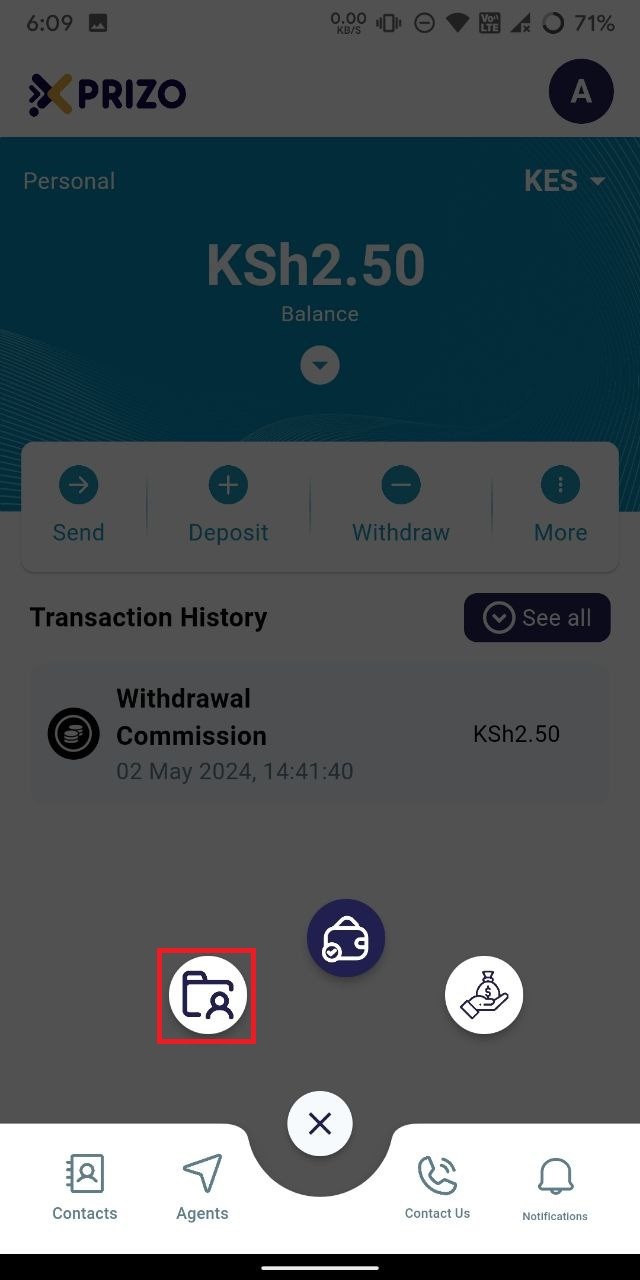
- Tap on the "Agent Wallet" button on the left to switch from your current personal wallet to the agent wallet.
    
    <div class="w-full text-token-text-primary" data-scroll-anchor="false" data-testid="conversation-turn-998" dir="auto"><div class="px-4 py-2 justify-center text-base md:gap-6 m-auto"><div class="flex flex-1 text-base mx-auto gap-3 juice:gap-4 juice:md:gap-6 md:px-5 lg:px-1 xl:px-5 md:max-w-3xl lg:max-w-[40rem] xl:max-w-[48rem]"><div class="flex-shrink-0 flex flex-col relative items-end"><div>  
    </div></div></div></div></div>

![photo1714717396 (1).jpeg](https://books.xprizo.com/uploads/images/gallery/2024-05/scaled-1680-/photo1714717396-1.jpeg)

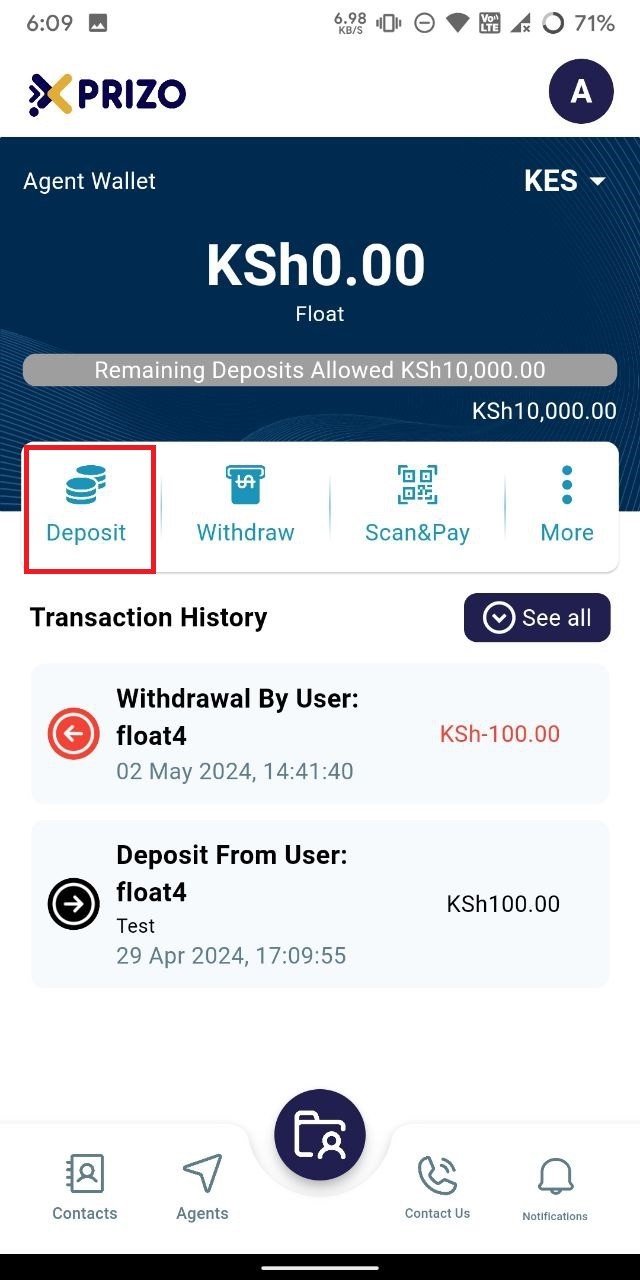
- Select "Deposit" to add funds received from the user physically into their wallet as digital currency.
![photo1714717396 (2).jpeg](https://books.xprizo.com/uploads/images/gallery/2024-05/scaled-1680-/photo1714717396-2.jpeg)

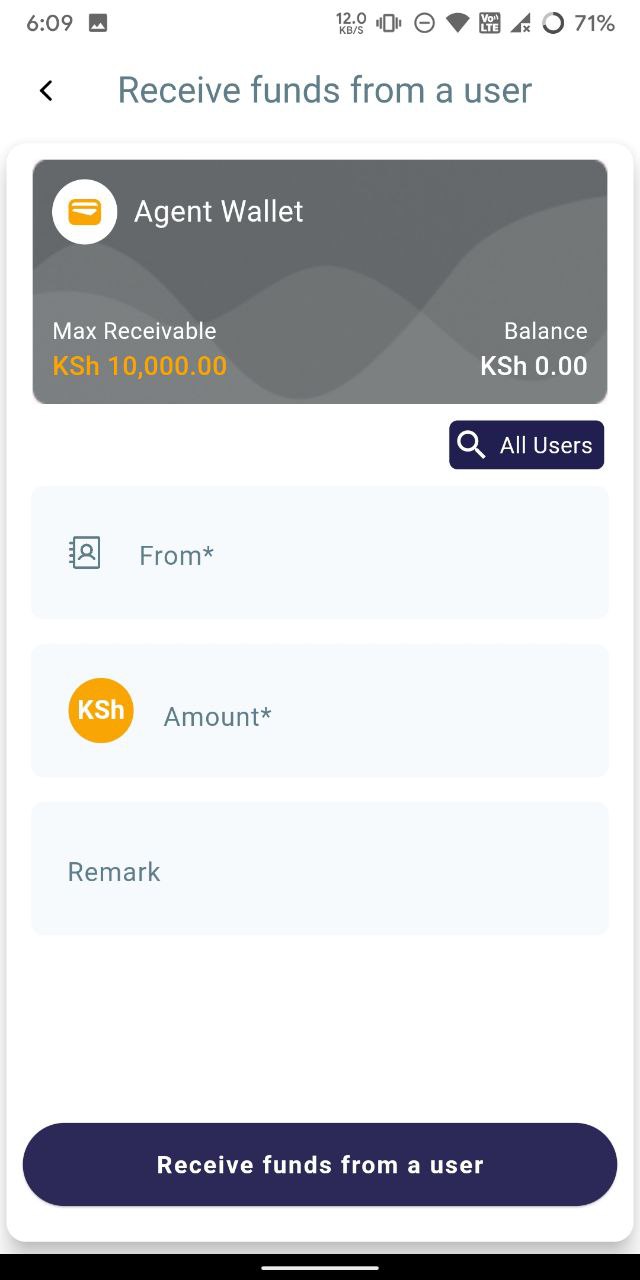
- Search for the user either from your contacts list if they are added, or use the "All Users" search button if they are not already added to your contacts. Enter the amount of money they are giving you in the amount field, and optionally add a remark. Click on "Receive funds from a user" to accept the money and add it to their wallet.
![photo1714717396 (3).jpeg](https://books.xprizo.com/uploads/images/gallery/2024-05/scaled-1680-/photo1714717396-3.jpeg)

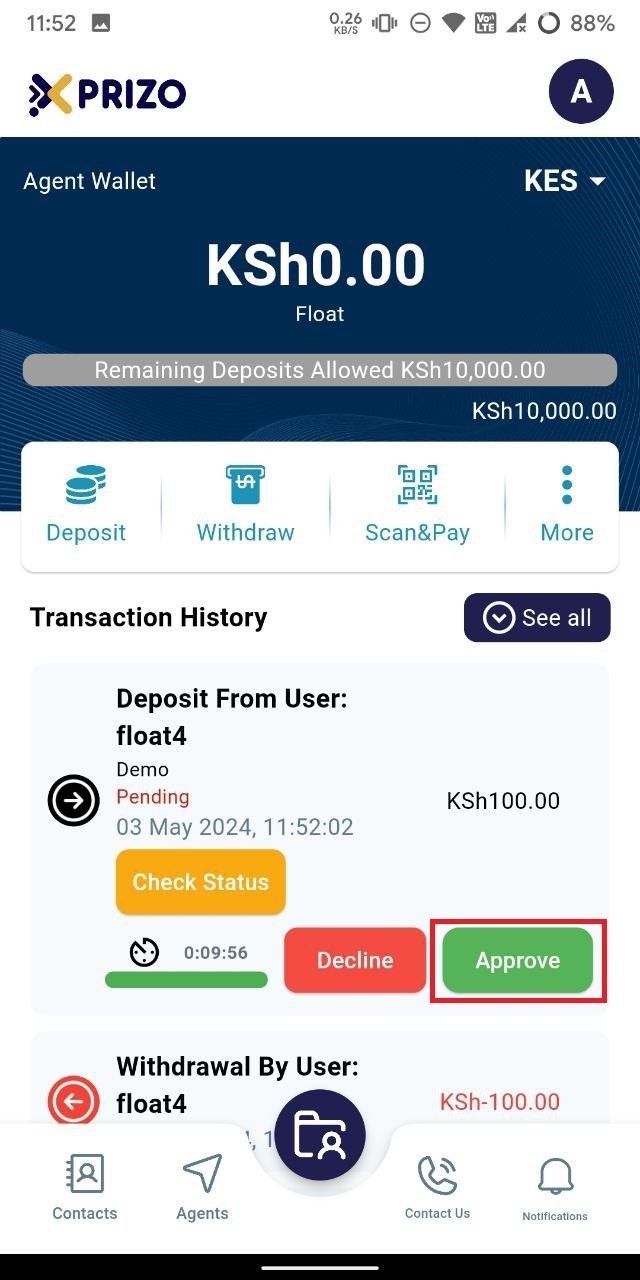
- Once redirected to the Agent wallet screen, approve the transaction by clicking on the checkmark. If you wish to discard the transaction, click on the cross icon instead.
    
    <div class="w-full text-token-text-primary" data-scroll-anchor="false" data-testid="conversation-turn-1004" dir="auto"><div class="py-2 px-3 text-base md:px-4 m-auto md:px-5 lg:px-1 xl:px-5"><div class="mx-auto flex flex-1 gap-3 text-base juice:gap-4 juice:md:gap-6 md:max-w-3xl lg:max-w-[40rem] xl:max-w-[48rem]"><div class="flex-shrink-0 flex flex-col relative items-end"><div><div class="pt-0.5"><div class="gizmo-shadow-stroke flex h-6 w-6 items-center justify-center overflow-hidden rounded-full">  
    </div></div></div></div></div></div></div>

![photo1714717396 (5).jpeg](https://books.xprizo.com/uploads/images/gallery/2024-05/scaled-1680-/photo1714717396-5.jpeg)

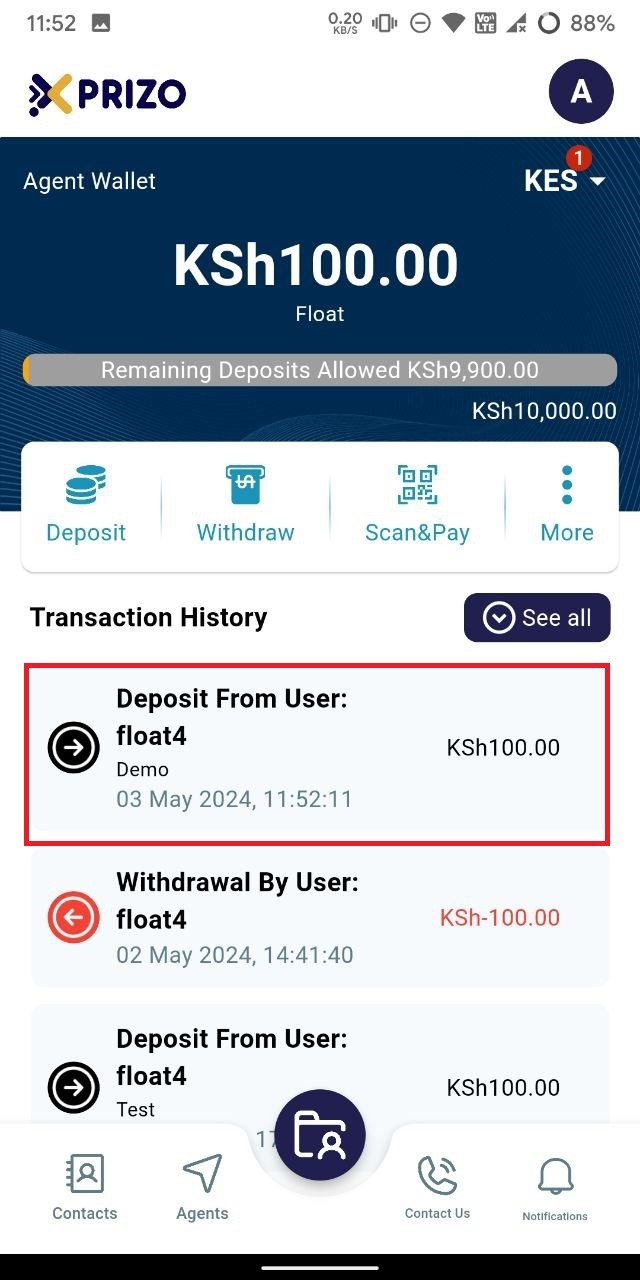
- Upon approval, the funds received will be added to your wallet, while the same amount will be credited to the user's wallet from whom the agent received the money.
    
    <div class="w-full md:pt-0 dark:border-white/20 md:border-transparent md:dark:border-transparent md:w-[calc(100%-.5rem)] juice:w-full"><div class="px-3 text-base md:px-4 m-auto md:px-5 lg:px-1 xl:px-5"><div class="mx-auto flex flex-1 gap-3 text-base juice:gap-4 juice:md:gap-6 md:max-w-3xl lg:max-w-[40rem] xl:max-w-[48rem]"><form class="w-full"></form>  
    </div></div></div>

![photo1714717396 (6).jpeg](https://books.xprizo.com/uploads/images/gallery/2024-05/scaled-1680-/photo1714717396-6.jpeg)