# How to use Float in Agent Wallet?

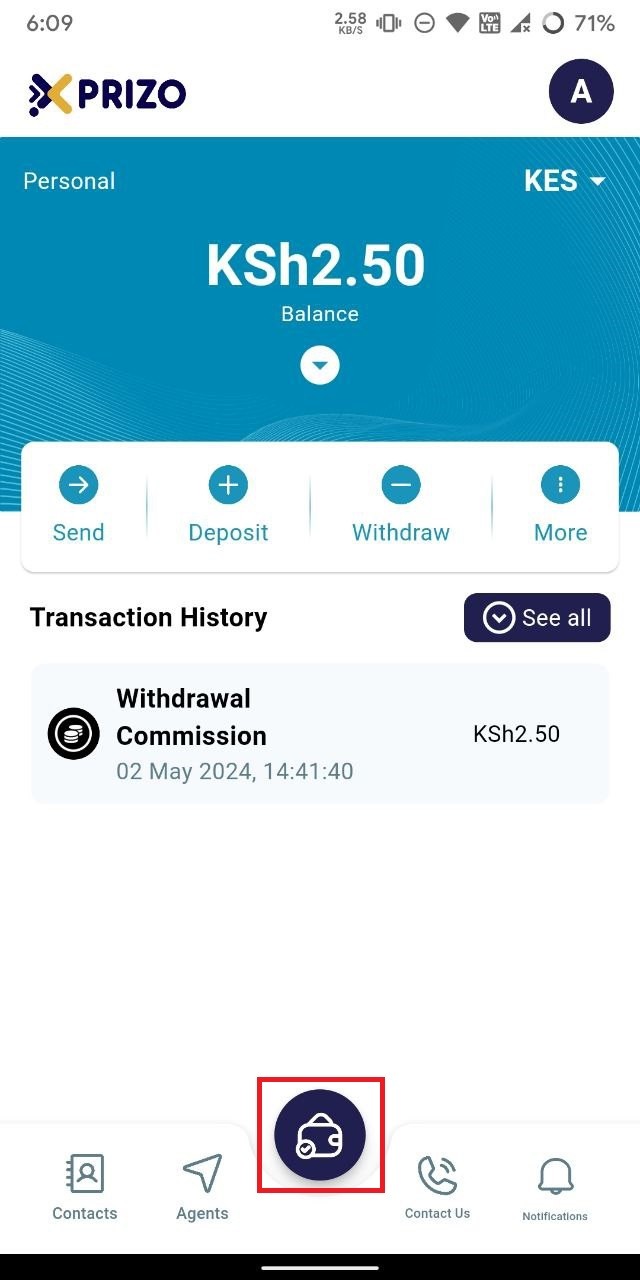
- Sign in to the app using your credentials, then tap on the wallet icon at the bottom to switch between different wallet types.
    
    <div class="w-full text-token-text-primary" data-scroll-anchor="false" data-testid="conversation-turn-1020" dir="auto"><div class="py-2 px-3 text-base md:px-4 m-auto md:px-5 lg:px-1 xl:px-5"><div class="mx-auto flex flex-1 gap-3 text-base juice:gap-4 juice:md:gap-6 md:max-w-3xl lg:max-w-[40rem] xl:max-w-[48rem]"></div></div></div>

![photo1714717396.jpeg](https://books.xprizo.com/uploads/images/gallery/2024-05/scaled-1680-/TQTphoto1714717396.jpeg)

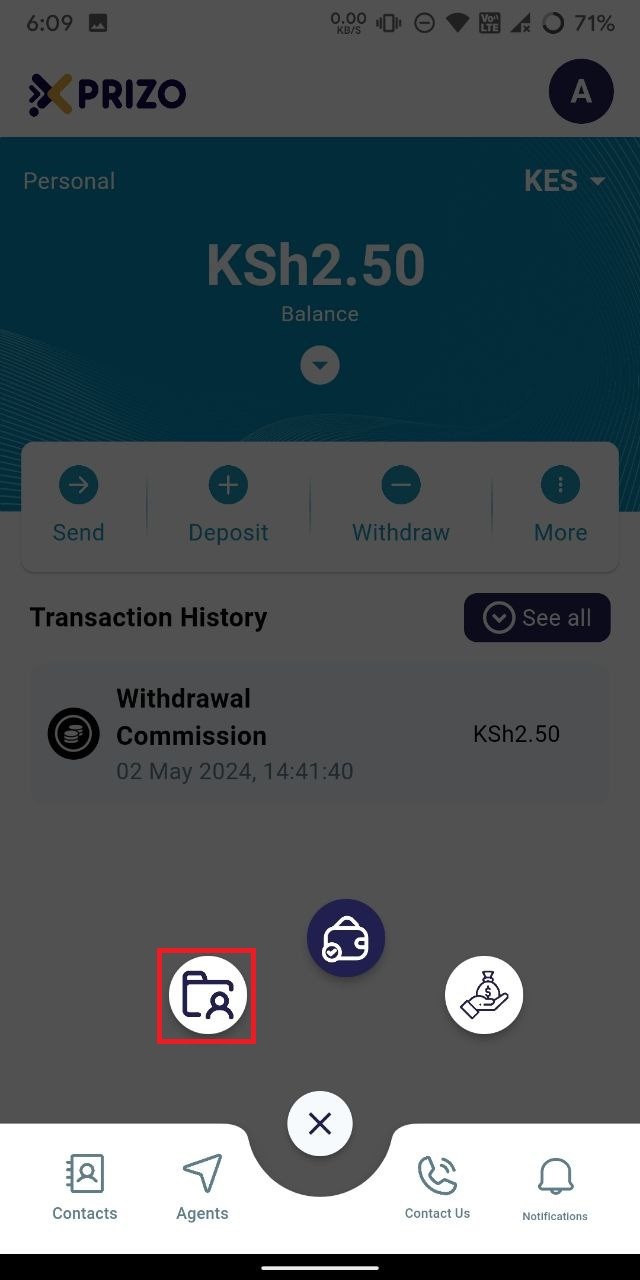
- Tap on the "Agent Wallet" button located on the left to switch from your current savings wallet to the agent wallet.
    
    <div class="w-full text-token-text-primary" data-scroll-anchor="false" data-testid="conversation-turn-1024" dir="auto"><div class="py-2 px-3 text-base md:px-4 m-auto md:px-5 lg:px-1 xl:px-5"><div class="mx-auto flex flex-1 gap-3 text-base juice:gap-4 juice:md:gap-6 md:max-w-3xl lg:max-w-[40rem] xl:max-w-[48rem]"></div></div></div>

![photo1714717396 (1).jpeg](https://books.xprizo.com/uploads/images/gallery/2024-05/scaled-1680-/photo1714717396-1.jpeg)

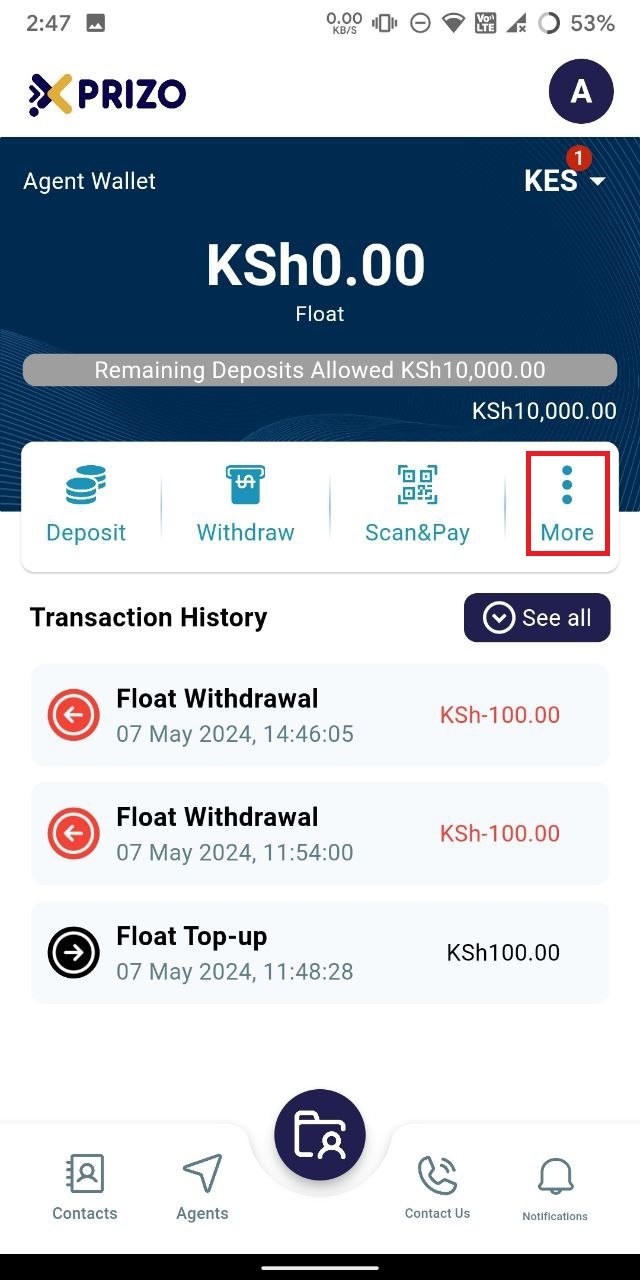
- Tap on the ellipsis icon to explore additional features of the app.
    
    <div class="w-full text-token-text-primary" data-scroll-anchor="false" data-testid="conversation-turn-1022" dir="auto"><div class="py-2 px-3 text-base md:px-4 m-auto md:px-5 lg:px-1 xl:px-5"><div class="mx-auto flex flex-1 gap-3 text-base juice:gap-4 juice:md:gap-6 md:max-w-3xl lg:max-w-[40rem] xl:max-w-[48rem]"></div></div></div>

![photo1715159912 (1).jpeg](https://books.xprizo.com/uploads/images/gallery/2024-05/scaled-1680-/photo1715159912-1.jpeg)

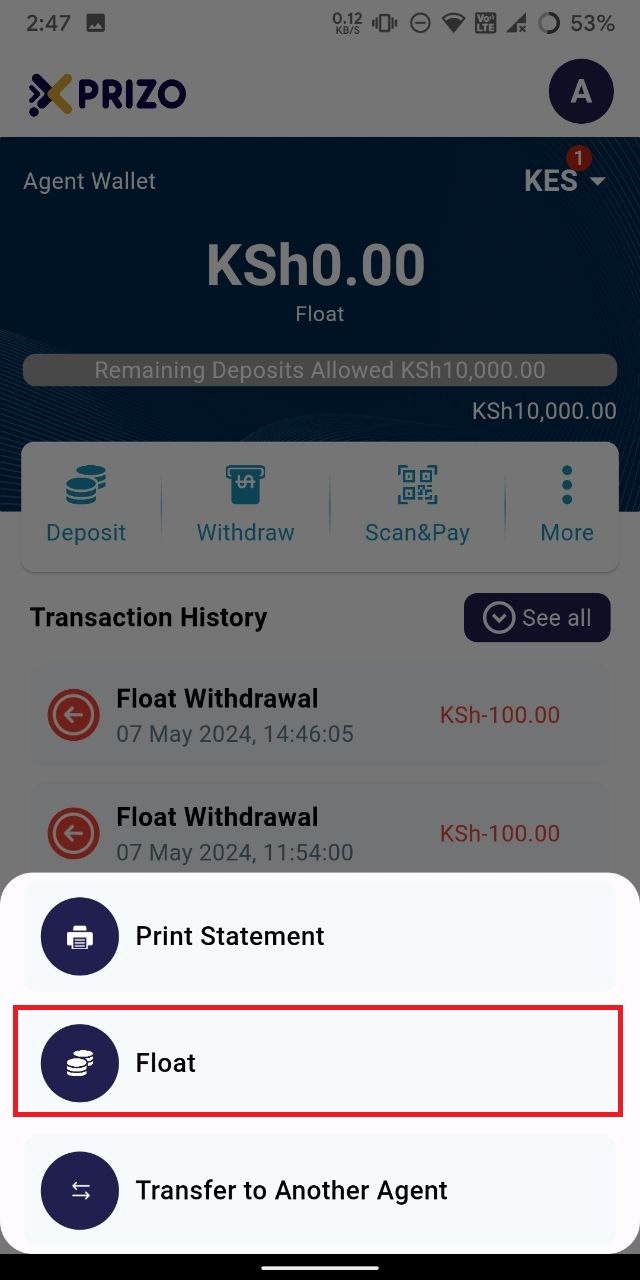
- Tap on "Float" to top up your agent wallet with the physical money you have on hand.
    
    <div class="w-full text-token-text-primary" data-scroll-anchor="false" data-testid="conversation-turn-1026" dir="auto"><div class="py-2 px-3 text-base md:px-4 m-auto md:px-5 lg:px-1 xl:px-5"><div class="mx-auto flex flex-1 gap-3 text-base juice:gap-4 juice:md:gap-6 md:max-w-3xl lg:max-w-[40rem] xl:max-w-[48rem]"></div></div></div>

![photo1715159912.jpeg](https://books.xprizo.com/uploads/images/gallery/2024-05/scaled-1680-/photo1715159912.jpeg)

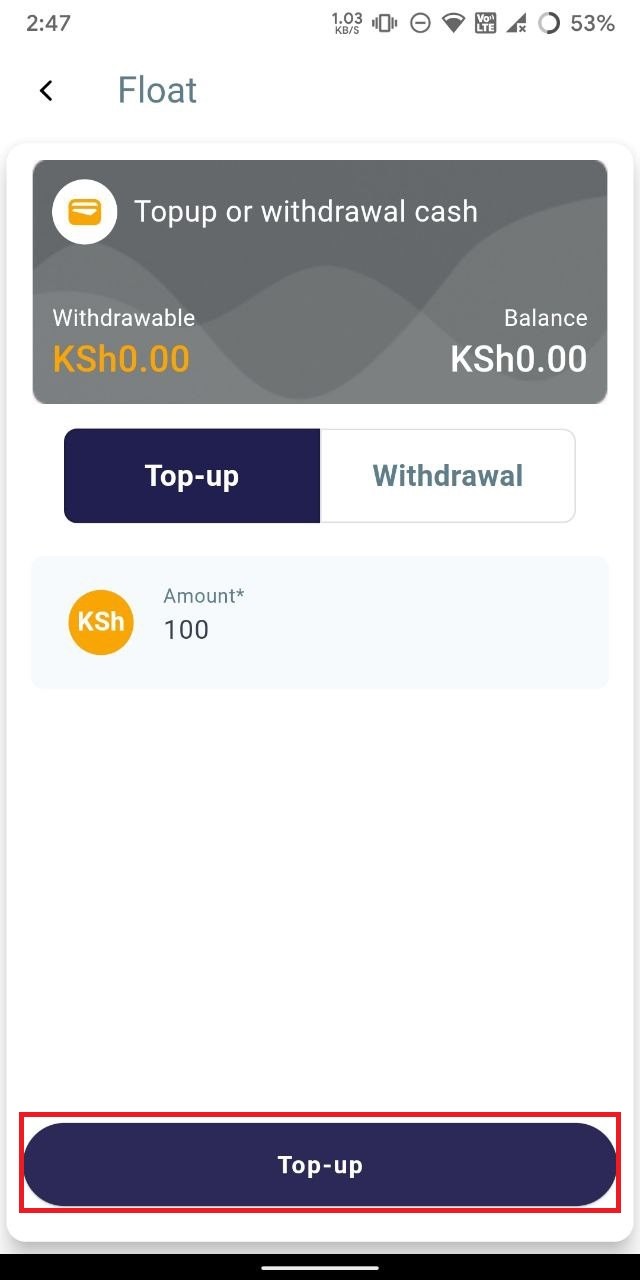
- To add funds to the agent wallet, input the desired amount in the designated field and tap on the "Top Up" button.
    
    <div class="w-full text-token-text-primary" data-scroll-anchor="false" data-testid="conversation-turn-1028" dir="auto"><div class="py-2 px-3 text-base md:px-4 m-auto md:px-5 lg:px-1 xl:px-5"><div class="mx-auto flex flex-1 gap-3 text-base juice:gap-4 juice:md:gap-6 md:max-w-3xl lg:max-w-[40rem] xl:max-w-[48rem]"></div></div></div>

![photo1715159912 (2).jpeg](https://books.xprizo.com/uploads/images/gallery/2024-05/scaled-1680-/GGzphoto1715159912-2.jpeg)

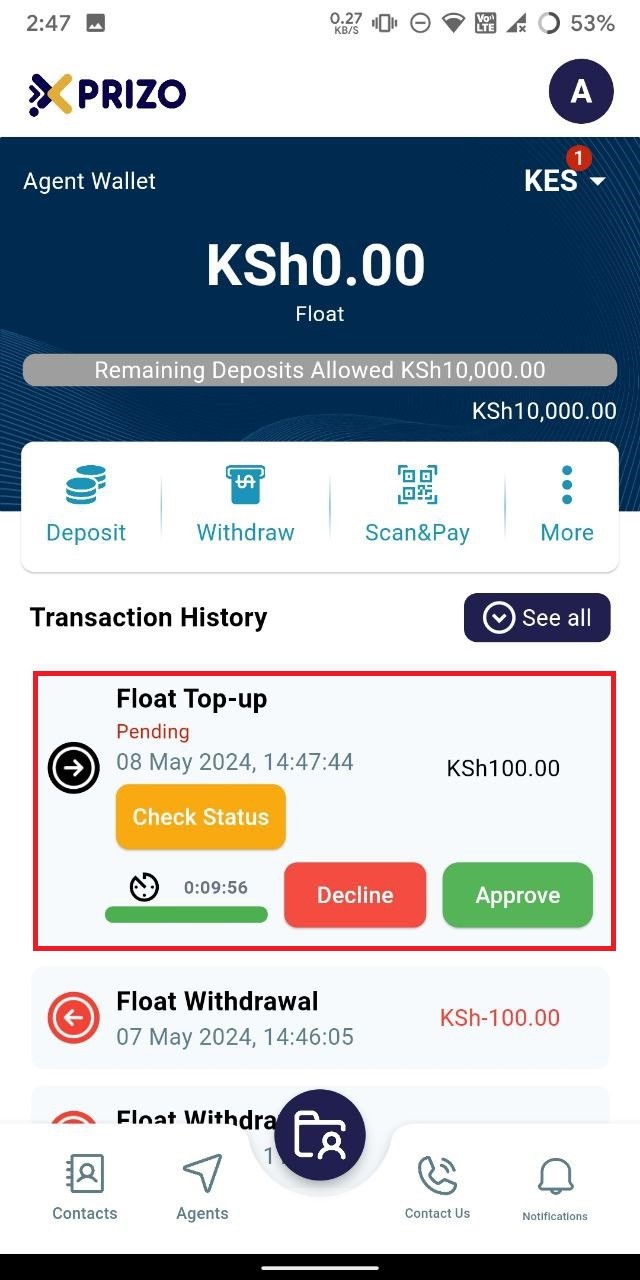
- After initiating the top-up, you'll be directed to your agent wallet screen. There, you'll find the float top-up transaction listed in the recent transactions history. You can approve the transaction to add the physical money to your agent wallet or decline to cancel the process.
    
    <div class="w-full text-token-text-primary" data-scroll-anchor="false" data-testid="conversation-turn-1030" dir="auto"><div class="py-2 px-3 text-base md:px-4 m-auto md:px-5 lg:px-1 xl:px-5"><div class="mx-auto flex flex-1 gap-3 text-base juice:gap-4 juice:md:gap-6 md:max-w-3xl lg:max-w-[40rem] xl:max-w-[48rem]"></div></div></div>

![photo1715159912 (3).jpeg](https://books.xprizo.com/uploads/images/gallery/2024-05/scaled-1680-/ahyphoto1715159912-3.jpeg)

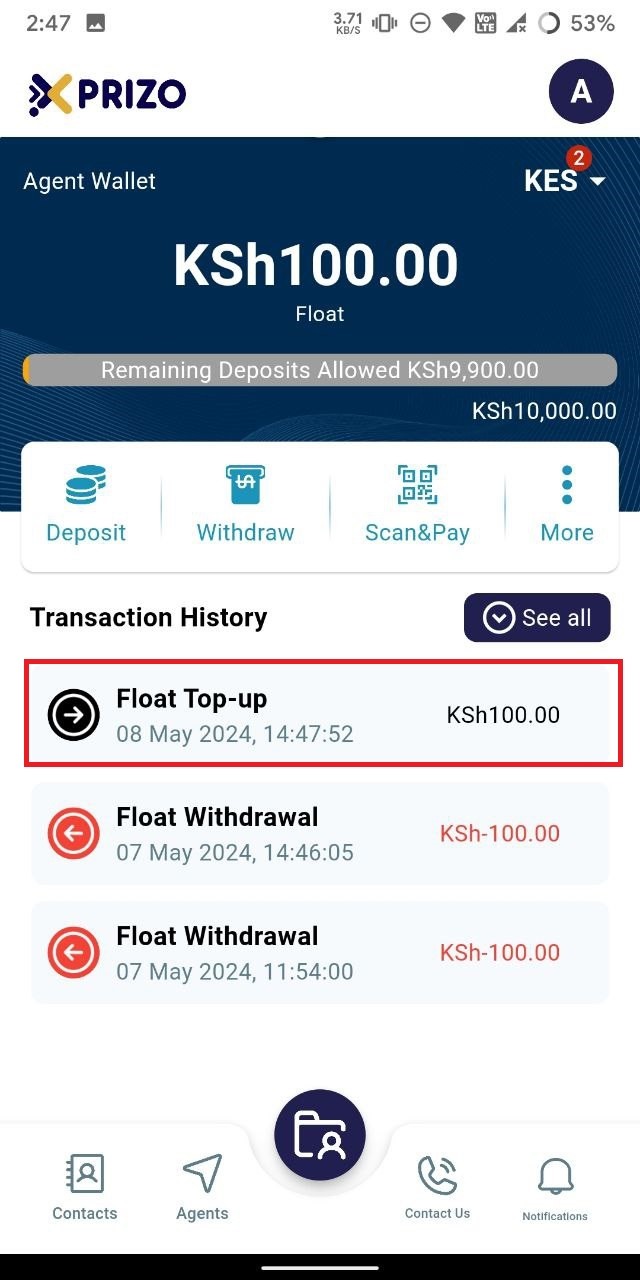
- Upon approval, the agent wallet will be successfully topped up with the approved amount from the transaction.
    
    <div class="w-full text-token-text-primary" data-scroll-anchor="false" data-testid="conversation-turn-1032" dir="auto"><div class="py-2 px-3 text-base md:px-4 m-auto md:px-5 lg:px-1 xl:px-5"><div class="mx-auto flex flex-1 gap-3 text-base juice:gap-4 juice:md:gap-6 md:max-w-3xl lg:max-w-[40rem] xl:max-w-[48rem]"></div></div></div>

![photo1715159912 (4).jpeg](https://books.xprizo.com/uploads/images/gallery/2024-05/scaled-1680-/photo1715159912-4.jpeg)

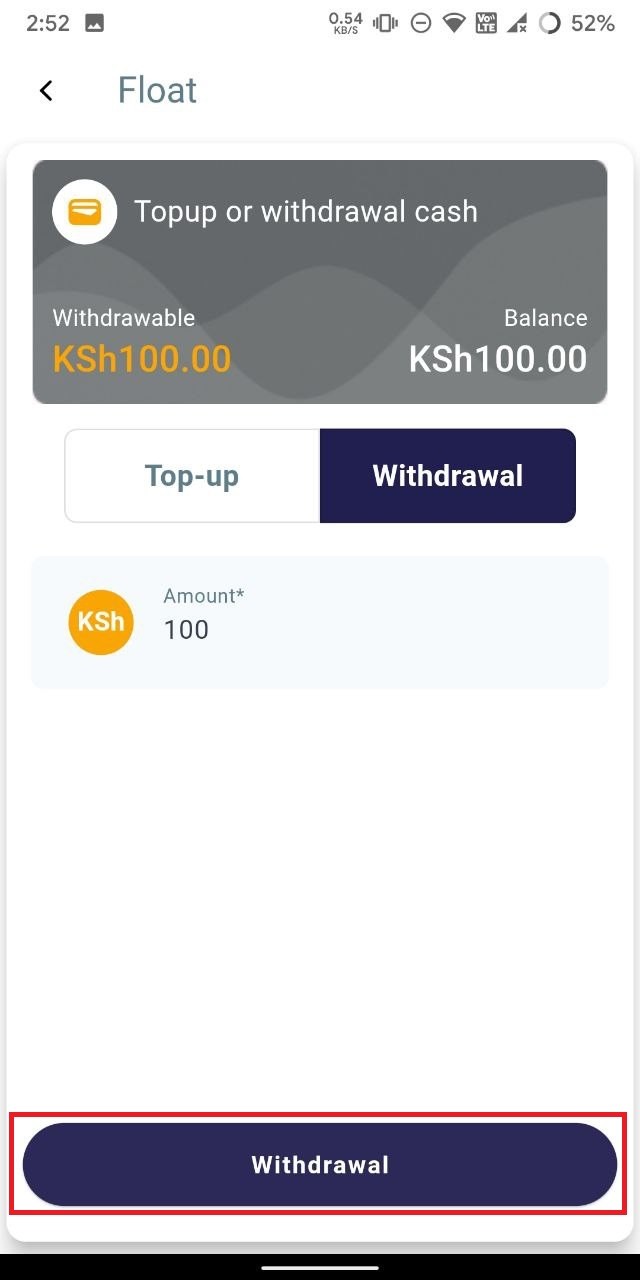
- To initiate a withdrawal, tap on the "More" ellipsis button, select "Float," and then click on the "Withdrawal" tab to navigate to the withdrawal section.
    
    <div class="w-full text-token-text-primary" data-scroll-anchor="false" data-testid="conversation-turn-1048" dir="auto"><div class="py-2 px-3 text-base md:px-4 m-auto md:px-5 lg:px-1 xl:px-5"><div class="mx-auto flex flex-1 gap-3 text-base juice:gap-4 juice:md:gap-6 md:max-w-3xl lg:max-w-[40rem] xl:max-w-[48rem]"></div></div></div><div class="w-full md:pt-0 dark:border-white/20 md:border-transparent md:dark:border-transparent md:w-[calc(100%-.5rem)] juice:w-full"></div>

![photo1715160206 (1).jpeg](https://books.xprizo.com/uploads/images/gallery/2024-05/scaled-1680-/photo1715160206-1.jpeg)

- Next, input the desired amount into the designated field, and proceed by clicking on the "Withdrawal" button to complete the withdrawal process.

    
    <div class="w-full text-token-text-primary" data-scroll-anchor="false" data-testid="conversation-turn-1050" dir="auto"></div>

![photo1715160206 (1).jpeg](https://books.xprizo.com/uploads/images/gallery/2024-05/scaled-1680-/photo1715160206-1.jpeg)

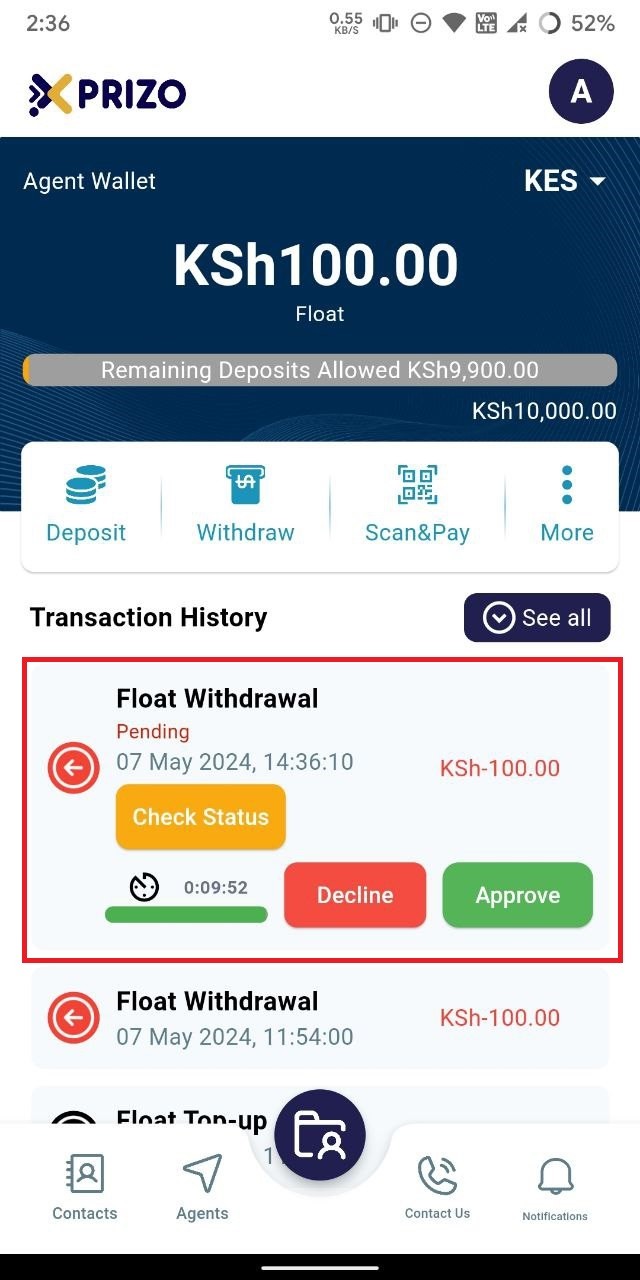
- Upon initiating the withdrawal, you'll be directed to the agent wallet screen where a pending transaction will appear in your transaction history. To proceed, click "Approve" to confirm the transaction, or click "Decline" to discard it.
    
    <div class="w-full text-token-text-primary" data-scroll-anchor="false" data-testid="conversation-turn-1052" dir="auto"></div>

![photo1715159912 (8).jpeg](https://books.xprizo.com/uploads/images/gallery/2024-05/scaled-1680-/photo1715159912-8.jpeg)

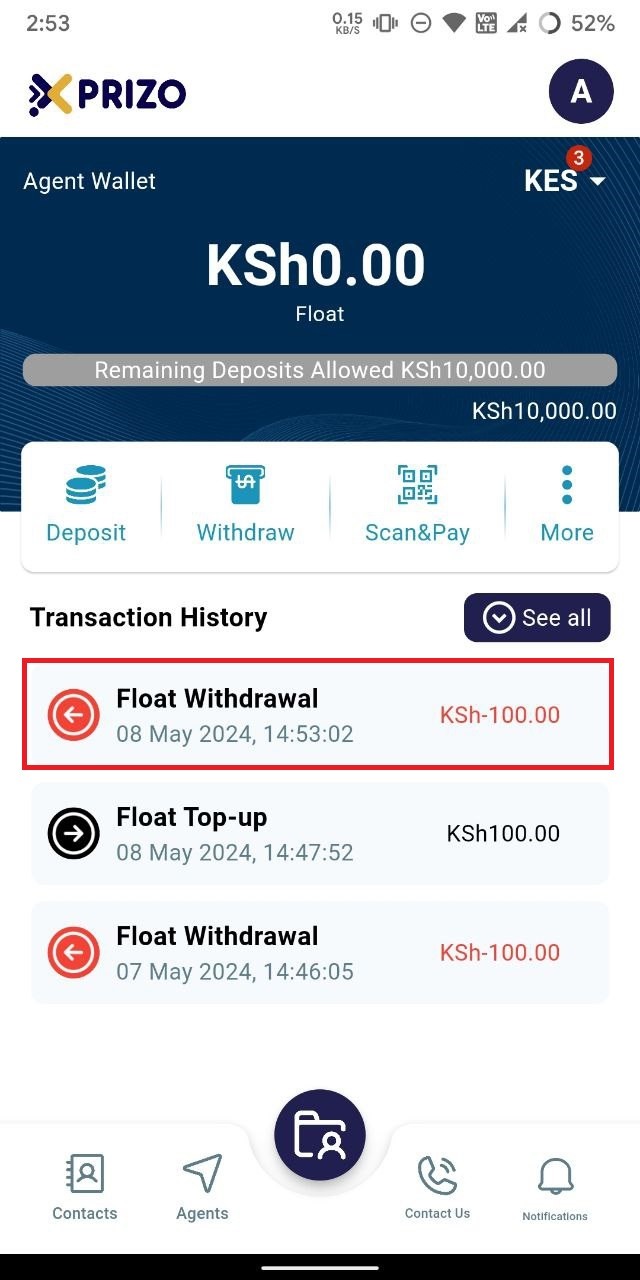
- Upon approval, the specified amount will be deducted from the agent wallet, completing the withdrawal transaction utilizing the float.
![photo1715160206 (4).jpeg](https://books.xprizo.com/uploads/images/gallery/2024-05/scaled-1680-/photo1715160206-4.jpeg)