# KYC

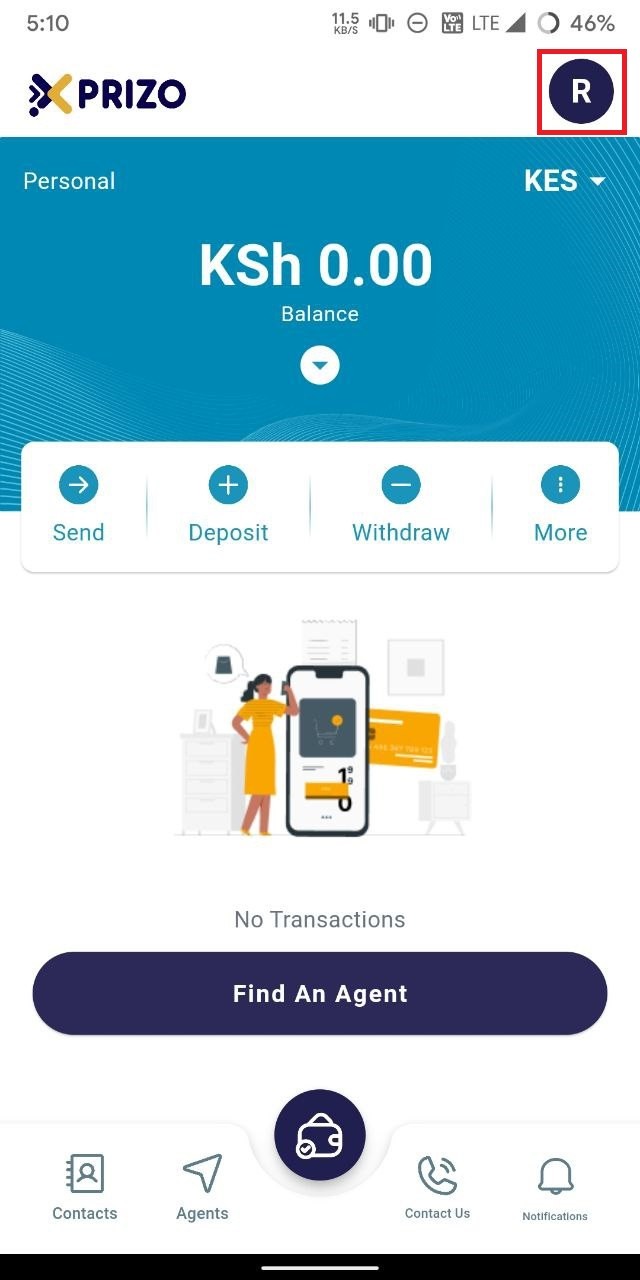
- To finalize your KYC, access the account settings by clicking on the profile picture icon located at the top right corner.
    
    <div class="w-full pt-2 md:pt-0 dark:border-white/20 md:border-transparent md:dark:border-transparent md:w-[calc(100%-.5rem)]"><form class="stretch mx-2 flex flex-row gap-3 last:mb-2 md:mx-4 md:last:mb-6 lg:mx-auto lg:max-w-2xl xl:max-w-3xl"></form>  
    </div>

![photo1710934963.jpeg](https://books.xprizo.com/uploads/images/gallery/2024-03/scaled-1680-/photo1710934963.jpeg)

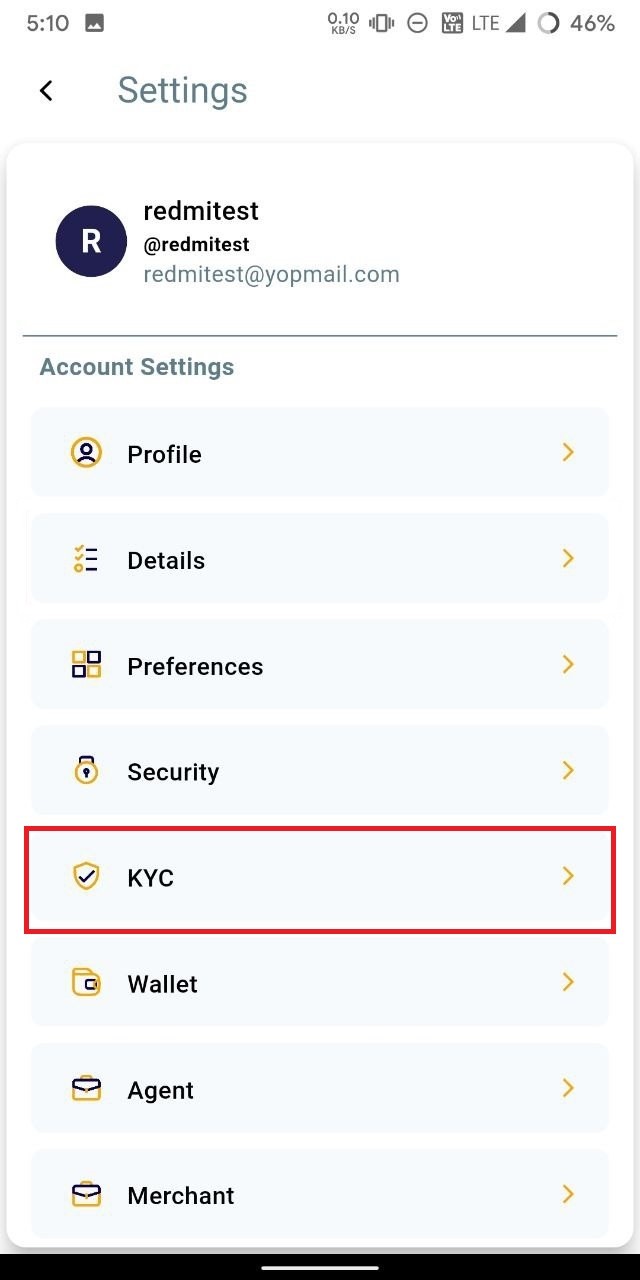
- Click on "KYC" to access the KYC section within the profile.
    
    <div class="w-full pt-2 md:pt-0 dark:border-white/20 md:border-transparent md:dark:border-transparent md:w-[calc(100%-.5rem)]"><form class="stretch mx-2 flex flex-row gap-3 last:mb-2 md:mx-4 md:last:mb-6 lg:mx-auto lg:max-w-2xl xl:max-w-3xl"></form>  
    </div>

![photo1710934963 (1).jpeg](https://books.xprizo.com/uploads/images/gallery/2024-03/scaled-1680-/dpRphoto1710934963-1.jpeg)

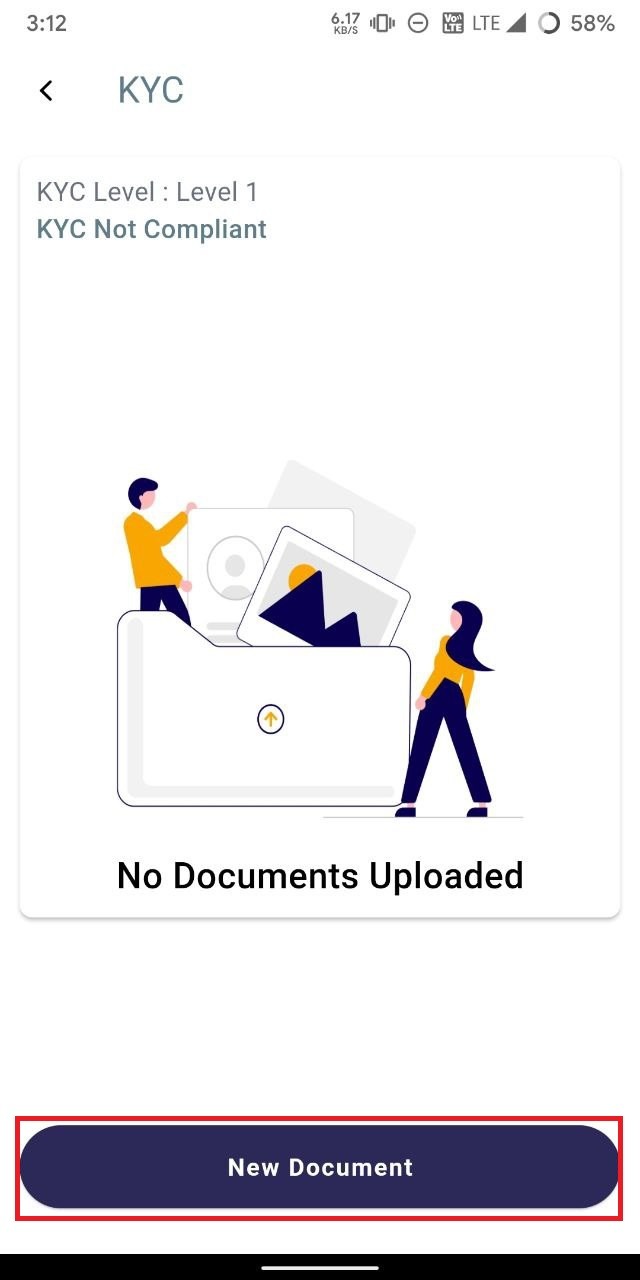
- Initiate the KYC process by clicking on "New Document" and providing the required document details along with the necessary documents.
![photo1711014623.jpeg](https://books.xprizo.com/uploads/images/gallery/2024-03/scaled-1680-/photo1711014623.jpeg)

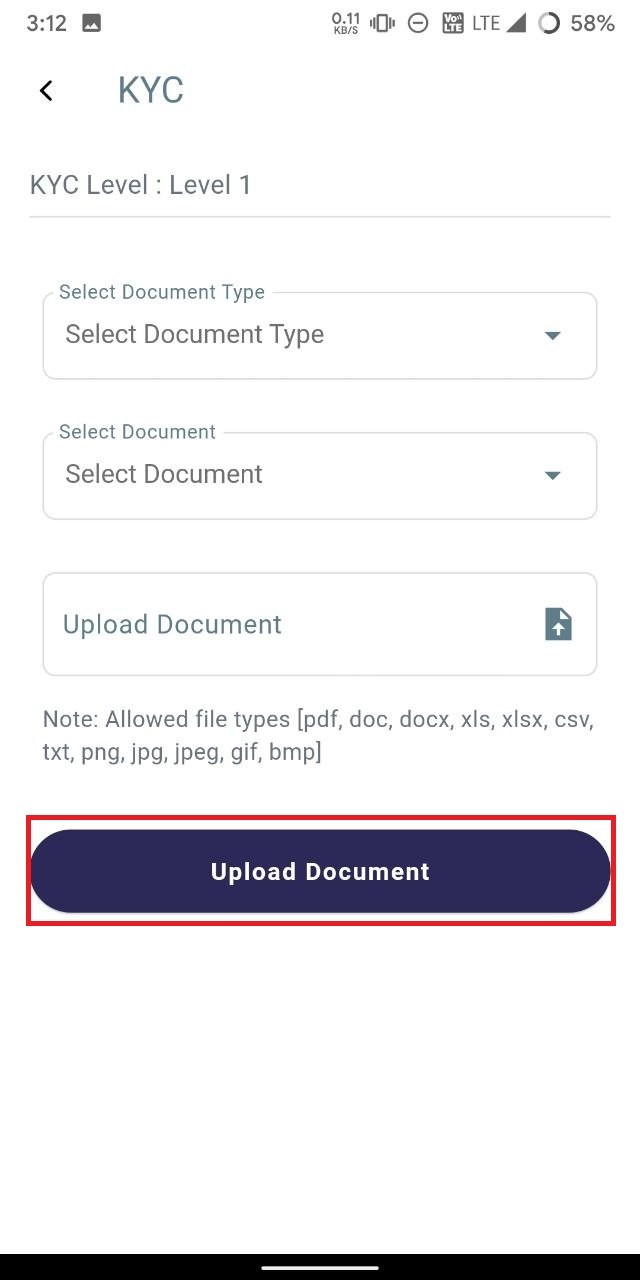
- Next, select the document type and document, then upload the corresponding document file. Once done, click on the "Upload" button to submit the document for KYC approval.
![photo1711014623 (1).jpeg](https://books.xprizo.com/uploads/images/gallery/2024-03/scaled-1680-/photo1711014623-1.jpeg)

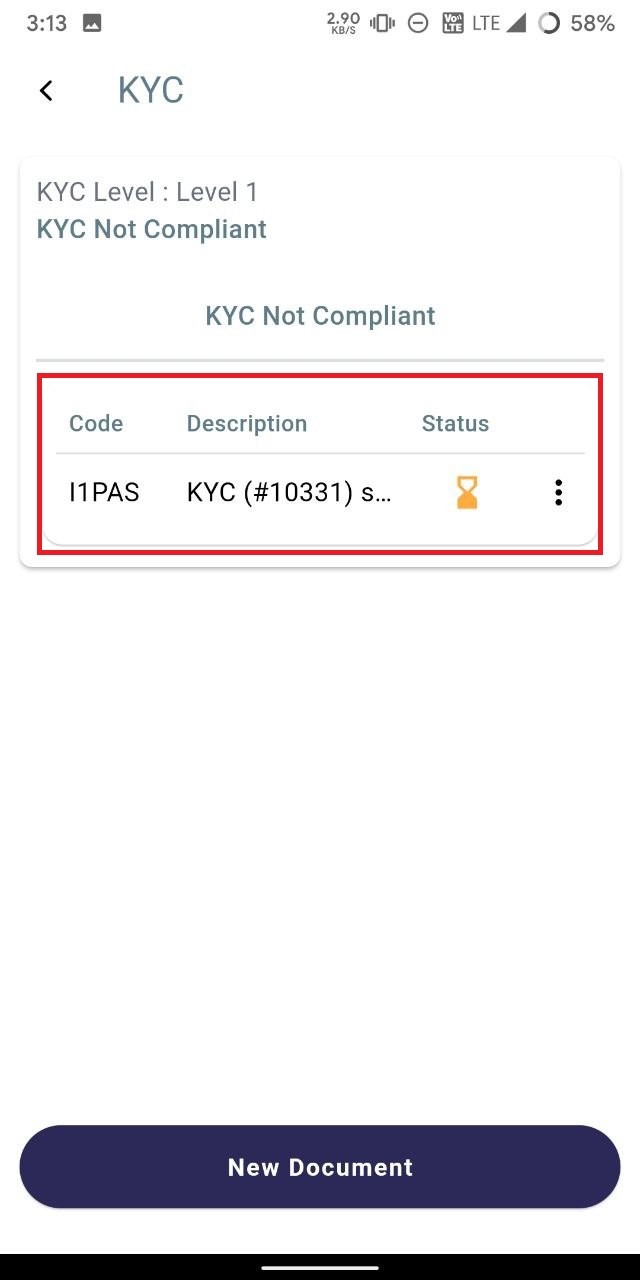
- Upon uploading the document, it will be displayed with a "Pending" status.
    
    <div class="w-full text-token-text-primary" data-testid="conversation-turn-500"><div class="px-4 py-2 justify-center text-base md:gap-6 m-auto"><div class="flex flex-1 text-base mx-auto gap-3 md:px-5 lg:px-1 xl:px-5 md:max-w-3xl lg:max-w-[40rem] xl:max-w-[48rem] group">  
    </div></div></div>

![photo1711014623 (2).jpeg](https://books.xprizo.com/uploads/images/gallery/2024-03/scaled-1680-/photo1711014623-2.jpeg)

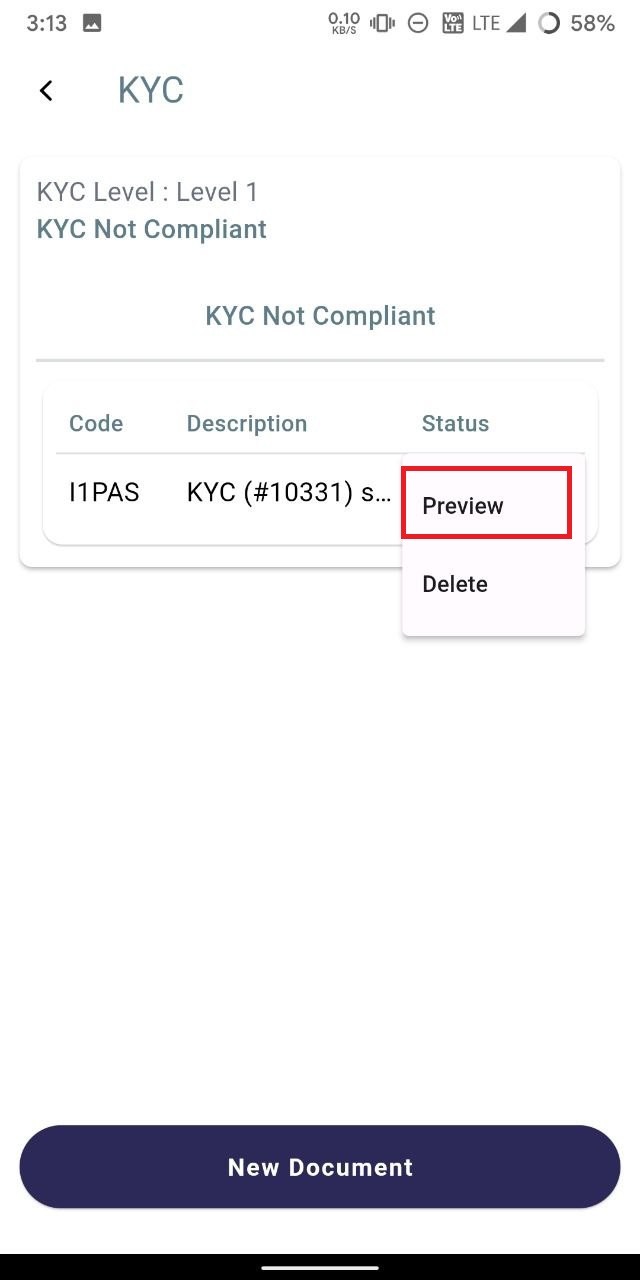
- Click on the ellipsis and select preview to preview the document uploaded.
![photo1711014623 (3).jpeg](https://books.xprizo.com/uploads/images/gallery/2024-03/scaled-1680-/photo1711014623-3.jpeg)

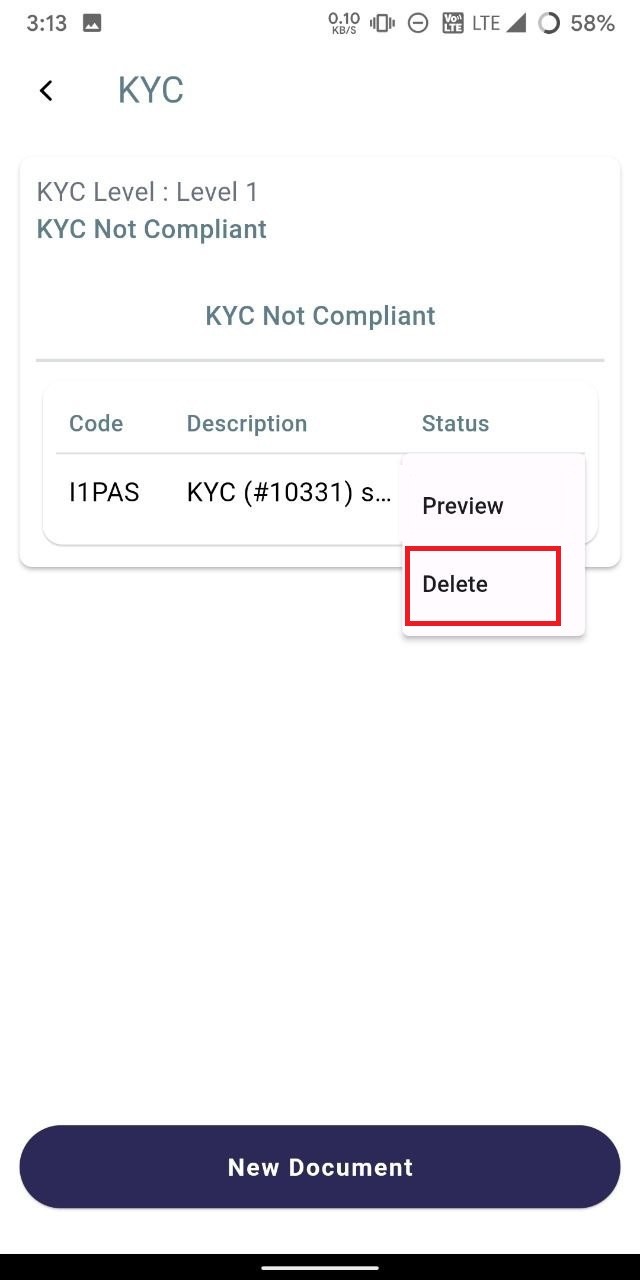
- To delete the uploaded document, click on the ellipsis icon and select "delete" to remove the document.
![photo1711014623 (3).jpeg](https://books.xprizo.com/uploads/images/gallery/2024-03/scaled-1680-/VIvphoto1711014623-3.jpeg)

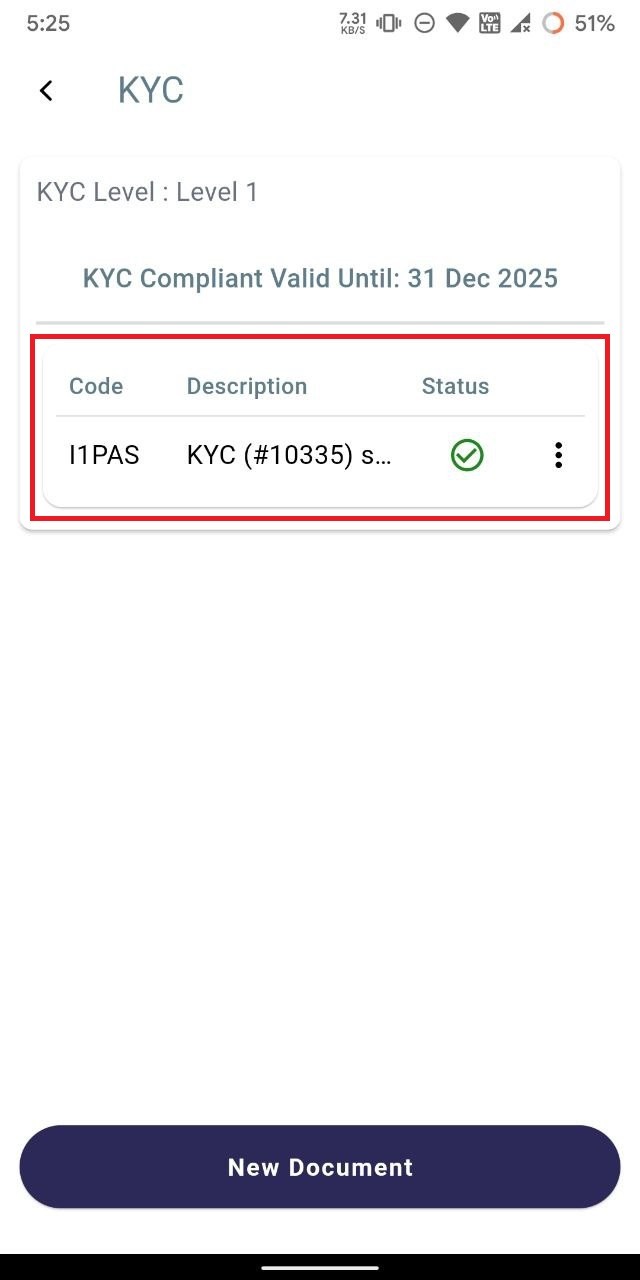
- Once the back office approves the KYC and the KYC documents, the status will change to "complete."
![photo1711022113.jpeg](https://books.xprizo.com/uploads/images/gallery/2024-03/scaled-1680-/photo1711022113.jpeg)