# User Management

The User Management chapter guides users through account setup, profile completion, and KYC processes. It covers creating an account with basic information, completing user details, and fulfilling KYC requirements by uploading necessary documents. These steps ensure users establish secure and compliant profiles, enhancing trust and security on the platform. By following the outlined procedures, users can effectively manage their accounts, comply with regulatory standards, and optimize their experience within the platform.

# How to Create a New Account?

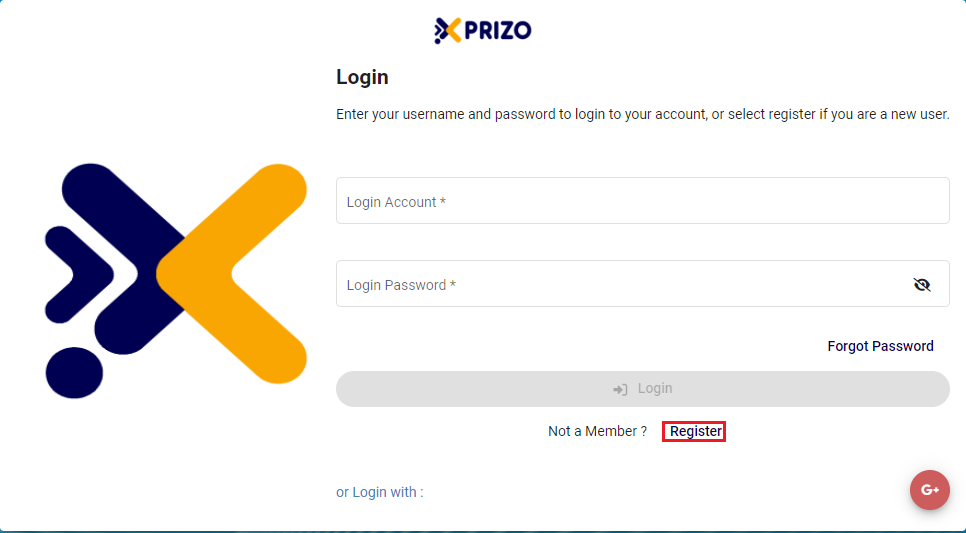
- Click on the [<span style="color: #3598db;">Register</span>](https://wallet.xprizo.com/#/register)<span style="color: #3598db;"> </span>button to sign up for XPRIZO.

**\*Note: To create an account in the Test environment click <span style="color: #3598db;">[here](https://test.xprizo.com/#/register)</span>.\***

![register.png](https://books.xprizo.com/uploads/images/gallery/2024-01/scaled-1680-/screenshot-2024-01-21-122332.png)

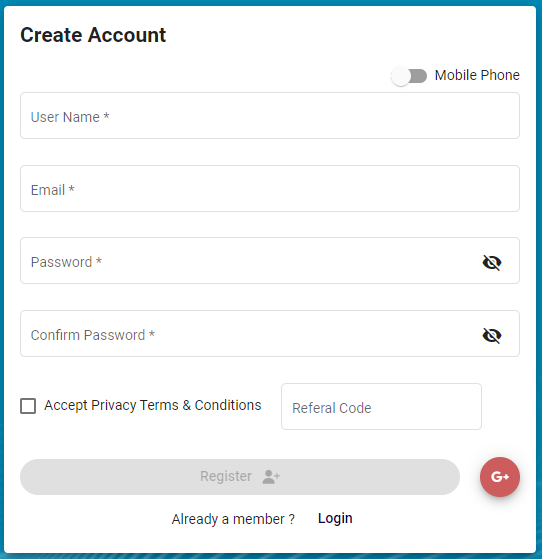
- To establish your account, complete the required information for email registration. Alternatively, for registration via mobile number, toggle the button ![toggle.png](https://books.xprizo.com/uploads/images/gallery/2024-01/scaled-1680-/screenshot-2024-01-21-123718.png) accordingly. Users may also input a referral code if referred by someone.
![Screenshot 2024-01-21 123206.png](https://books.xprizo.com/uploads/images/gallery/2024-01/scaled-1680-/screenshot-2024-01-21-123206.png)

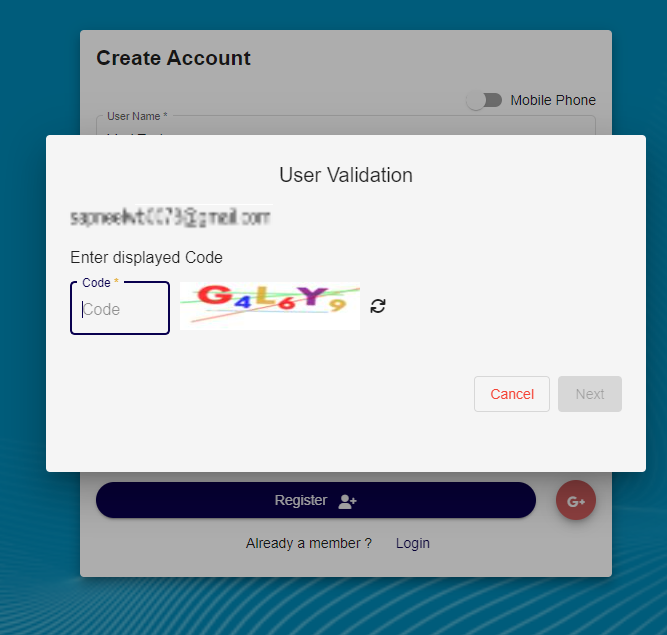
- Enter the code displayed to validate the email or mobile number.
![code.png](https://books.xprizo.com/uploads/images/gallery/2024-01/scaled-1680-/screenshot-2024-01-21-121827.png)

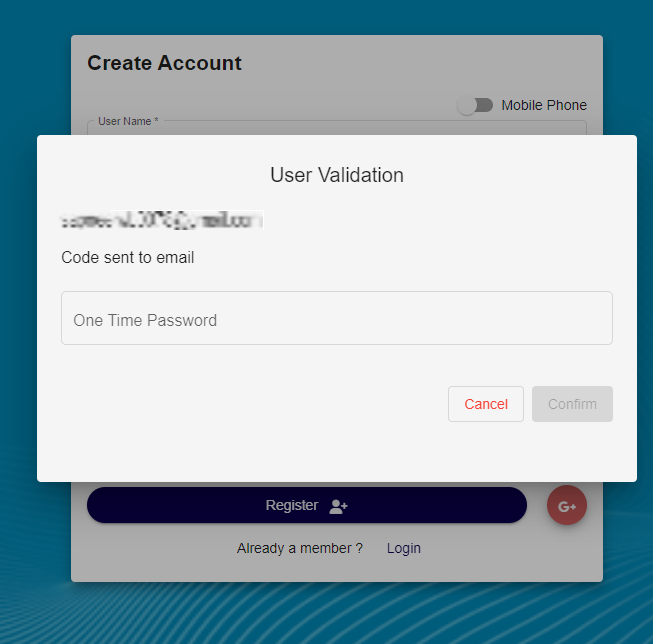
- Subsequently, input the One-Time Password sent to either your email or mobile number to finalize the validation process.
    
    <div class="mx-auto">  
    </div>

![Screenshot 2024-01-21 121846.png](https://books.xprizo.com/uploads/images/gallery/2024-01/scaled-1680-/screenshot-2024-01-21-121846.png)

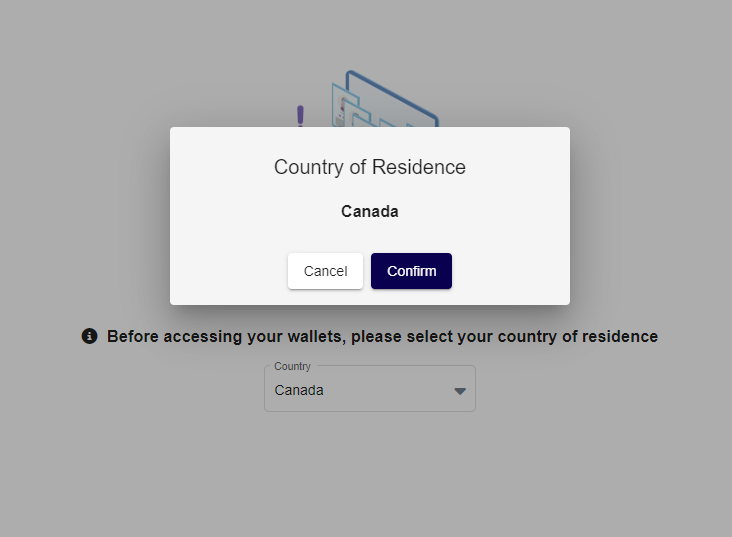
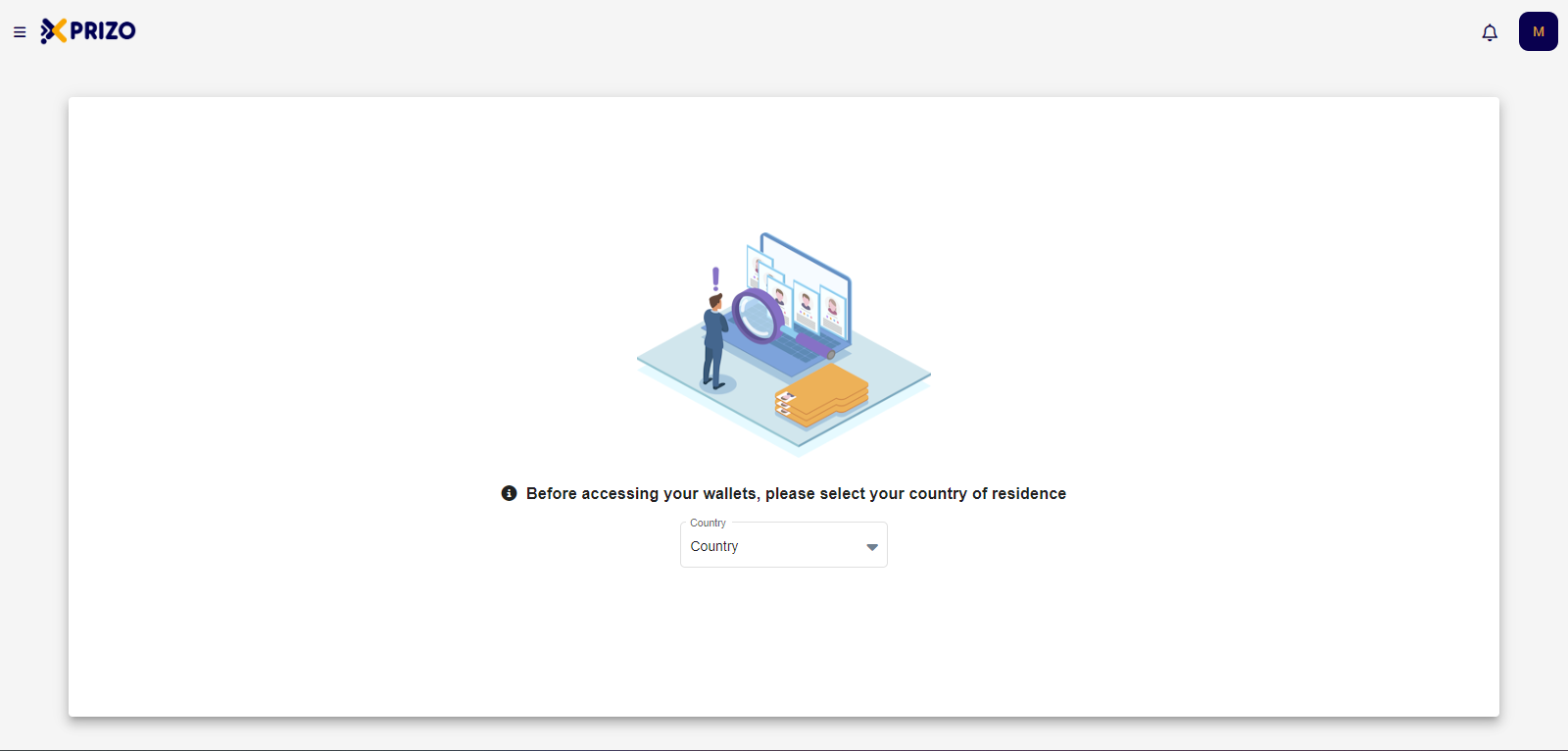
- Upon successful registration, users will be logged in and prompted to choose their country of residence before gaining access to their wallets.
    
    <div class="w-full pt-2 md:pt-0 dark:border-white/20 md:border-transparent md:dark:border-transparent md:w-[calc(100%-.5rem)]"><form class="stretch mx-2 flex flex-row gap-3 last:mb-2 md:mx-4 md:last:mb-6 lg:mx-auto lg:max-w-2xl xl:max-w-3xl"></form>  
    </div>

![Screenshot 2024-01-21 122052.png](https://books.xprizo.com/uploads/images/gallery/2024-01/scaled-1680-/screenshot-2024-01-21-122052.png)

- Choose your country from the dropdown menu, and affirm your selection by clicking the "<span style="color: #000000;">Confirm</span>" button.

<span style="text-decoration: underline; color: #000000;">![Screenshot 2024-01-21 122106.png](https://books.xprizo.com/uploads/images/gallery/2024-01/scaled-1680-/screenshot-2024-01-21-122106.png)</span>

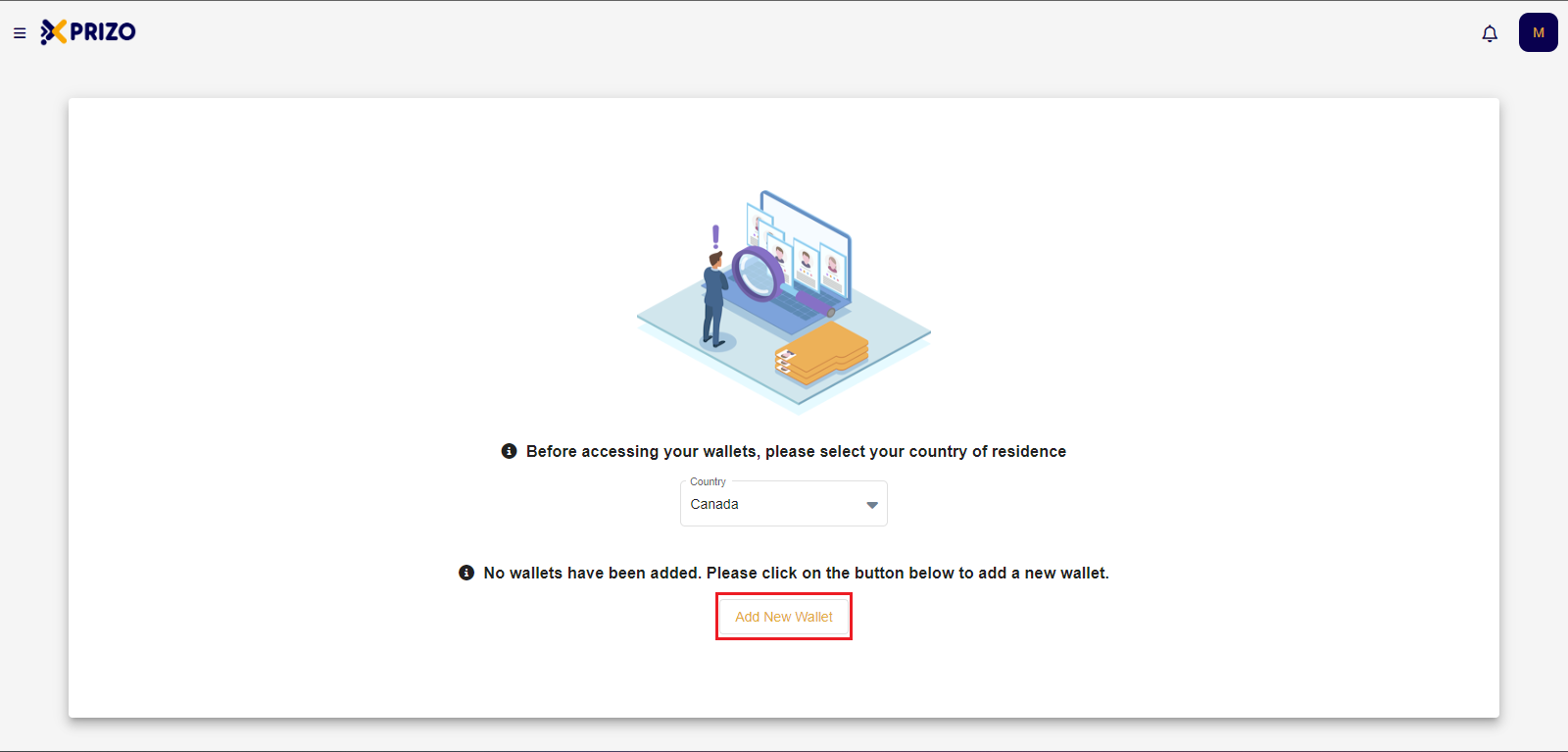
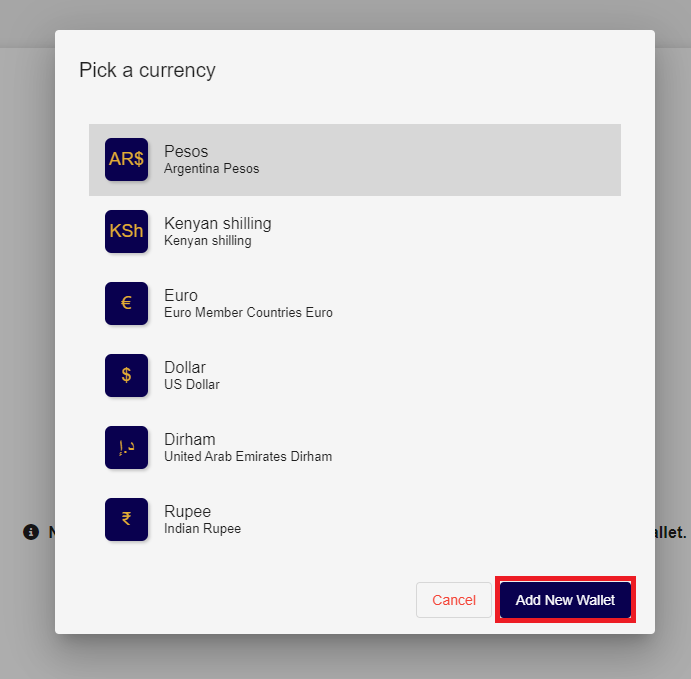
- After selecting the country, users need to add a new wallet by clicking on the "<span style="color: #000000;">Add New Wallet"</span> button.

![Screenshot 2024-01-21 122124.png](https://books.xprizo.com/uploads/images/gallery/2024-01/scaled-1680-/NKyscreenshot-2024-01-21-122124.png)

- Following that, users should choose the wallet corresponding to the desired currency and then click on "Add New Wallet" to incorporate the wallet in the selected currency.
    
    <div class="w-full pt-2 md:pt-0 dark:border-white/20 md:border-transparent md:dark:border-transparent md:w-[calc(100%-.5rem)]"><form class="stretch mx-2 flex flex-row gap-3 last:mb-2 md:mx-4 md:last:mb-6 lg:mx-auto lg:max-w-2xl xl:max-w-3xl"><div class="relative flex h-full flex-1 items-stretch md:flex-col"><div class="flex w-full items-center">  
    </div></div></form></div>

![Screenshot 2024-01-21 122148.png](https://books.xprizo.com/uploads/images/gallery/2024-01/scaled-1680-/screenshot-2024-01-21-122148.png)

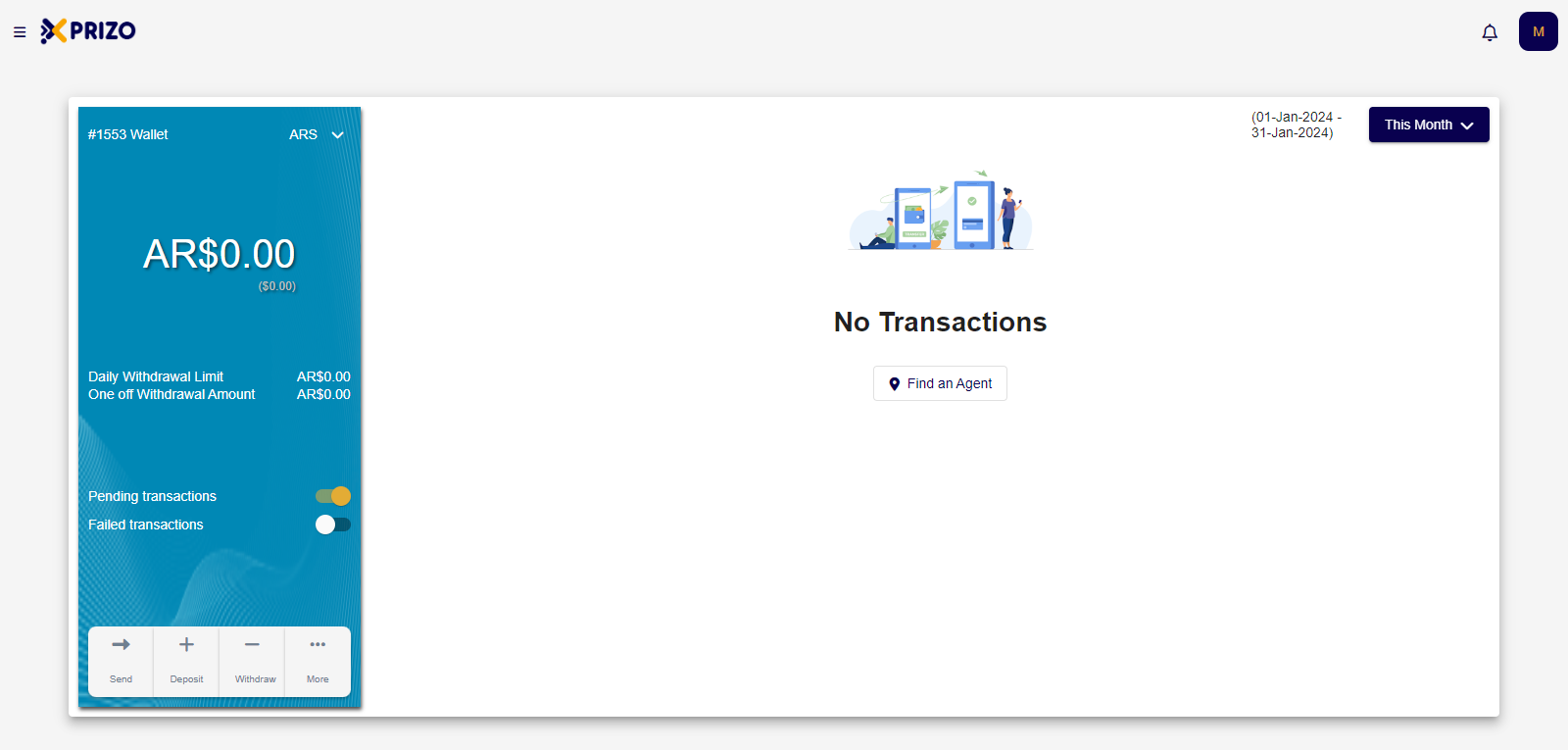
- Upon successfully adding the wallet, users will be directed to the home screen, providing them access to the wallet.
![Screenshot 2024-01-21 122159.png](https://books.xprizo.com/uploads/images/gallery/2024-01/scaled-1680-/screenshot-2024-01-21-122159.png)

# How to Fill User Details?

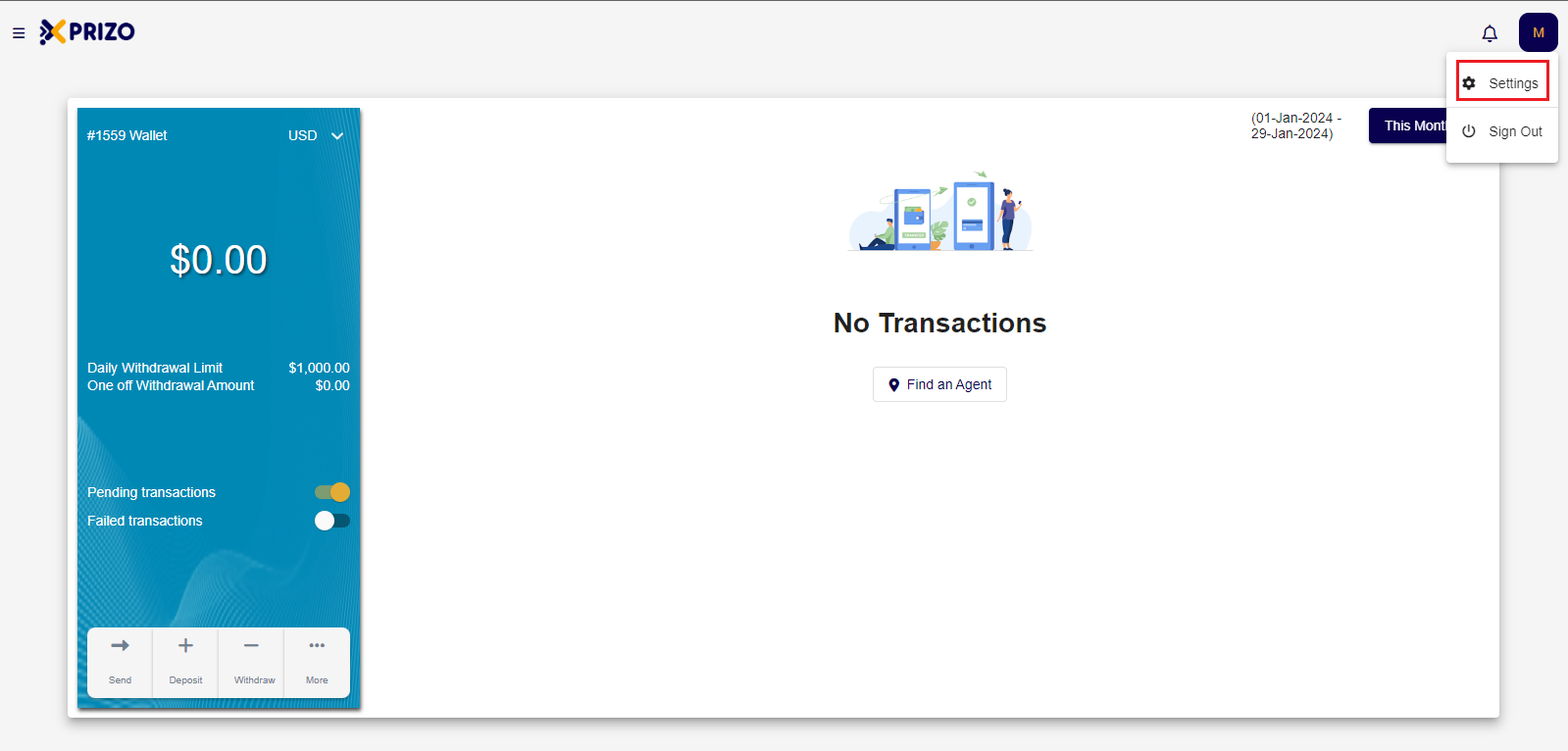
- Login to your account, and go to settings by clicking on the initial of your account in the top right corner.
![Screenshot 2024-01-29 235645.png](https://books.xprizo.com/uploads/images/gallery/2024-01/scaled-1680-/screenshot-2024-01-29-235645.png)

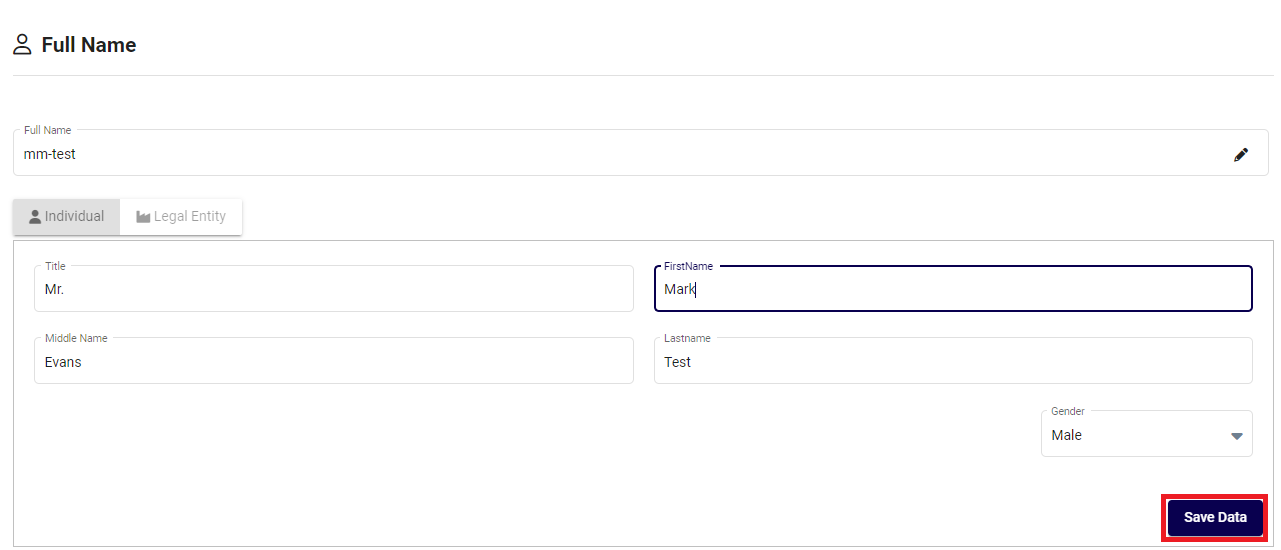
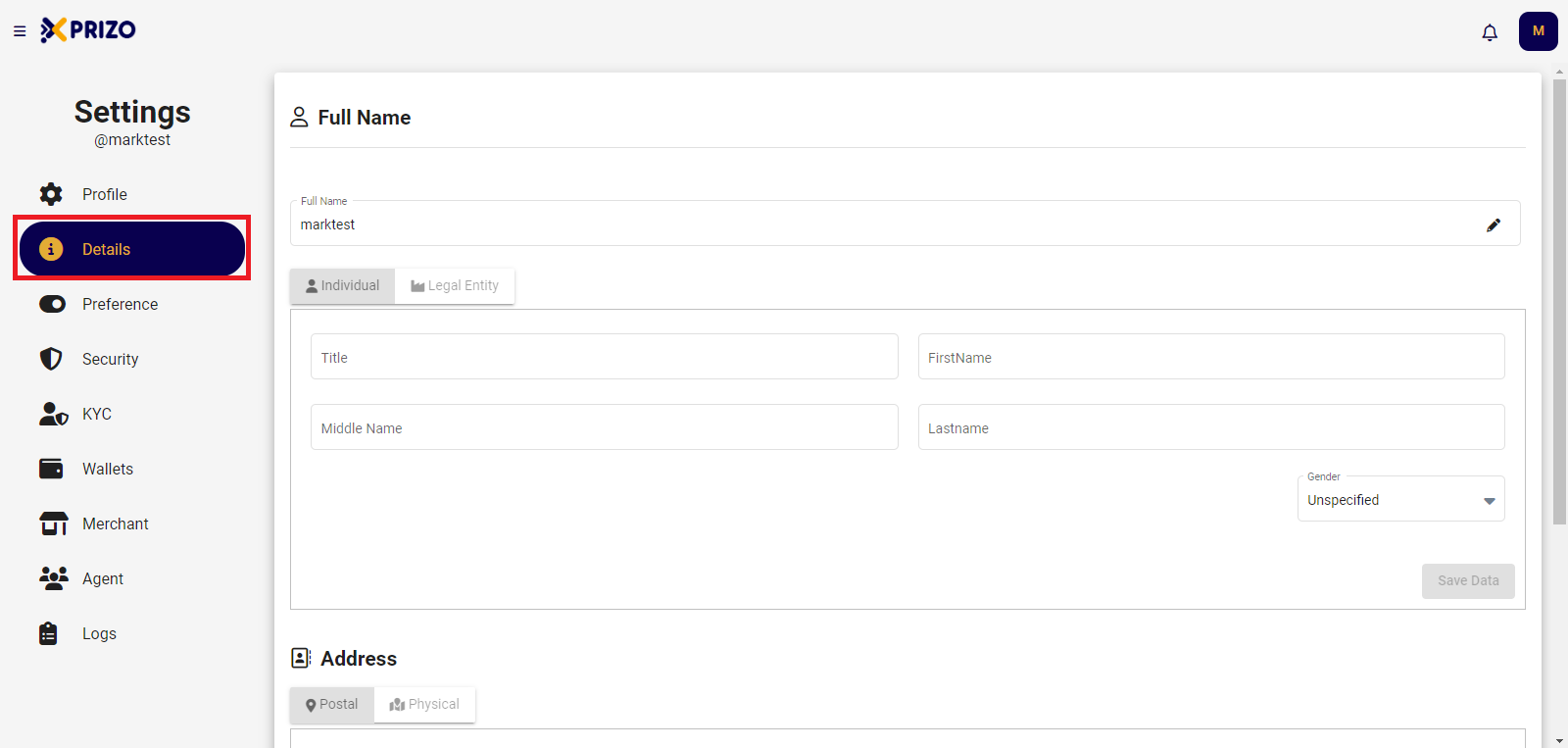
- Go to the "<span style="color: #000000;">Details</span>" tab to provide complete full name and address information.
![Screenshot 2024-01-21 134038.png](https://books.xprizo.com/uploads/images/gallery/2024-01/scaled-1680-/screenshot-2024-01-21-134038.png)

- Once you have entered information in both the Full Name and Address fields, click on "<span style="color: #000000;">Save Data</span>" to update the entered information.

![Screenshot 2024-01-21 135120.png](https://books.xprizo.com/uploads/images/gallery/2024-01/scaled-1680-/screenshot-2024-01-21-135120.png)

# How to Complete KYC?

#### **KYC**

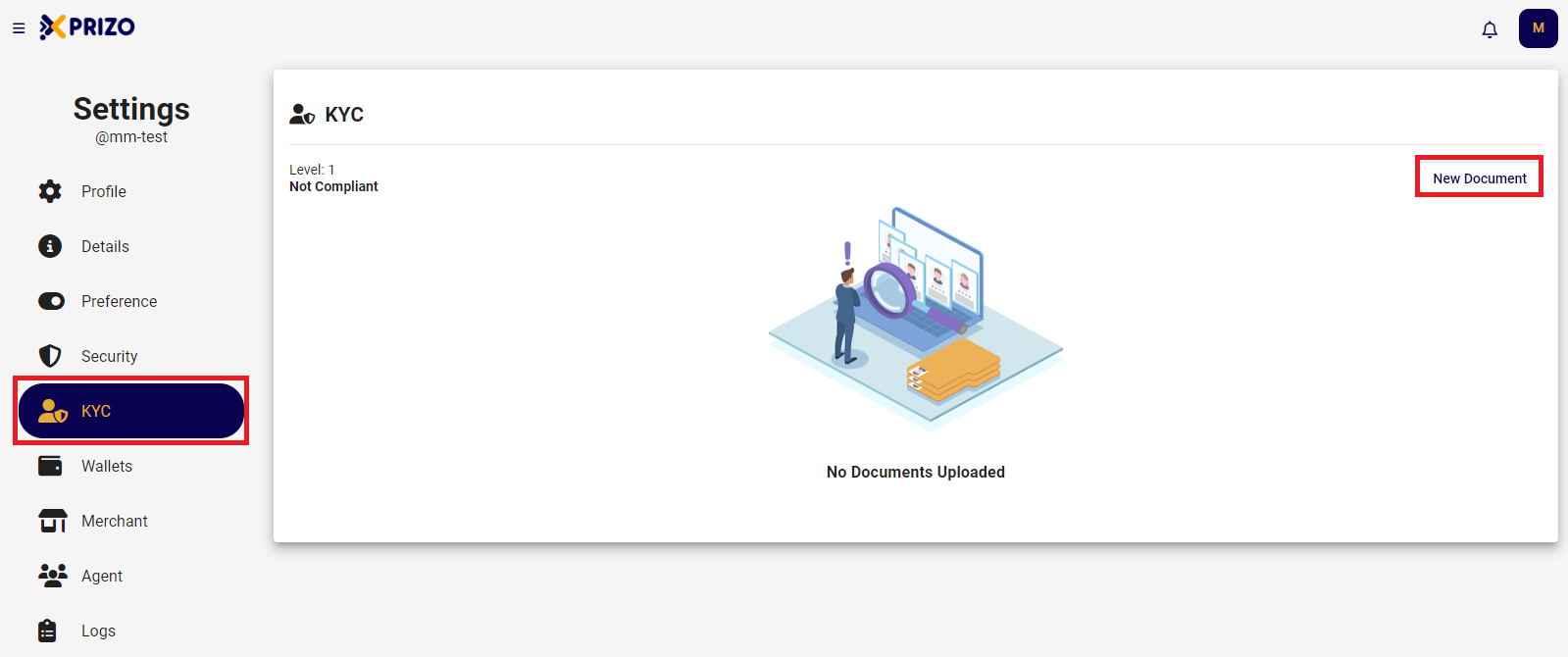
- Login to your account and access settings by clicking on your account's initial in the upper right corner.

    
    <div class="w-full pt-2 md:pt-0 dark:border-white/20 md:border-transparent md:dark:border-transparent md:w-[calc(100%-.5rem)]"><form class="stretch mx-2 flex flex-row gap-3 last:mb-2 md:mx-4 md:last:mb-6 lg:mx-auto lg:max-w-2xl xl:max-w-3xl"></form>  
    </div>

![Screenshot 2024-01-29 235645.png](https://books.xprizo.com/uploads/images/gallery/2024-01/scaled-1680-/screenshot-2024-01-29-235645.png)

- Navigate to the KYC tab in the navigation bar and click on "<span style="text-decoration: underline; color: #000000;">New Document</span>" to initiate the KYC process.

![Screenshot 2024-01-21 140127.png](https://books.xprizo.com/uploads/images/gallery/2024-01/scaled-1680-/screenshot-2024-01-21-140127.png)

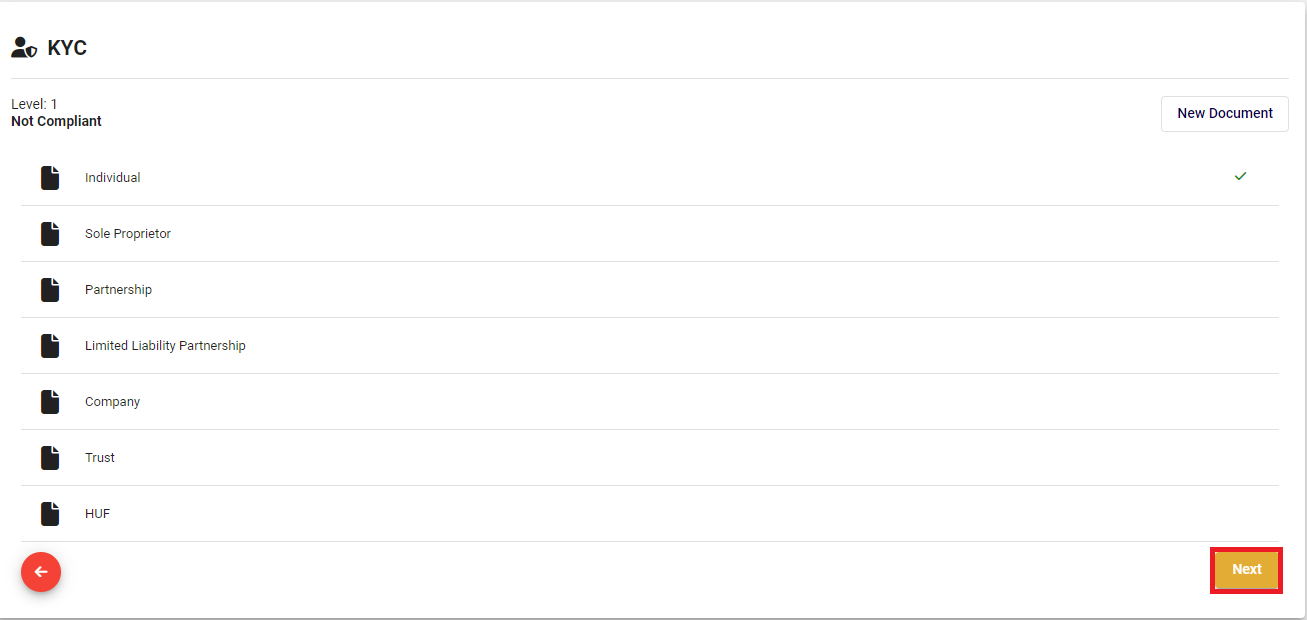
- Choose the option that best suits your needs and proceed by clicking on "<span style="color: #000000;">Next</span>."
    
    <div class="w-full pt-2 md:pt-0 dark:border-white/20 md:border-transparent md:dark:border-transparent md:w-[calc(100%-.5rem)]"><form class="stretch mx-2 flex flex-row gap-3 last:mb-2 md:mx-4 md:last:mb-6 lg:mx-auto lg:max-w-2xl xl:max-w-3xl"><div class="relative flex h-full flex-1 items-stretch md:flex-col"><div class="flex w-full items-center">  
    </div></div></form></div>

![Screenshot 2024-01-21 140459.png](https://books.xprizo.com/uploads/images/gallery/2024-01/scaled-1680-/screenshot-2024-01-21-140459.png)

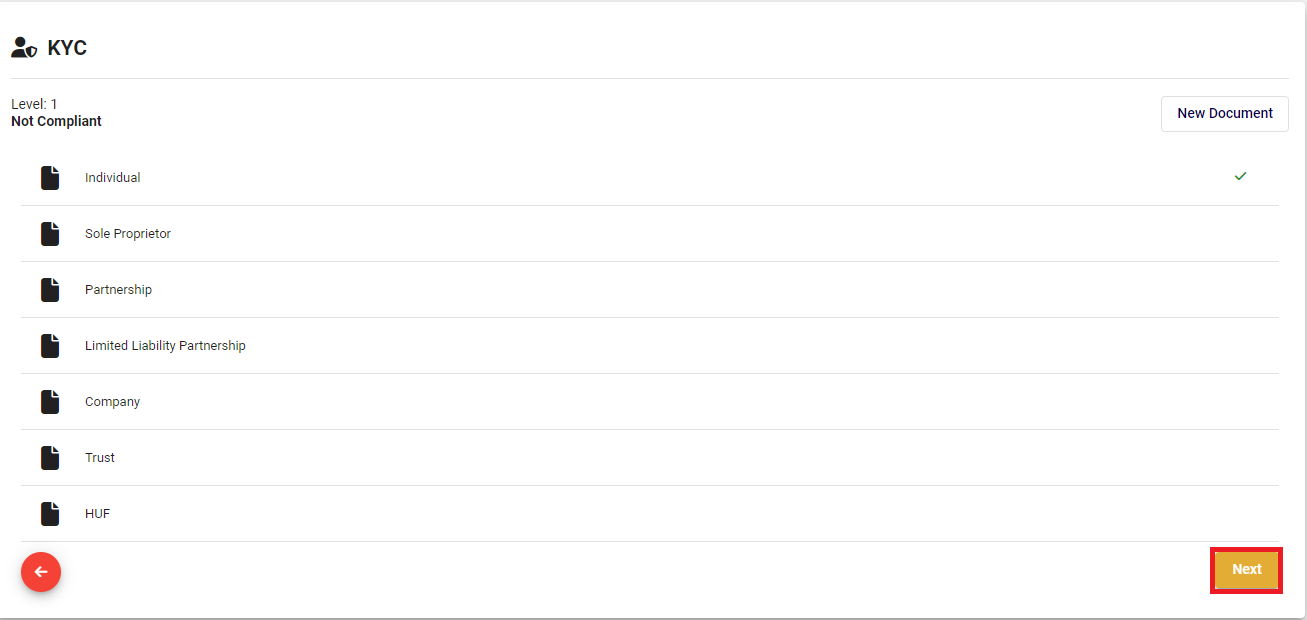
- Choose the desired document to proceed, then click "<span style="color: #000000;">Next</span>." To make changes, click on the back arrow ![Screenshot 2024-01-21 141531.png](https://books.xprizo.com/uploads/images/gallery/2024-01/scaled-1680-/screenshot-2024-01-21-141531.png) icon to modify your selection.

![Screenshot 2024-01-21 140459.png](https://books.xprizo.com/uploads/images/gallery/2024-01/scaled-1680-/Q2cscreenshot-2024-01-21-140459.png)

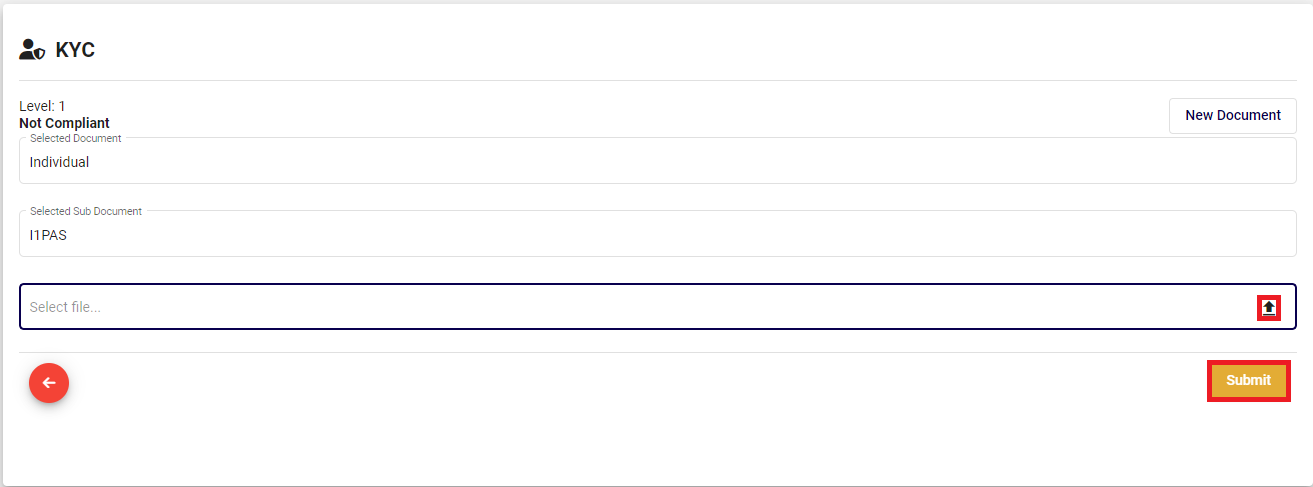
- Click on the upload [![Screenshot 2024-01-21 141854.png](https://books.xprizo.com/uploads/images/gallery/2024-01/scaled-1680-/screenshot-2024-01-21-141854.png)](https://books.xprizo.com/uploads/images/gallery/2024-01/screenshot-2024-01-21-141854.png) button to choose the file for upload or click on the [![Screenshot 2024-01-21 142125.png](https://books.xprizo.com/uploads/images/gallery/2024-01/scaled-1680-/screenshot-2024-01-21-142125.png)](https://books.xprizo.com/uploads/images/gallery/2024-01/screenshot-2024-01-21-142125.png) to remove the selected file. Once selected, click the "<span style="text-decoration: underline; color: #000000;">Submit</span>" button to finalize the KYC process.
    
    <div class="w-full pt-2 md:pt-0 dark:border-white/20 md:border-transparent md:dark:border-transparent md:w-[calc(100%-.5rem)]"><form class="stretch mx-2 flex flex-row gap-3 last:mb-2 md:mx-4 md:last:mb-6 lg:mx-auto lg:max-w-2xl xl:max-w-3xl"><div class="relative flex h-full flex-1 items-stretch md:flex-col"><div class="flex w-full items-center">  
    </div></div></form></div>

![Screenshot 2024-01-21 140437.png](https://books.xprizo.com/uploads/images/gallery/2024-01/scaled-1680-/screenshot-2024-01-21-140437.png)

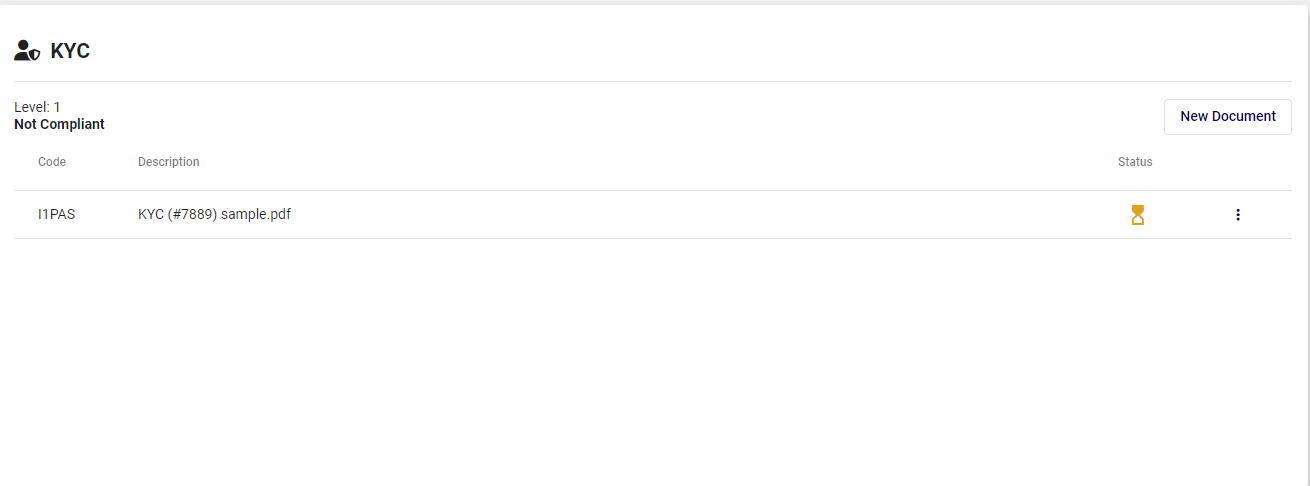
- After completion, the KYC process will be in progress, and the back office will verify the uploaded documents.
    
    <div class="w-full pt-2 md:pt-0 dark:border-white/20 md:border-transparent md:dark:border-transparent md:w-[calc(100%-.5rem)]"><form class="stretch mx-2 flex flex-row gap-3 last:mb-2 md:mx-4 md:last:mb-6 lg:mx-auto lg:max-w-2xl xl:max-w-3xl"><div class="relative flex h-full flex-1 items-stretch md:flex-col"><div class="flex w-full items-center">  
    </div></div></form></div>

![Screenshot 2024-01-21 140520.png](https://books.xprizo.com/uploads/images/gallery/2024-01/scaled-1680-/screenshot-2024-01-21-140520.png)

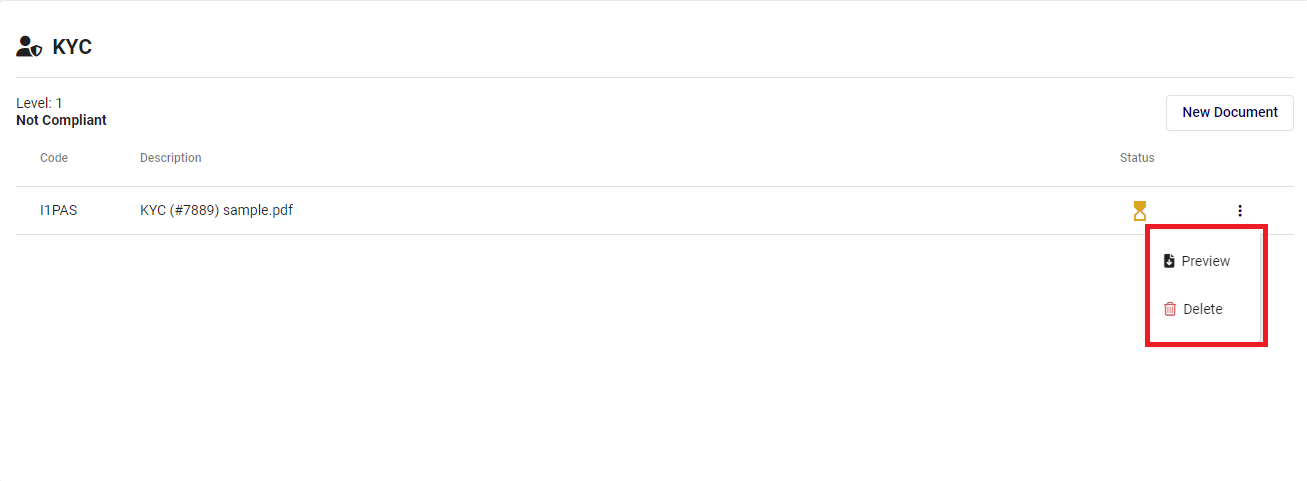
- Click on the ellipsis button [![Screenshot 2024-01-21 142542.png](https://books.xprizo.com/uploads/images/gallery/2024-01/scaled-1680-/screenshot-2024-01-21-142542.png)](https://books.xprizo.com/uploads/images/gallery/2024-01/screenshot-2024-01-21-142542.png) to preview the uploaded file or to delete the uploaded file.
    
    <div class="w-full pt-2 md:pt-0 dark:border-white/20 md:border-transparent md:dark:border-transparent md:w-[calc(100%-.5rem)]"><form class="stretch mx-2 flex flex-row gap-3 last:mb-2 md:mx-4 md:last:mb-6 lg:mx-auto lg:max-w-2xl xl:max-w-3xl"><div class="relative flex h-full flex-1 items-stretch md:flex-col"><div class="flex w-full items-center">  
    </div></div></form></div>

![Screenshot 2024-01-21 140529.png](https://books.xprizo.com/uploads/images/gallery/2024-01/scaled-1680-/screenshot-2024-01-21-140529.png)

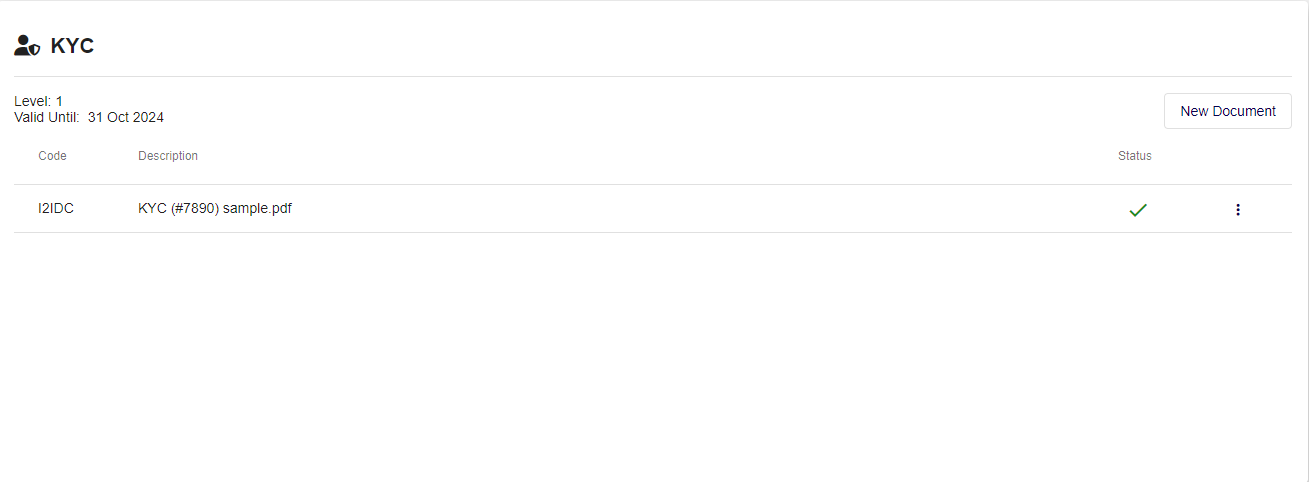
- Once the status changes to [![Screenshot 2024-01-21 142929.png](https://books.xprizo.com/uploads/images/gallery/2024-01/scaled-1680-/screenshot-2024-01-21-142929.png)](https://books.xprizo.com/uploads/images/gallery/2024-01/screenshot-2024-01-21-142929.png) in KYC, it will be assigned a level along with a valid until date. The user can now proceed to send a request to become a merchant.
    
    <div class="w-full pt-2 md:pt-0 dark:border-white/20 md:border-transparent md:dark:border-transparent md:w-[calc(100%-.5rem)]"><form class="stretch mx-2 flex flex-row gap-3 last:mb-2 md:mx-4 md:last:mb-6 lg:mx-auto lg:max-w-2xl xl:max-w-3xl"></form>  
    </div>

[![Screenshot 2024-01-21 143350.png](https://books.xprizo.com/uploads/images/gallery/2024-01/scaled-1680-/screenshot-2024-01-21-143350.png)](https://books.xprizo.com/uploads/images/gallery/2024-01/screenshot-2024-01-21-143350.png)