# How to Complete KYC?

#### **KYC**

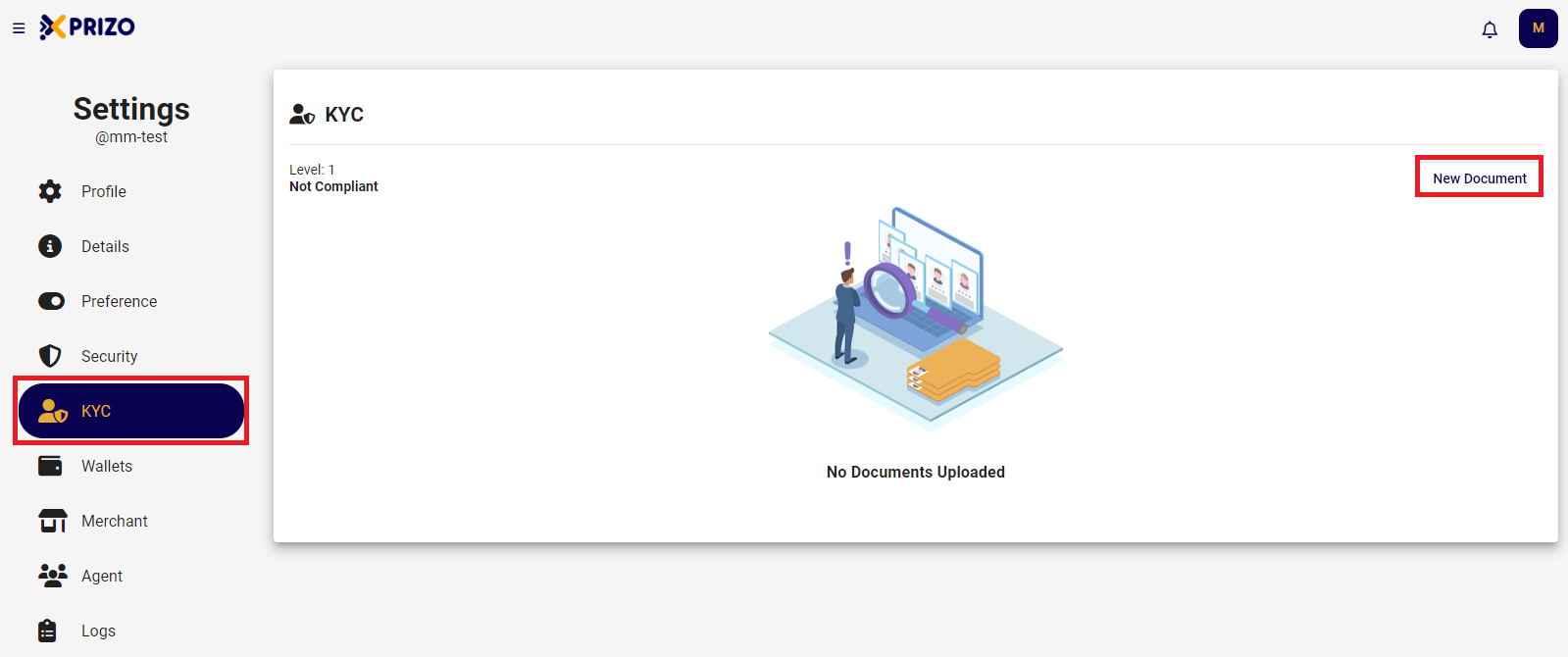
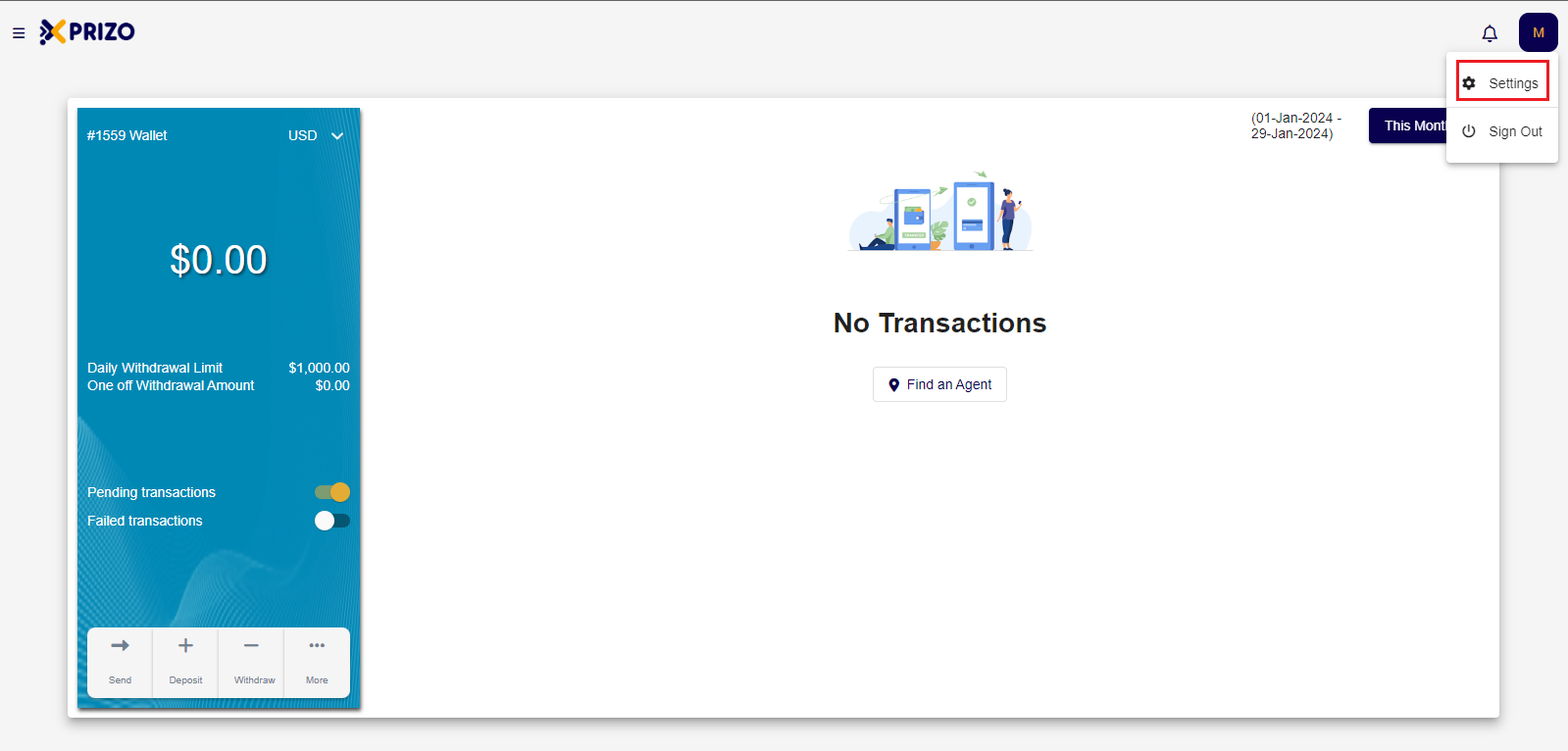
- Login to your account and access settings by clicking on your account's initial in the upper right corner.
    
    <div class="w-full pt-2 md:pt-0 dark:border-white/20 md:border-transparent md:dark:border-transparent md:w-[calc(100%-.5rem)]"><form class="stretch mx-2 flex flex-row gap-3 last:mb-2 md:mx-4 md:last:mb-6 lg:mx-auto lg:max-w-2xl xl:max-w-3xl"></form>  
    </div>

![Screenshot 2024-01-29 235645.png](https://books.xprizo.com/uploads/images/gallery/2024-01/scaled-1680-/screenshot-2024-01-29-235645.png)

- Navigate to the KYC tab in the navigation bar and click on "<span style="text-decoration: underline; color: #000000;">New Document</span>" to initiate the KYC process.

![Screenshot 2024-01-21 140127.png](https://books.xprizo.com/uploads/images/gallery/2024-01/scaled-1680-/screenshot-2024-01-21-140127.png)

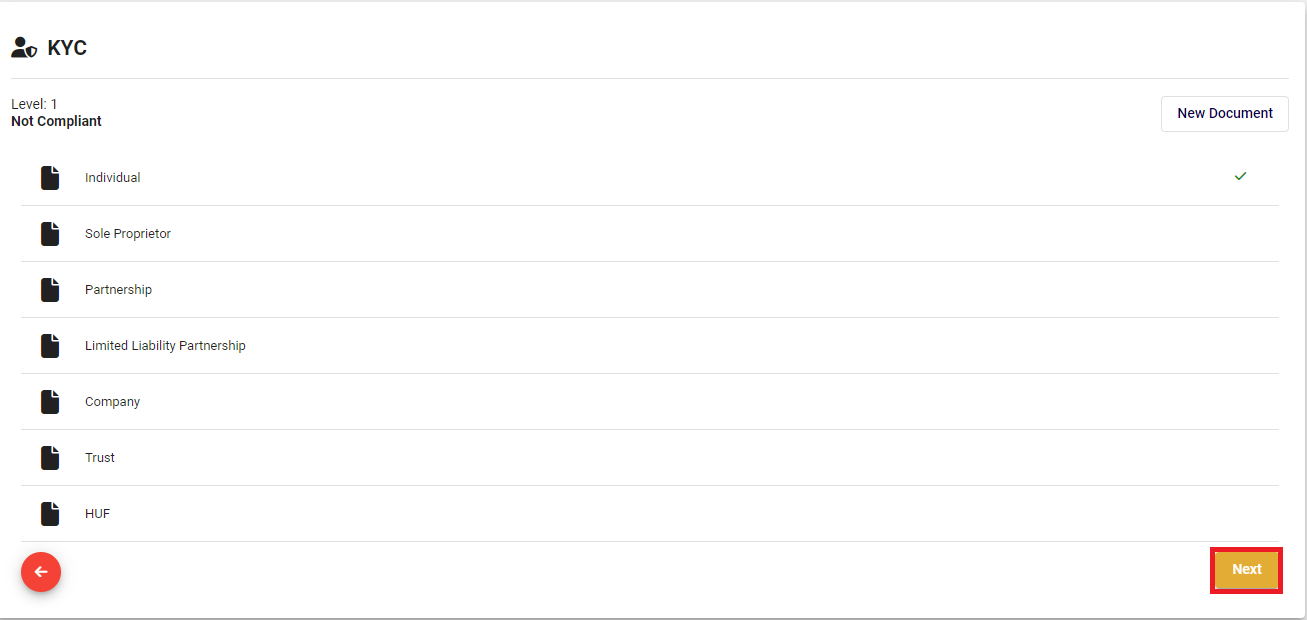
- Choose the option that best suits your needs and proceed by clicking on "<span style="color: #000000;">Next</span>."
    
    <div class="w-full pt-2 md:pt-0 dark:border-white/20 md:border-transparent md:dark:border-transparent md:w-[calc(100%-.5rem)]"><form class="stretch mx-2 flex flex-row gap-3 last:mb-2 md:mx-4 md:last:mb-6 lg:mx-auto lg:max-w-2xl xl:max-w-3xl"><div class="relative flex h-full flex-1 items-stretch md:flex-col"><div class="flex w-full items-center">  
    </div></div></form></div>

![Screenshot 2024-01-21 140459.png](https://books.xprizo.com/uploads/images/gallery/2024-01/scaled-1680-/screenshot-2024-01-21-140459.png)

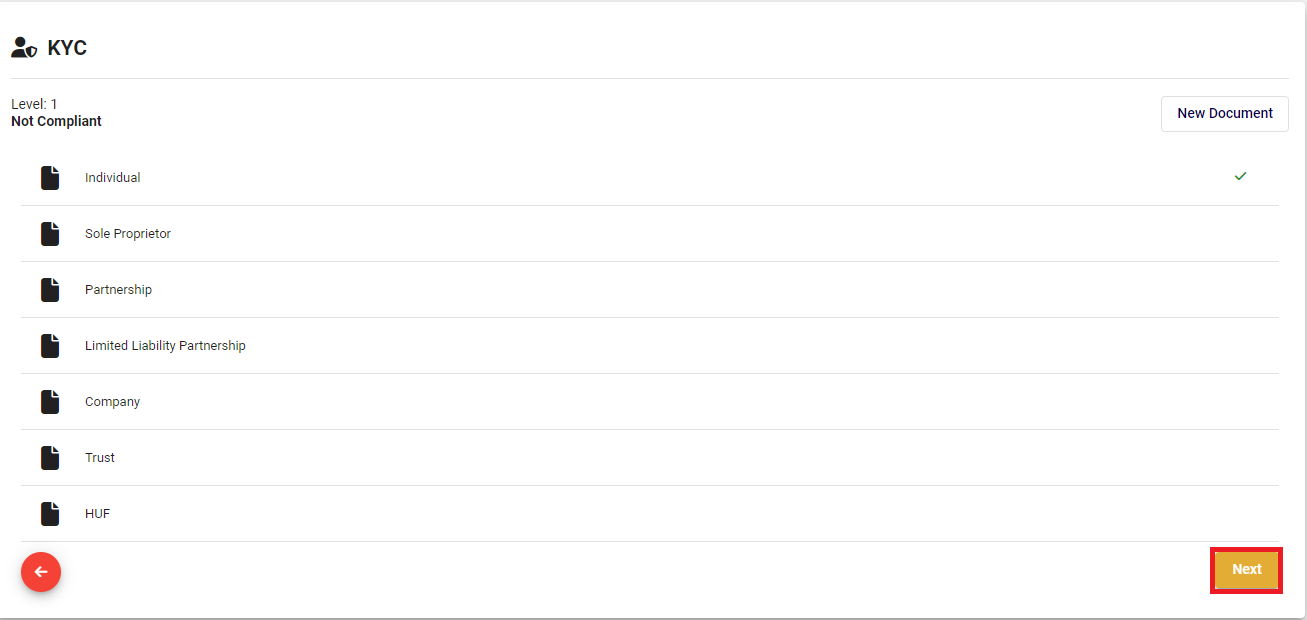
- Choose the desired document to proceed, then click "<span style="color: #000000;">Next</span>." To make changes, click on the back arrow ![Screenshot 2024-01-21 141531.png](https://books.xprizo.com/uploads/images/gallery/2024-01/scaled-1680-/screenshot-2024-01-21-141531.png) icon to modify your selection.

![Screenshot 2024-01-21 140459.png](https://books.xprizo.com/uploads/images/gallery/2024-01/scaled-1680-/Q2cscreenshot-2024-01-21-140459.png)

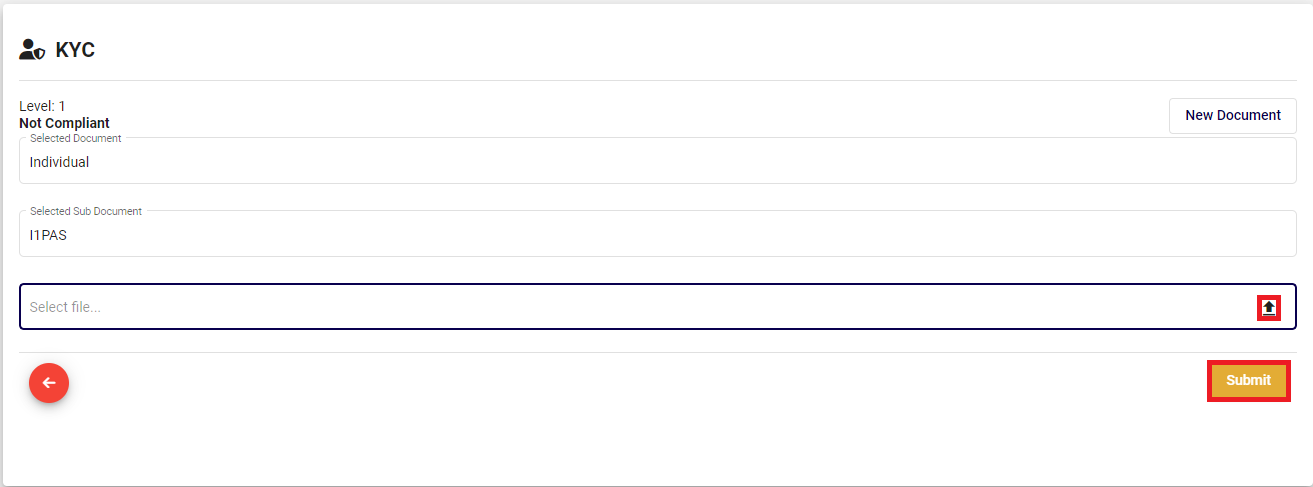
- Click on the upload [![Screenshot 2024-01-21 141854.png](https://books.xprizo.com/uploads/images/gallery/2024-01/scaled-1680-/screenshot-2024-01-21-141854.png)](https://books.xprizo.com/uploads/images/gallery/2024-01/screenshot-2024-01-21-141854.png) button to choose the file for upload or click on the [![Screenshot 2024-01-21 142125.png](https://books.xprizo.com/uploads/images/gallery/2024-01/scaled-1680-/screenshot-2024-01-21-142125.png)](https://books.xprizo.com/uploads/images/gallery/2024-01/screenshot-2024-01-21-142125.png) to remove the selected file. Once selected, click the "<span style="text-decoration: underline; color: #000000;">Submit</span>" button to finalize the KYC process.
    
    <div class="w-full pt-2 md:pt-0 dark:border-white/20 md:border-transparent md:dark:border-transparent md:w-[calc(100%-.5rem)]"><form class="stretch mx-2 flex flex-row gap-3 last:mb-2 md:mx-4 md:last:mb-6 lg:mx-auto lg:max-w-2xl xl:max-w-3xl"><div class="relative flex h-full flex-1 items-stretch md:flex-col"><div class="flex w-full items-center">  
    </div></div></form></div>

![Screenshot 2024-01-21 140437.png](https://books.xprizo.com/uploads/images/gallery/2024-01/scaled-1680-/screenshot-2024-01-21-140437.png)

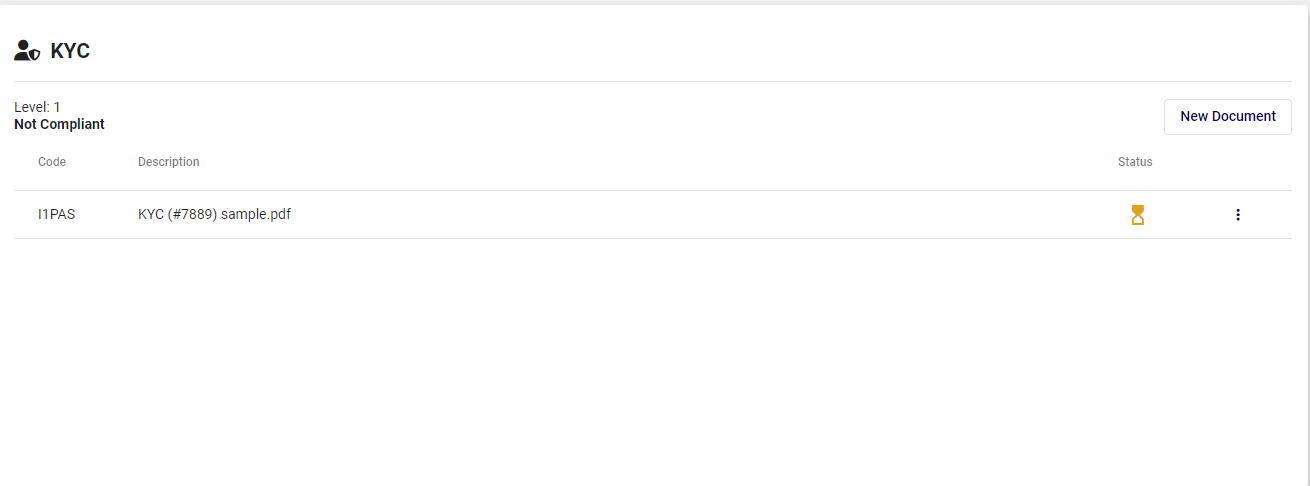
- After completion, the KYC process will be in progress, and the back office will verify the uploaded documents.
    
    <div class="w-full pt-2 md:pt-0 dark:border-white/20 md:border-transparent md:dark:border-transparent md:w-[calc(100%-.5rem)]"><form class="stretch mx-2 flex flex-row gap-3 last:mb-2 md:mx-4 md:last:mb-6 lg:mx-auto lg:max-w-2xl xl:max-w-3xl"><div class="relative flex h-full flex-1 items-stretch md:flex-col"><div class="flex w-full items-center">  
    </div></div></form></div>

![Screenshot 2024-01-21 140520.png](https://books.xprizo.com/uploads/images/gallery/2024-01/scaled-1680-/screenshot-2024-01-21-140520.png)

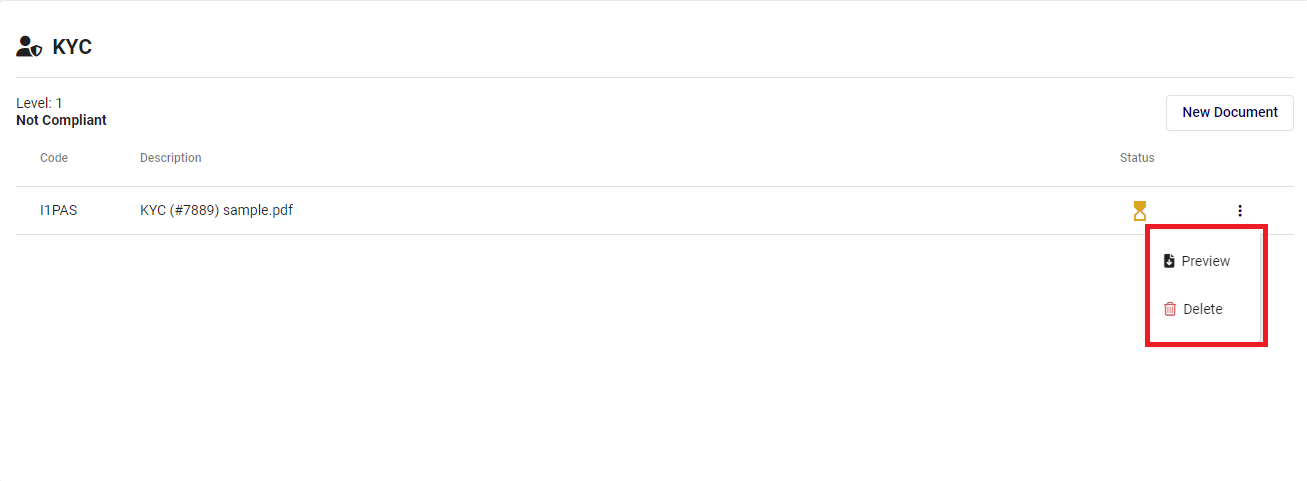
- Click on the ellipsis button [![Screenshot 2024-01-21 142542.png](https://books.xprizo.com/uploads/images/gallery/2024-01/scaled-1680-/screenshot-2024-01-21-142542.png)](https://books.xprizo.com/uploads/images/gallery/2024-01/screenshot-2024-01-21-142542.png) to preview the uploaded file or to delete the uploaded file.
    
    <div class="w-full pt-2 md:pt-0 dark:border-white/20 md:border-transparent md:dark:border-transparent md:w-[calc(100%-.5rem)]"><form class="stretch mx-2 flex flex-row gap-3 last:mb-2 md:mx-4 md:last:mb-6 lg:mx-auto lg:max-w-2xl xl:max-w-3xl"><div class="relative flex h-full flex-1 items-stretch md:flex-col"><div class="flex w-full items-center">  
    </div></div></form></div>

![Screenshot 2024-01-21 140529.png](https://books.xprizo.com/uploads/images/gallery/2024-01/scaled-1680-/screenshot-2024-01-21-140529.png)

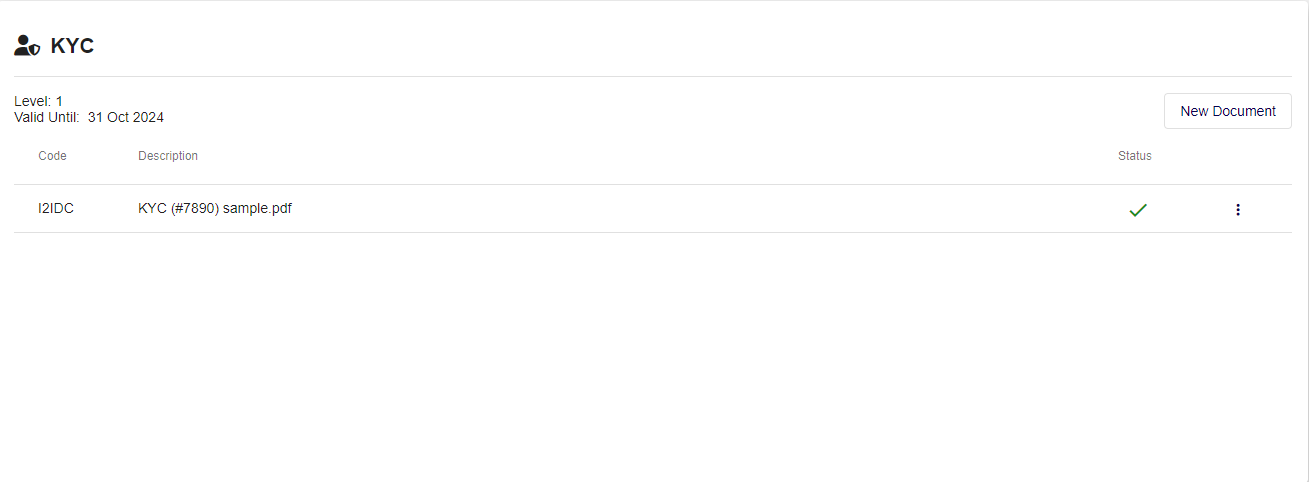
- Once the status changes to [![Screenshot 2024-01-21 142929.png](https://books.xprizo.com/uploads/images/gallery/2024-01/scaled-1680-/screenshot-2024-01-21-142929.png)](https://books.xprizo.com/uploads/images/gallery/2024-01/screenshot-2024-01-21-142929.png) in KYC, it will be assigned a level along with a valid until date. The user can now proceed to send a request to become a merchant.
    
    <div class="w-full pt-2 md:pt-0 dark:border-white/20 md:border-transparent md:dark:border-transparent md:w-[calc(100%-.5rem)]"><form class="stretch mx-2 flex flex-row gap-3 last:mb-2 md:mx-4 md:last:mb-6 lg:mx-auto lg:max-w-2xl xl:max-w-3xl"></form>  
    </div>

[![Screenshot 2024-01-21 143350.png](https://books.xprizo.com/uploads/images/gallery/2024-01/scaled-1680-/screenshot-2024-01-21-143350.png)](https://books.xprizo.com/uploads/images/gallery/2024-01/screenshot-2024-01-21-143350.png)