# How to Create a New Account?

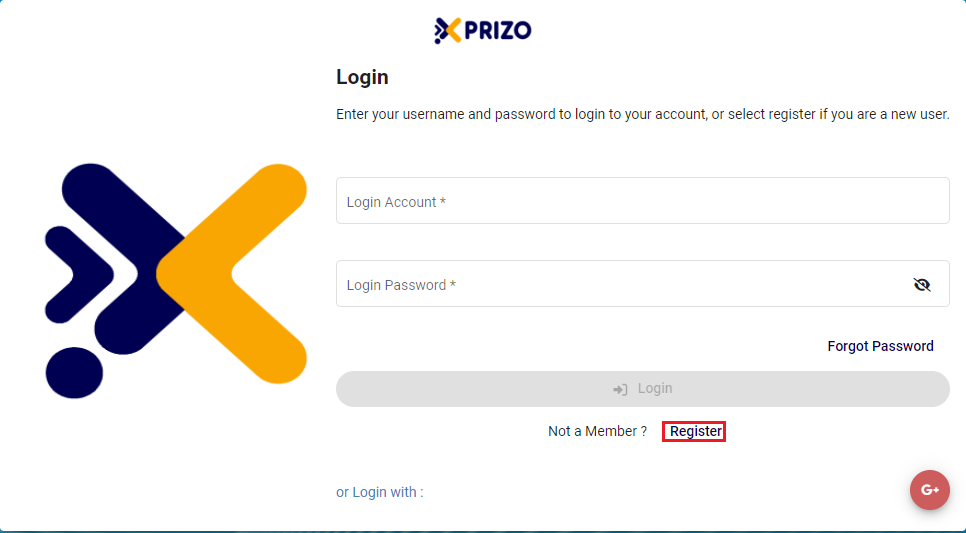
- Click on the [<span style="color: #3598db;">Register</span>](https://wallet.xprizo.com/#/register)<span style="color: #3598db;"> </span>button to sign up for XPRIZO.

**\*Note: To create an account in the Test environment click <span style="color: #3598db;">[here](https://test.xprizo.com/#/register)</span>.\***

![register.png](https://books.xprizo.com/uploads/images/gallery/2024-01/scaled-1680-/screenshot-2024-01-21-122332.png)

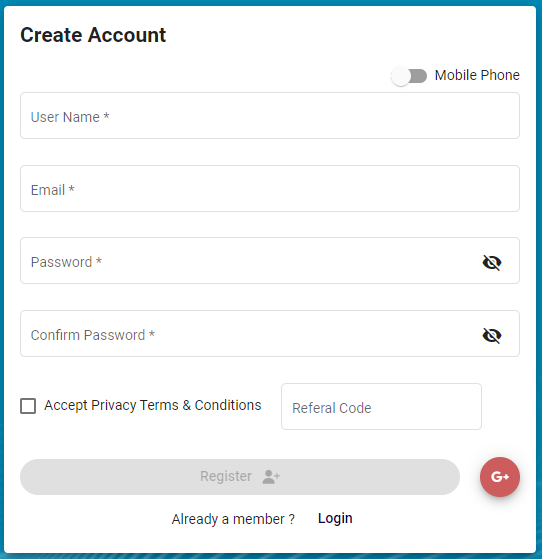
- To establish your account, complete the required information for email registration. Alternatively, for registration via mobile number, toggle the button ![toggle.png](https://books.xprizo.com/uploads/images/gallery/2024-01/scaled-1680-/screenshot-2024-01-21-123718.png) accordingly. Users may also input a referral code if referred by someone.
![Screenshot 2024-01-21 123206.png](https://books.xprizo.com/uploads/images/gallery/2024-01/scaled-1680-/screenshot-2024-01-21-123206.png)

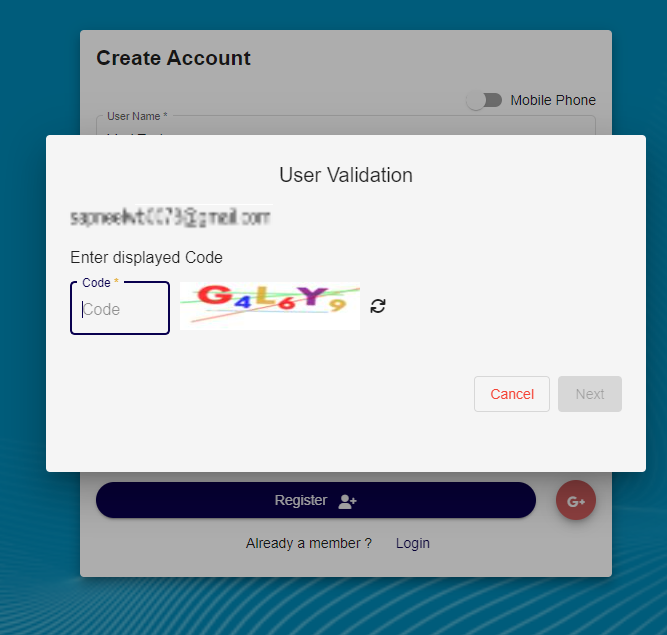
- Enter the code displayed to validate the email or mobile number.
![code.png](https://books.xprizo.com/uploads/images/gallery/2024-01/scaled-1680-/screenshot-2024-01-21-121827.png)

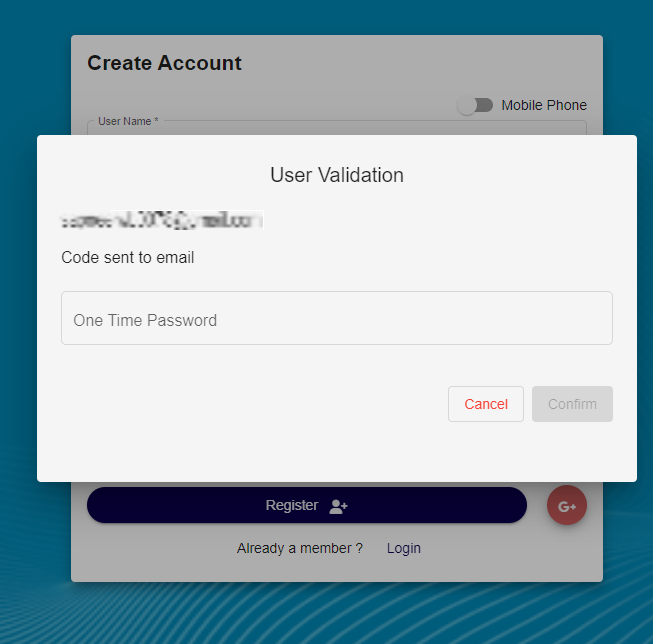
- Subsequently, input the One-Time Password sent to either your email or mobile number to finalize the validation process.
    
    <div class="mx-auto">  
    </div>

![Screenshot 2024-01-21 121846.png](https://books.xprizo.com/uploads/images/gallery/2024-01/scaled-1680-/screenshot-2024-01-21-121846.png)

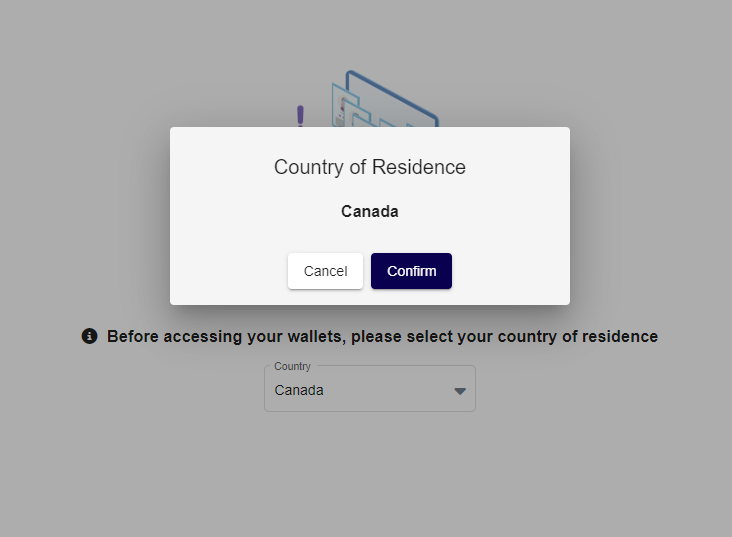
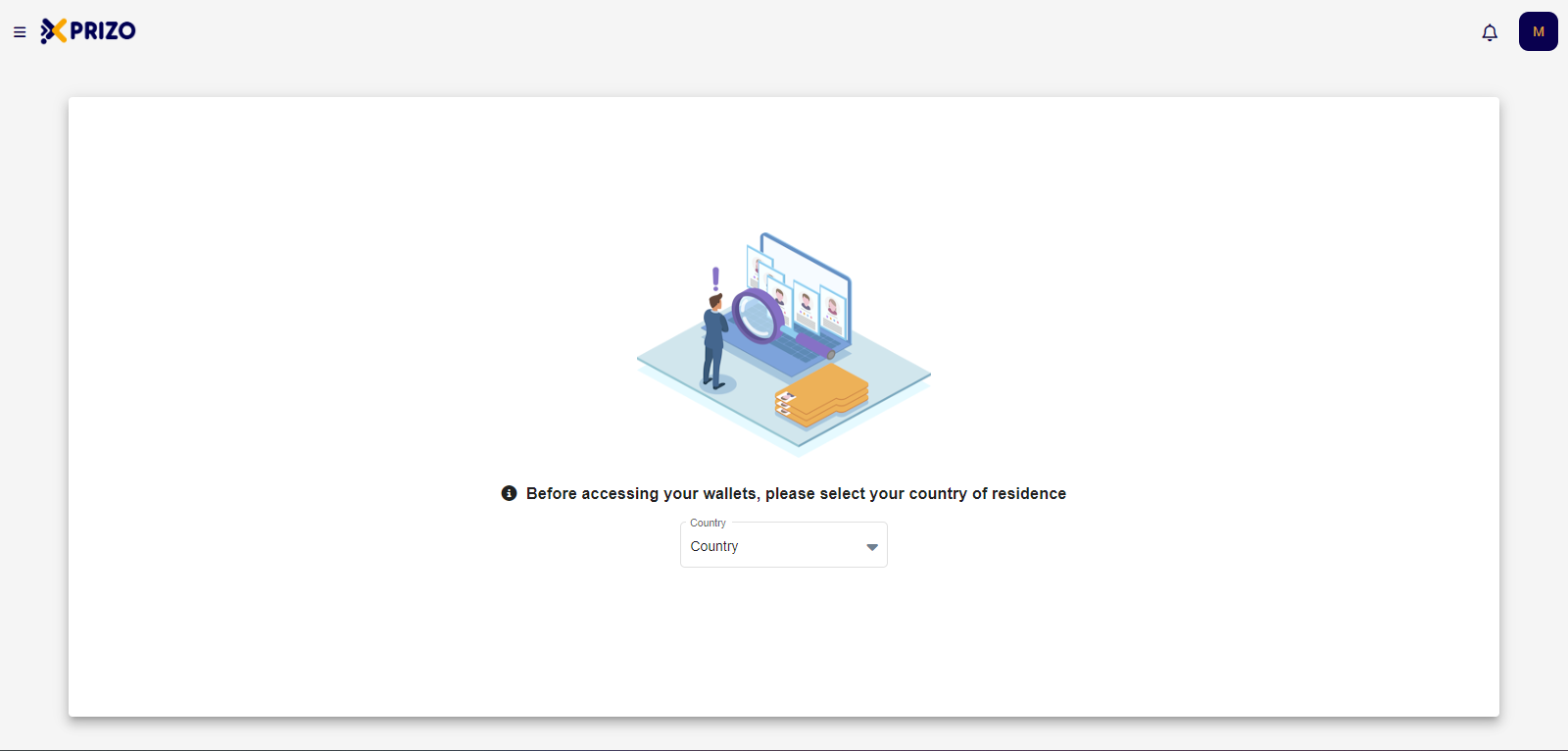
- Upon successful registration, users will be logged in and prompted to choose their country of residence before gaining access to their wallets.
    
    <div class="w-full pt-2 md:pt-0 dark:border-white/20 md:border-transparent md:dark:border-transparent md:w-[calc(100%-.5rem)]"><form class="stretch mx-2 flex flex-row gap-3 last:mb-2 md:mx-4 md:last:mb-6 lg:mx-auto lg:max-w-2xl xl:max-w-3xl"></form>  
    </div>

![Screenshot 2024-01-21 122052.png](https://books.xprizo.com/uploads/images/gallery/2024-01/scaled-1680-/screenshot-2024-01-21-122052.png)

- Choose your country from the dropdown menu, and affirm your selection by clicking the "<span style="color: #000000;">Confirm</span>" button.

<span style="text-decoration: underline; color: #000000;">![Screenshot 2024-01-21 122106.png](https://books.xprizo.com/uploads/images/gallery/2024-01/scaled-1680-/screenshot-2024-01-21-122106.png)</span>

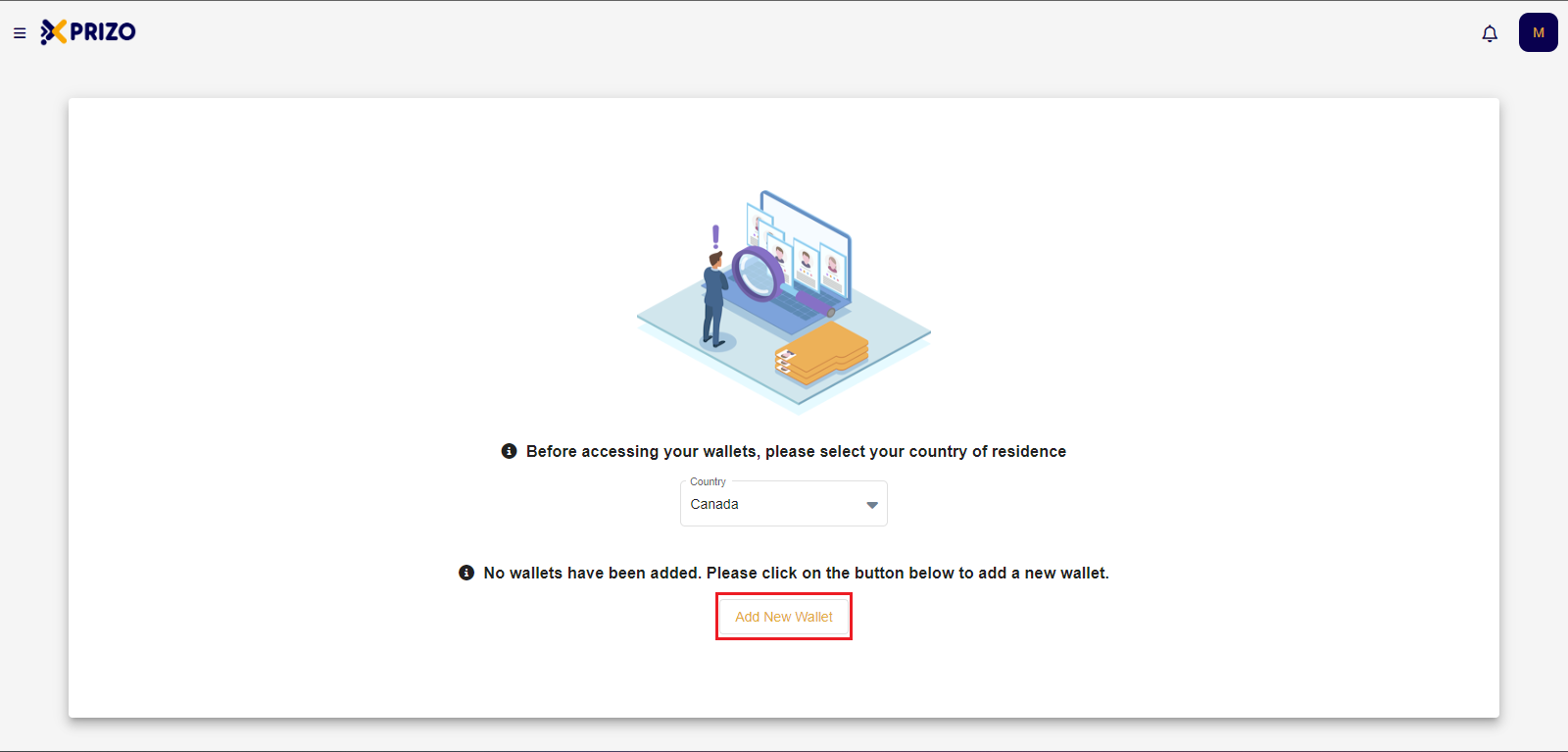
- After selecting the country, users need to add a new wallet by clicking on the "<span style="color: #000000;">Add New Wallet"</span> button.

![Screenshot 2024-01-21 122124.png](https://books.xprizo.com/uploads/images/gallery/2024-01/scaled-1680-/NKyscreenshot-2024-01-21-122124.png)

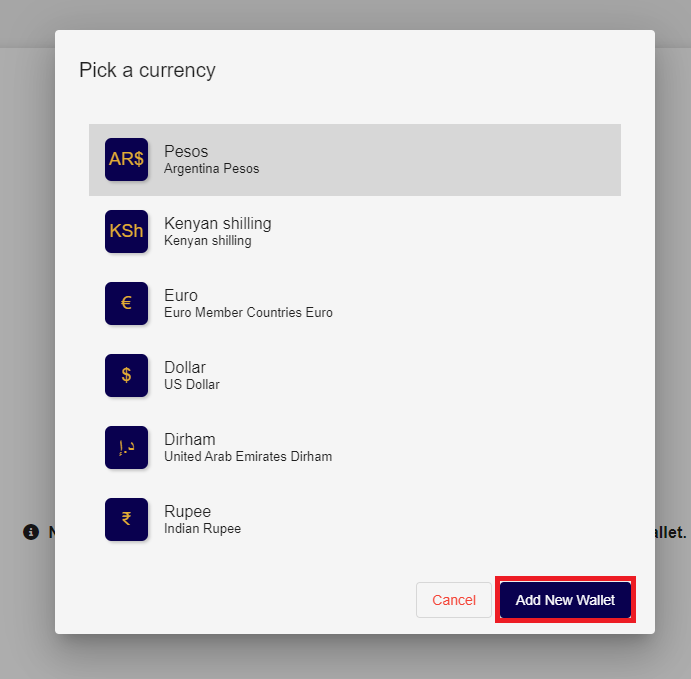
- Following that, users should choose the wallet corresponding to the desired currency and then click on "Add New Wallet" to incorporate the wallet in the selected currency.
    
    <div class="w-full pt-2 md:pt-0 dark:border-white/20 md:border-transparent md:dark:border-transparent md:w-[calc(100%-.5rem)]"><form class="stretch mx-2 flex flex-row gap-3 last:mb-2 md:mx-4 md:last:mb-6 lg:mx-auto lg:max-w-2xl xl:max-w-3xl"><div class="relative flex h-full flex-1 items-stretch md:flex-col"><div class="flex w-full items-center">  
    </div></div></form></div>

![Screenshot 2024-01-21 122148.png](https://books.xprizo.com/uploads/images/gallery/2024-01/scaled-1680-/screenshot-2024-01-21-122148.png)

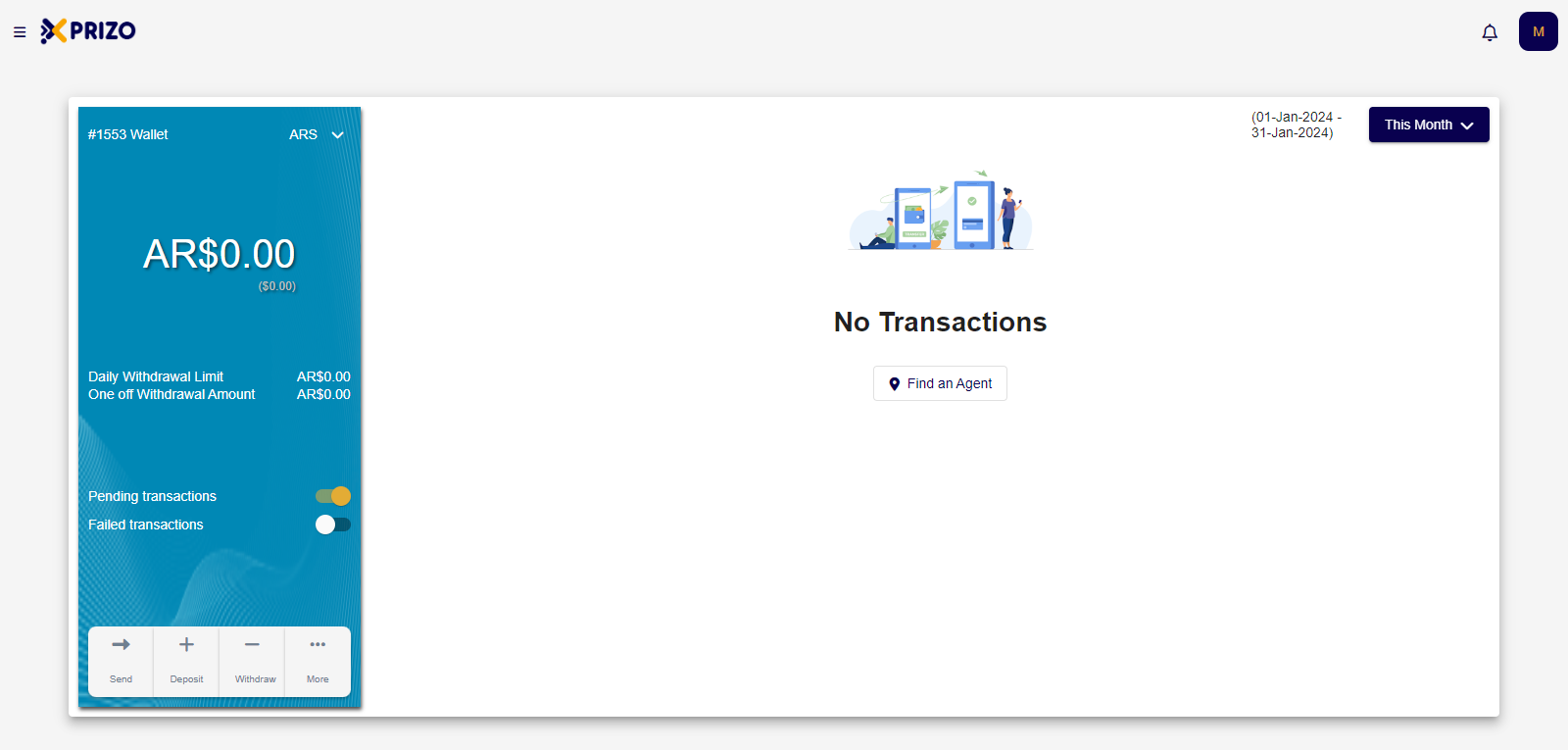
- Upon successfully adding the wallet, users will be directed to the home screen, providing them access to the wallet.
![Screenshot 2024-01-21 122159.png](https://books.xprizo.com/uploads/images/gallery/2024-01/scaled-1680-/screenshot-2024-01-21-122159.png)