
Deposit Using Xprizo Wallet
Introduction
This document provides detailed steps for setting up your merchant profile, creating a processing profile with access to the merchant wallet, and navigating through testing (sandbox) and production (live) environments. Additionally, it walks you through the deposit process using a card/ Xprizo wallet/ Mpesa/ UPI, covering the flow, validation, callbacks, deposit transaction creation, approval webhook set up, and status checking. Follow the sections below to manage your account and transactions efficiently.
Account Setup
You need to create two profiles where the first profile will be of the Merchant having a wallet to be able to receive funds and the other profile will be of Processing which will be used for creating the transactions on the merchant's account wallet.
Merchant profile
To create a merchant profile use the below-mentioned link where you can find how to do registration, profile updation, KYC, and procedure for merchant requests.
Processor profile
A processor profile is required to manage the transactions of the merchant wallet. This processor profile will help the merchant, to secure his wallet by giving only the required access to the processor on the merchant profile. To configure the processor profile use the below-mentioned link where you can find all the steps to configure the processor profile (linking of merchant profile and processor profile, and after that how to give access to the processor profile of the merchant profile).
** You can also use a merchant profile as a processor profile, but this is advisable to have a separate processor profile to manage the transactions to make your main merchant profile secure.
Processor Profile Configuration
Test profile
To test the merchant account you will have to create a sample/test account which you will use to check if the integration is done properly or not.
Before starting the integration, the user needs to know about the available environment and authentication methods required for integration. Use the below-mentioned link where you can find details about the available environment, and authentication methods (how to generate token & API key and usage of these).
Deposits
Deposit Using Card
Flow
Steps
Create Deposit Transaction Using Card
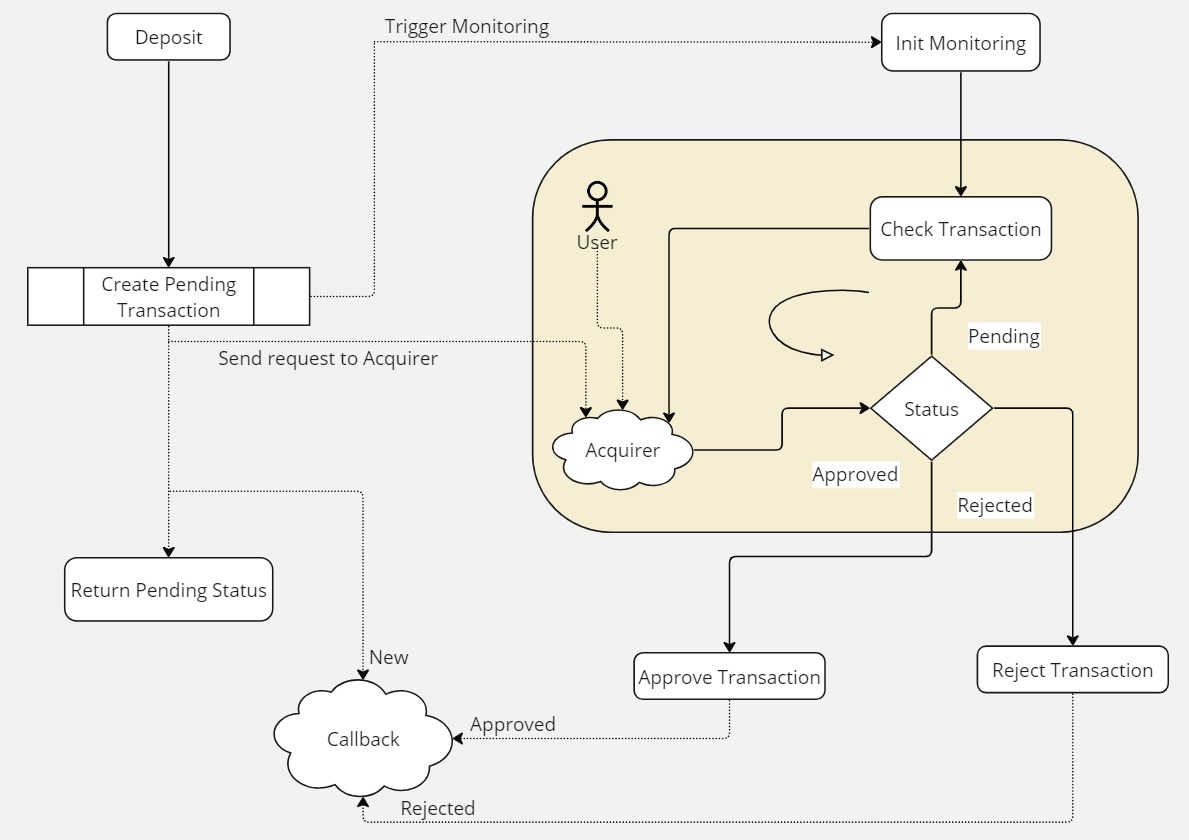
After you have called the Transaction/CardDeposit endpoint, a payment request is sent to the Acquirer network to process the card payment. A pending transaction is also created and Xprizo will continue monitoring the Acquirer network until an approval or rejection is received.
If the card is 'Approved' (2DS) then the transaction will be added to the merchant's wallet and the API will return an 'Active' status. No further action is required.
If there is a problem creating the transaction then the API will return a status of 'Rejected'.
It is possible that a card is not processed immediately such as some kind of delay or the user might need to approve the transaction using another device, then a 'Pending' status will be returned.
In the case of 3DS, there could be a redirect to an alternate URL. In this case, a 'Redirect' status and URL is returned.
The Merchant will get updates on the status of the transaction via callbacks. To receive a callback, you will need to request to set this up on your Merchant account (the profile that is used to create this transaction). This can be done by going to settings/preferences and setting the "Approval Webhook" to point to a URL of your choice. You can also set this using Preference/SetApprovalWebhook
A callback will be sent when
The pending transaction is created.
You can use this link to see the response coming on this Webhook.
** You should, however, check the status, after you get a callback to confirm that the transaction was completed successfully. You can use Transaction/Status endpoint to check the status.
Deposit Using Xprizo Wallet
To make a deposit, funds are transferred from a user's wallet to the merchant's wallet. This process is done by requesting a payment from the user through the Transaction/RequestPayment endpoint.
Create a pending transaction on your system.
If you receive an Ok Response (200), then the transaction was successfully processed and you can set your payment transaction as completed.
Active - Approved
Create, Approve, Check
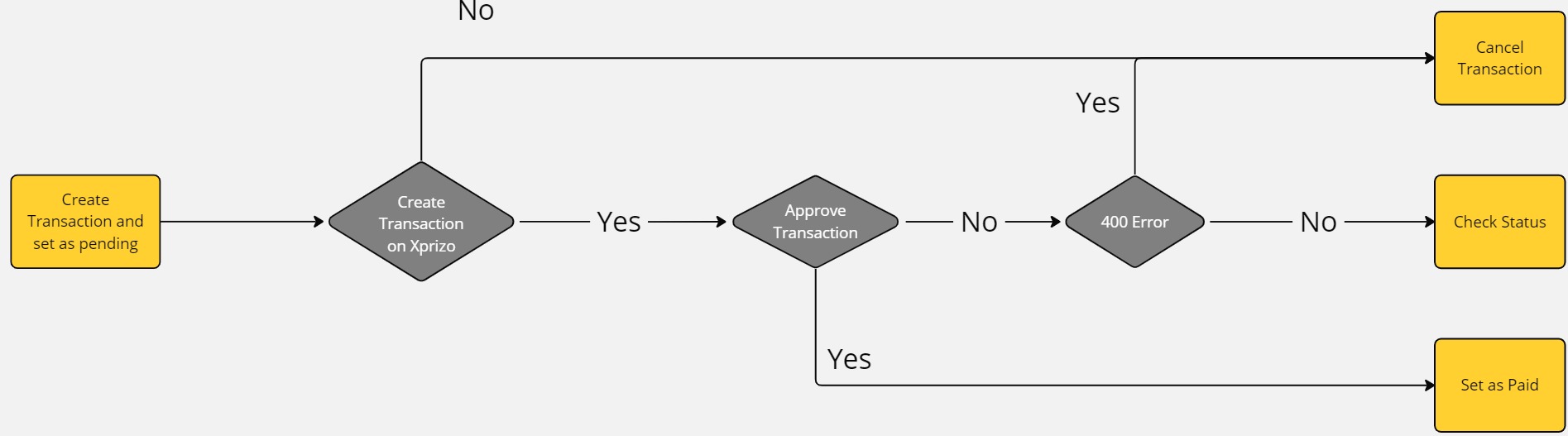
Use this method if the creation and approval of transactions are not done at the same time. For instance, the platform might initiate the transaction, and the merchant may approve the transaction
With this method, the platform needs to continuously poll Xprizo in case there's no immediate response from Xprizo to confirm whether the transaction was successfully created or not.
Flow
Steps
Create a pending transaction on your system.
If you get an OK Response (200) then you should check the status of the transaction.Transaction/Status
and you have set the approval callback option in your settingsPreference/SetApprovalWebhookthen you will receive a callback once the transaction has been approved
At any time you can cancel the transaction by calling Transaction/Cancel
Create, Hold, Check
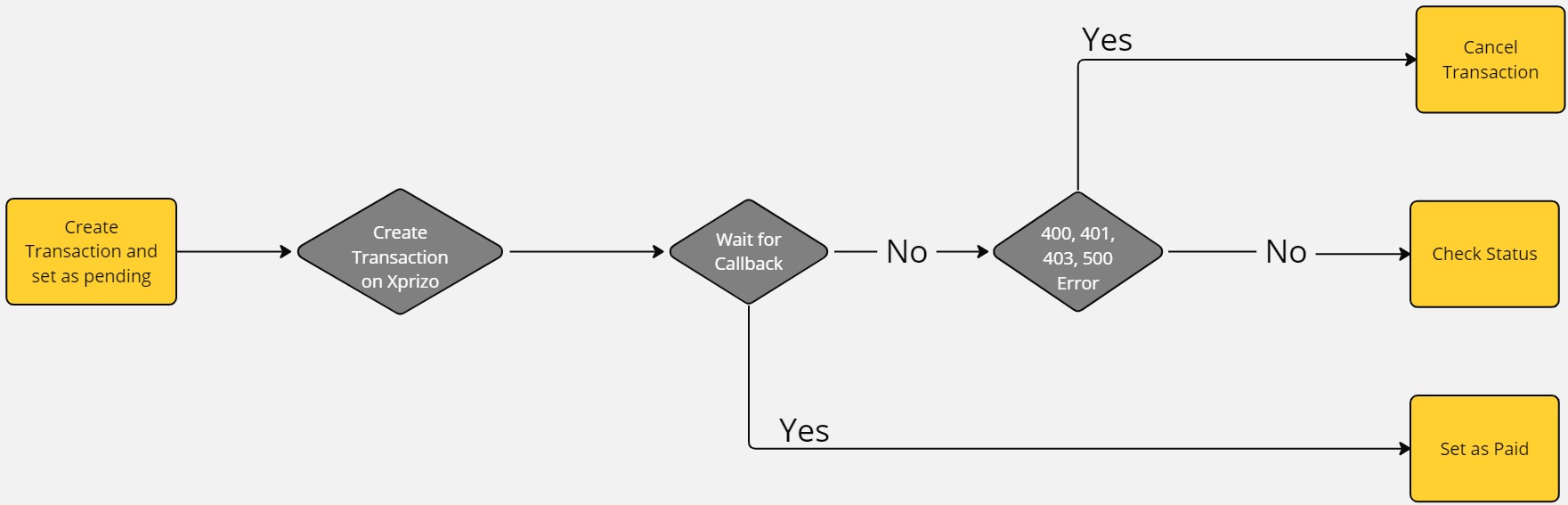
Use this method if you prefer Xprizo to conduct the final check. Xprizo will verify that the transaction has been created on the platform by sending a callback and awaiting a valid response. Depending on the platform's response, Xprizo will either confirm the transaction or cancel it.
By using this method involves Xprizo initiating a transaction and placing it on hold. It will then send a callback to verify whether the platform has successfully updated the transaction on its end. If Xprizo receives a positive response, then the transaction will be completed. If a negative response is received or there is no response within 24 hours, the transaction is voided.
Flow
Steps
Create a pending transaction on your system
Xprizo will create a transaction marked as ‘Hold’ and return 200 (success)
You should now set the transaction on your platform as paid and respond to the callback with 200 (success) response.
The transaction is voided
The Hold is removed and the transaction is marked as active
The transaction is voided
Withdrawal to Bank Accounts
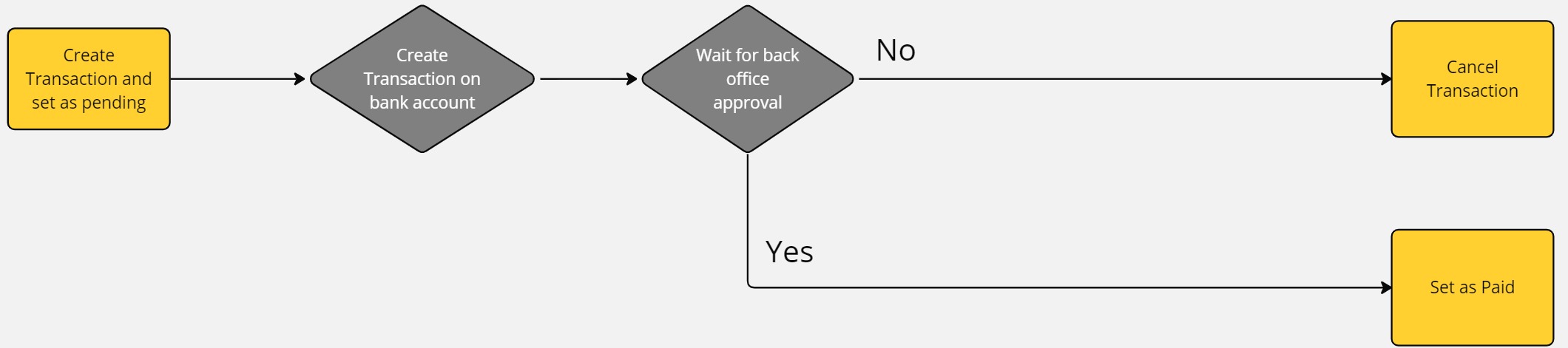
When a user needs to transfer funds from their wallet to someone's bank account, they can easily initiate this process by providing the recipient's name, account number, and the desired amount to be transferred. This withdrawal method facilitates direct transfers to bank accounts, ensuring seamless transactions between users and their chosen recipients.
Flow
Steps
Create a pending transaction on your system.
approves of the transaction will go into the processing and after the successful processing this transaction will be marked as Active and the user will be notified using your approval webhook. You can configure your approval webhook using thisPreference/SetApprovalWebhook.