How to become a Merchant?
1. Registration
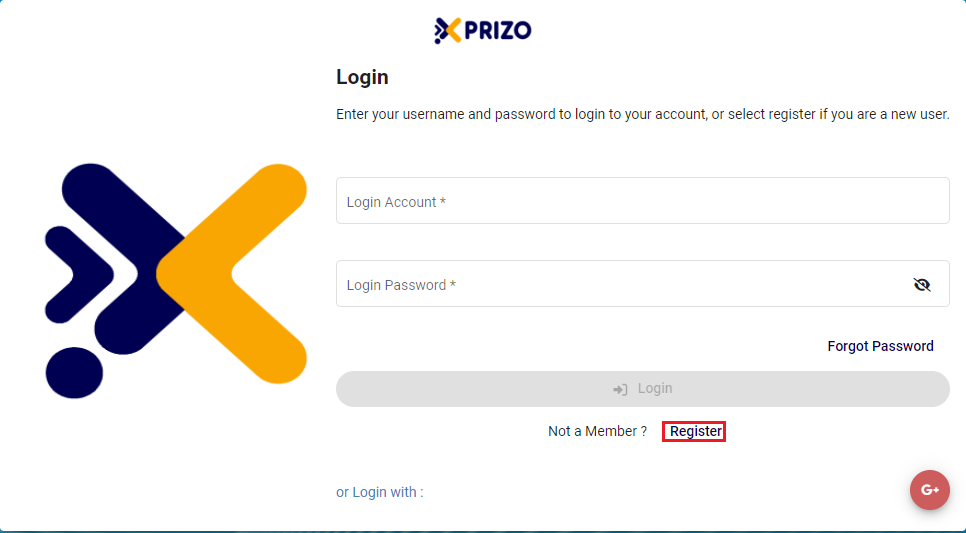
- Click on the Register button to sign up for Xprizo.
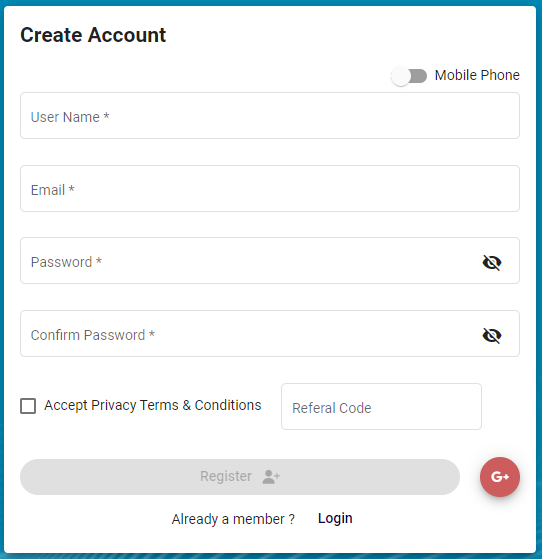
- To establish your account, complete the required information for email registration. Alternatively, for registration via mobile number, toggle the button
 accordingly. Users may also input a referral code if referred by someone.
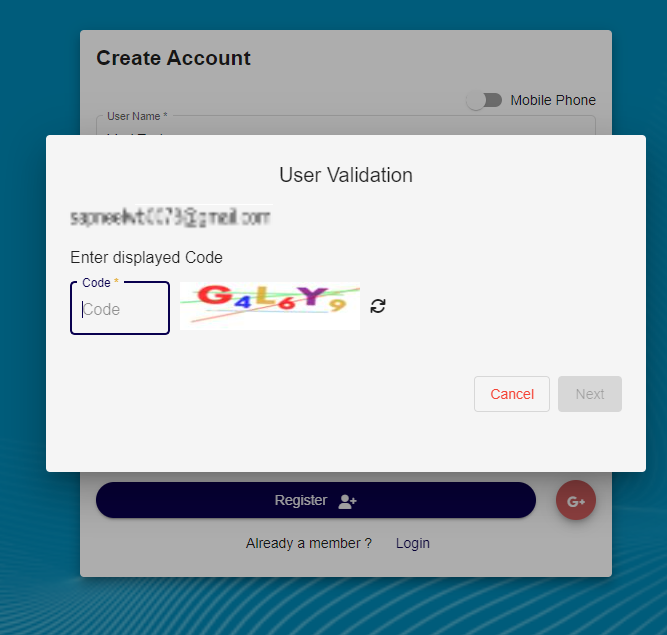
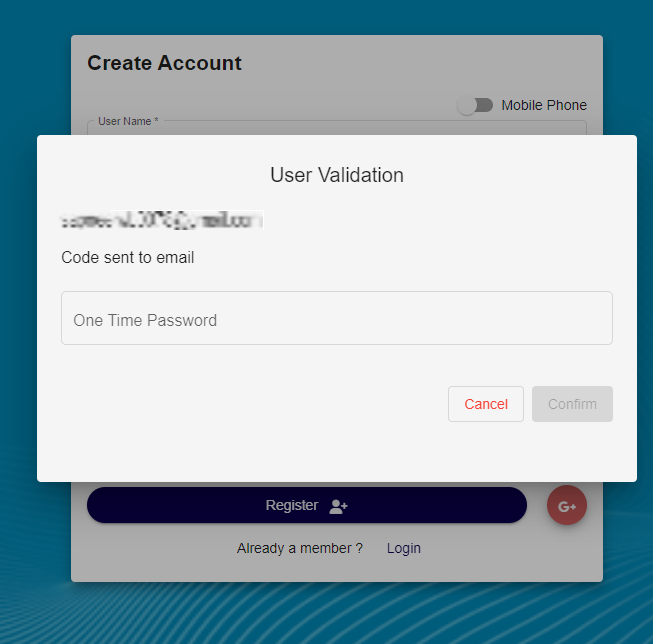
- Enter the code displayed to validate the email or mobile number.
ThenenterSubsequently, input the
OneOne-Time Password sent to either your email or mobile number tocompletefinalize the validation process.
2. Setting Up Wallet
-
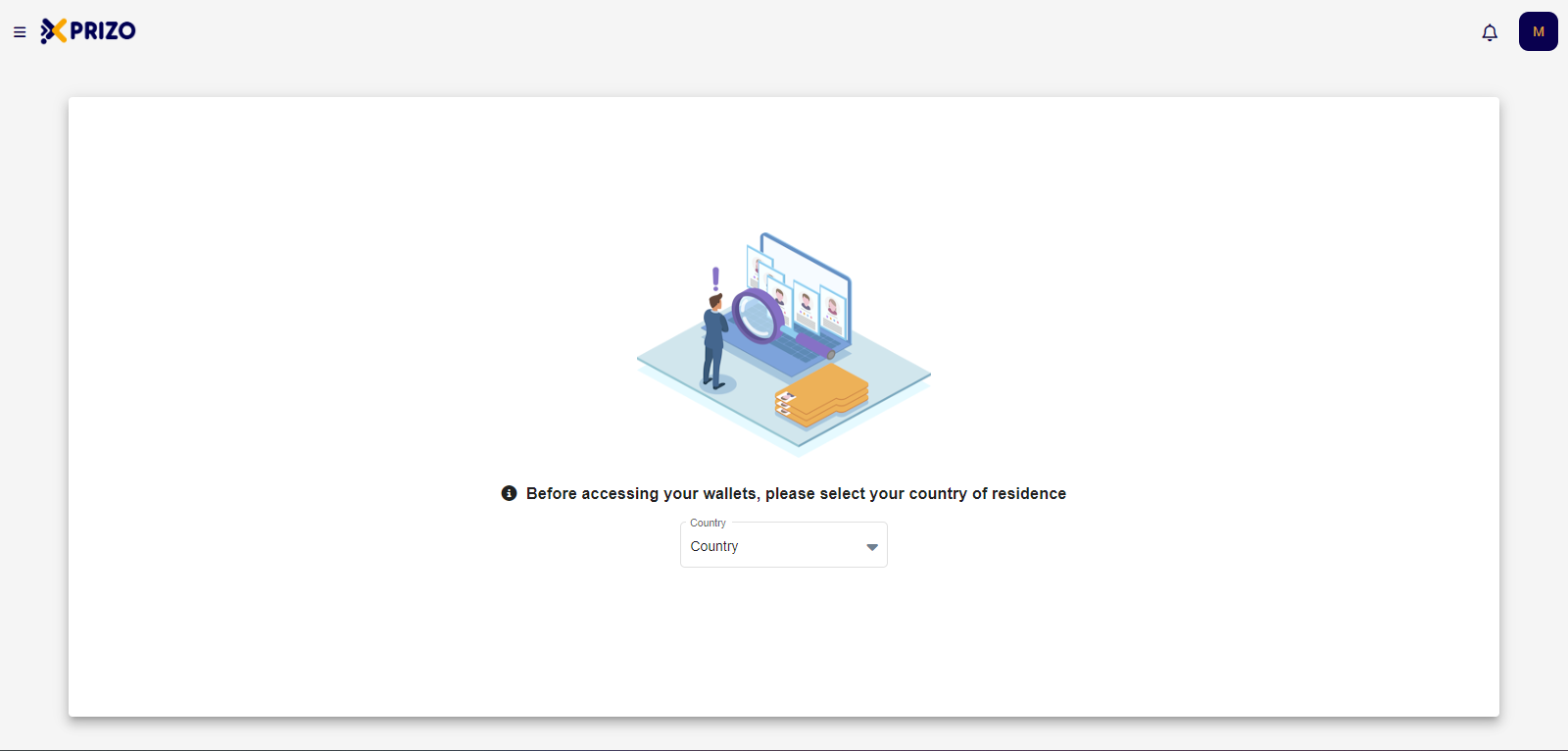
Upon successful registration, users will be logged in and prompted to choose their country of residence before gaining access to their wallets.
-
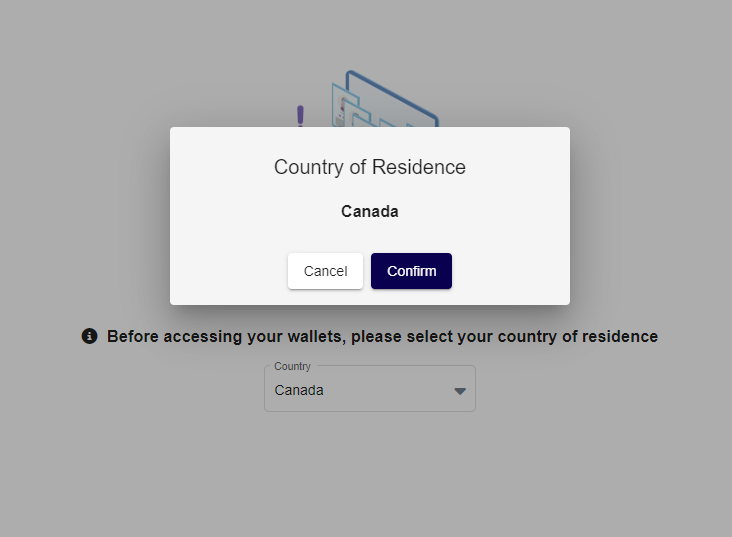
Choose your country from the dropdown menu, and affirm your selection by clicking the "Confirm" button.
-
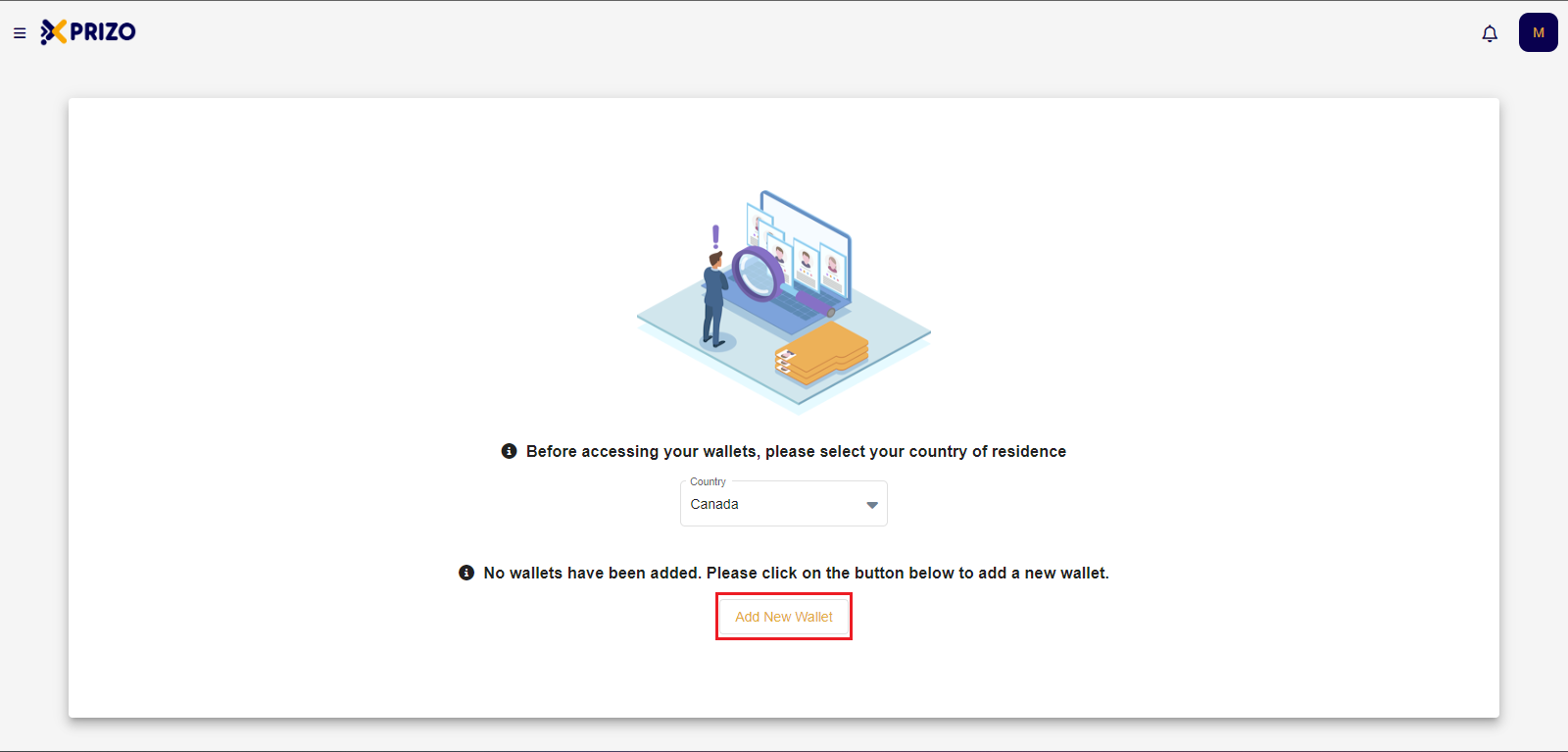
After selecting the country, users need to add a new wallet by clicking on the "Add New Wallet" button.
-
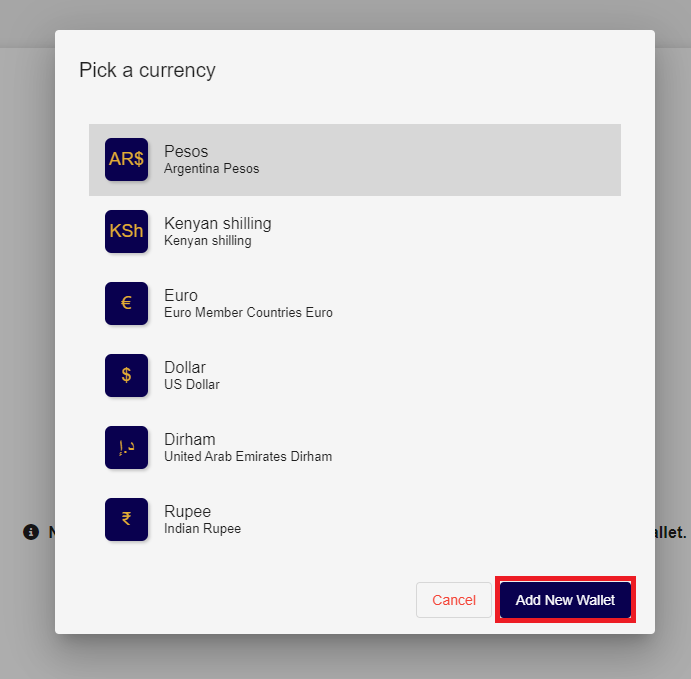
Following that, users should choose the wallet corresponding to the desired currency and then click on "Add New Wallet" to incorporate the wallet in the selected currency.
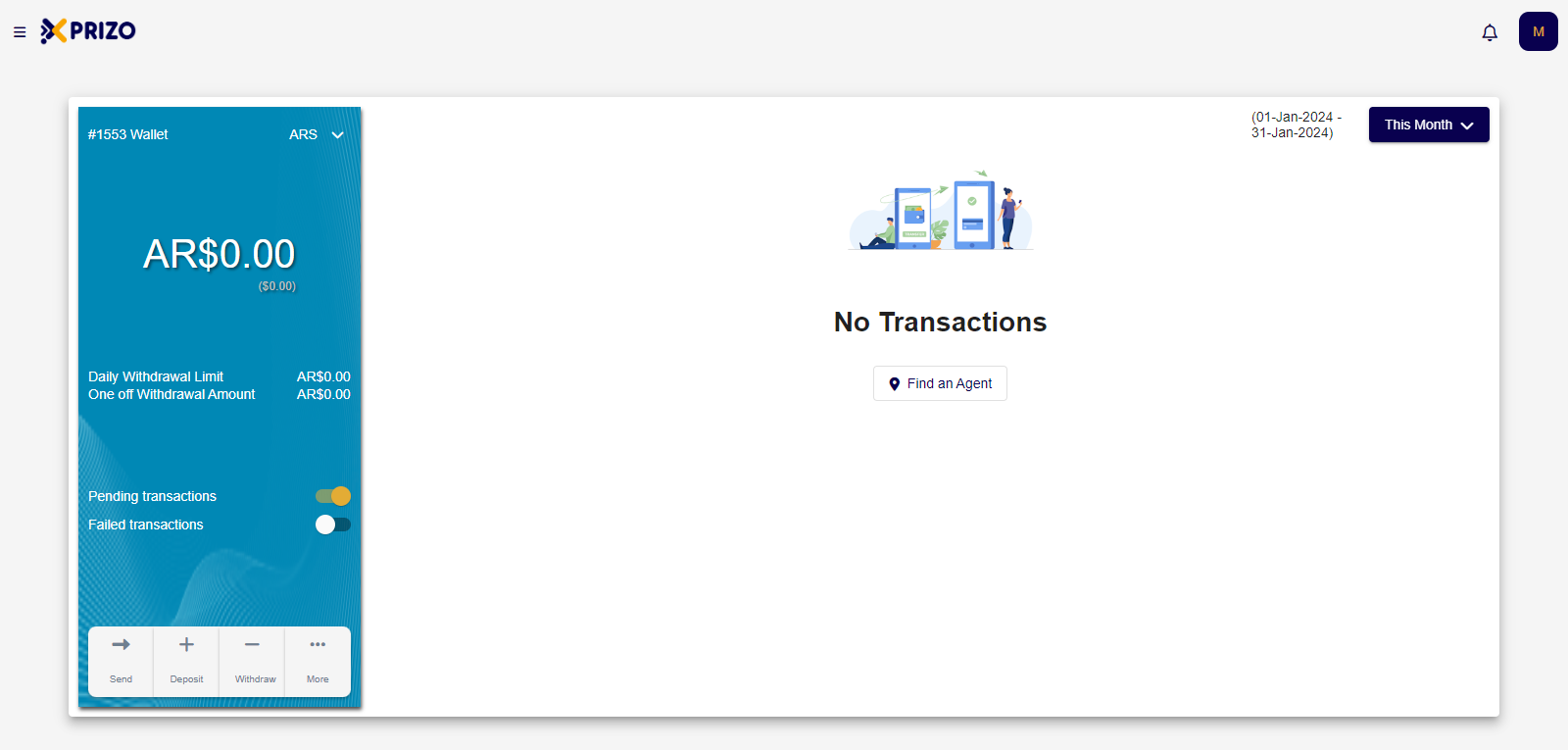
- Upon successfully adding the wallet, users will be directed to the home screen, providing them access to the wallet.
3. Request to become a Merchant
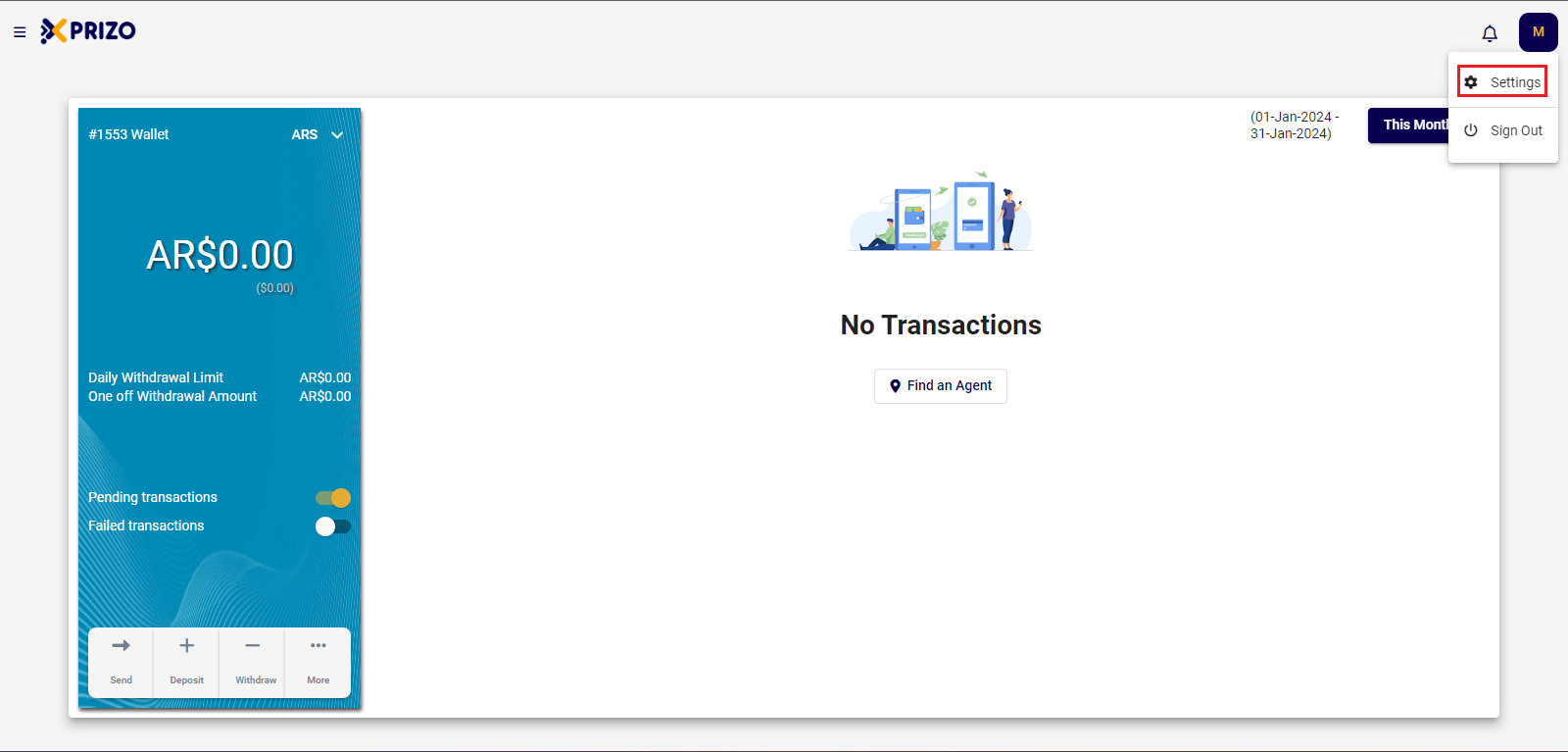
- Select the profile button at the top right, then click on "Settings" to be redirected to the profile section.
-
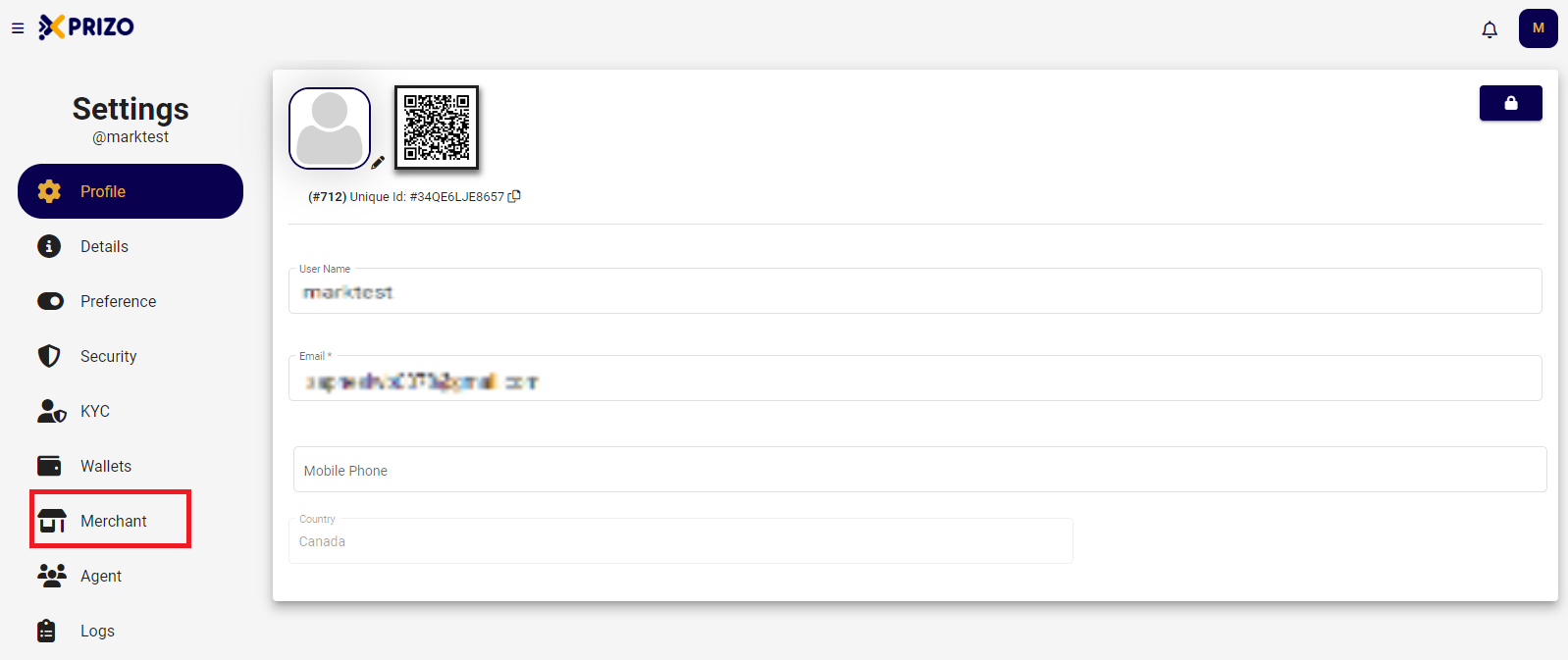
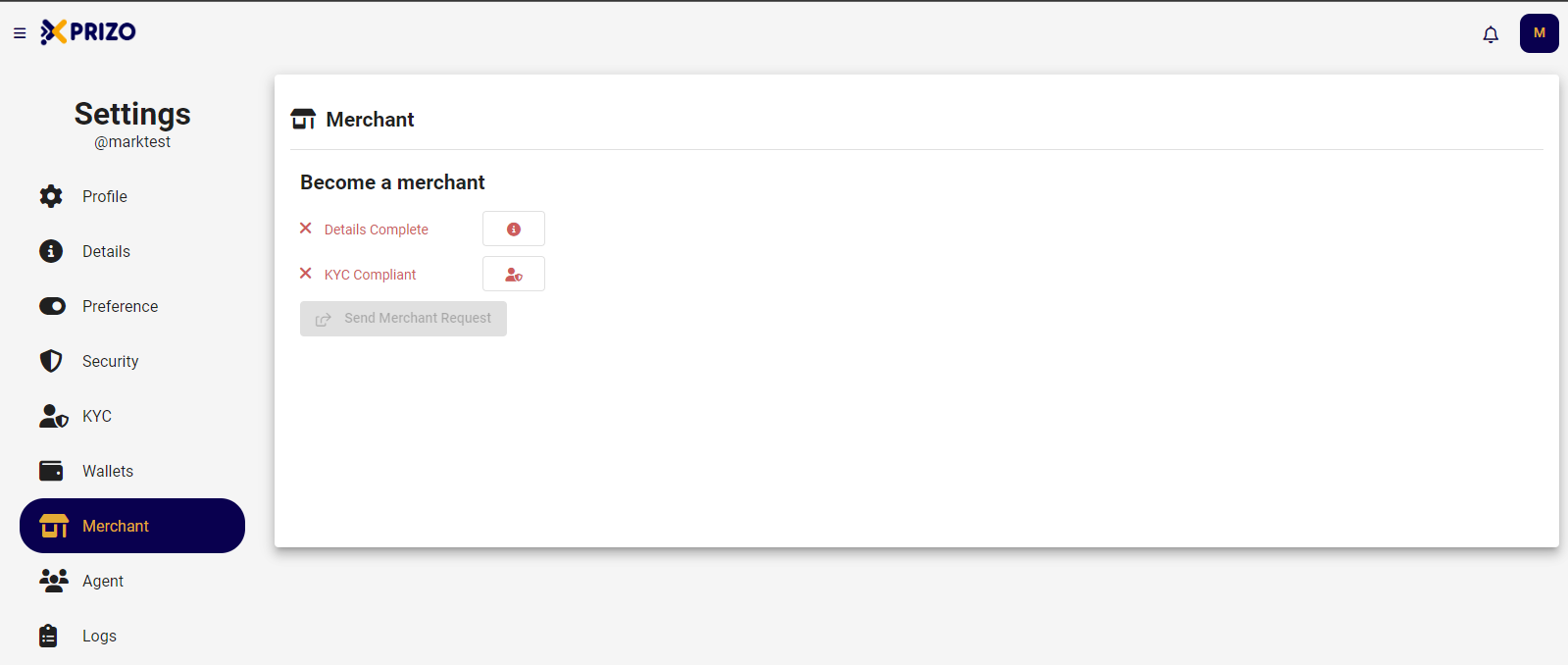
To qualify as a merchant, users need to complete their details and the Know Your Customer (KYC) process before sending a merchant request.
4. Details
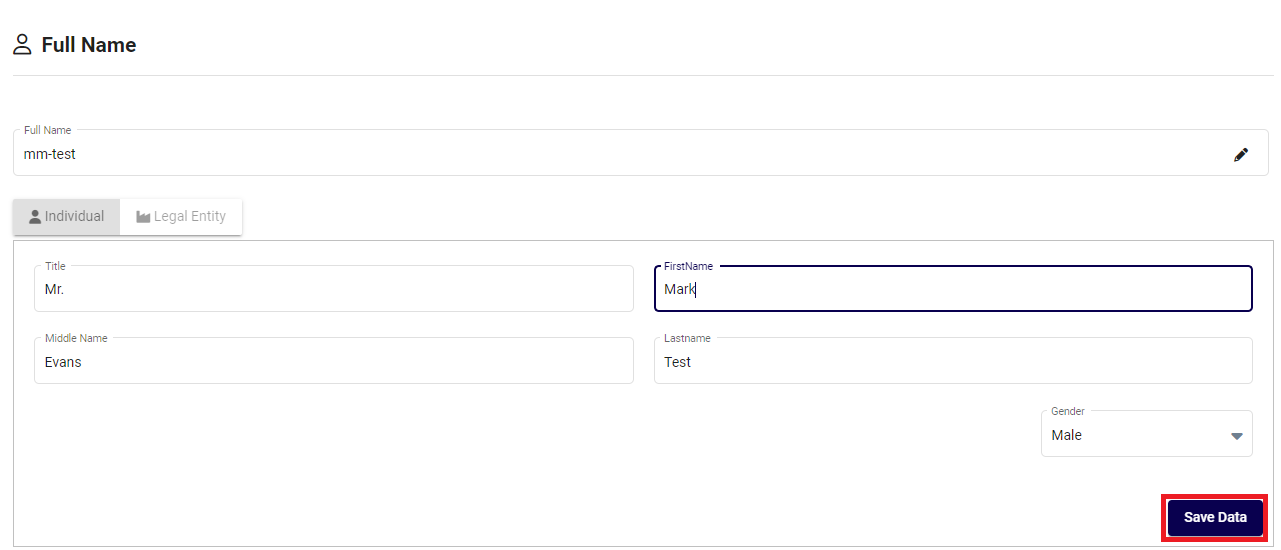
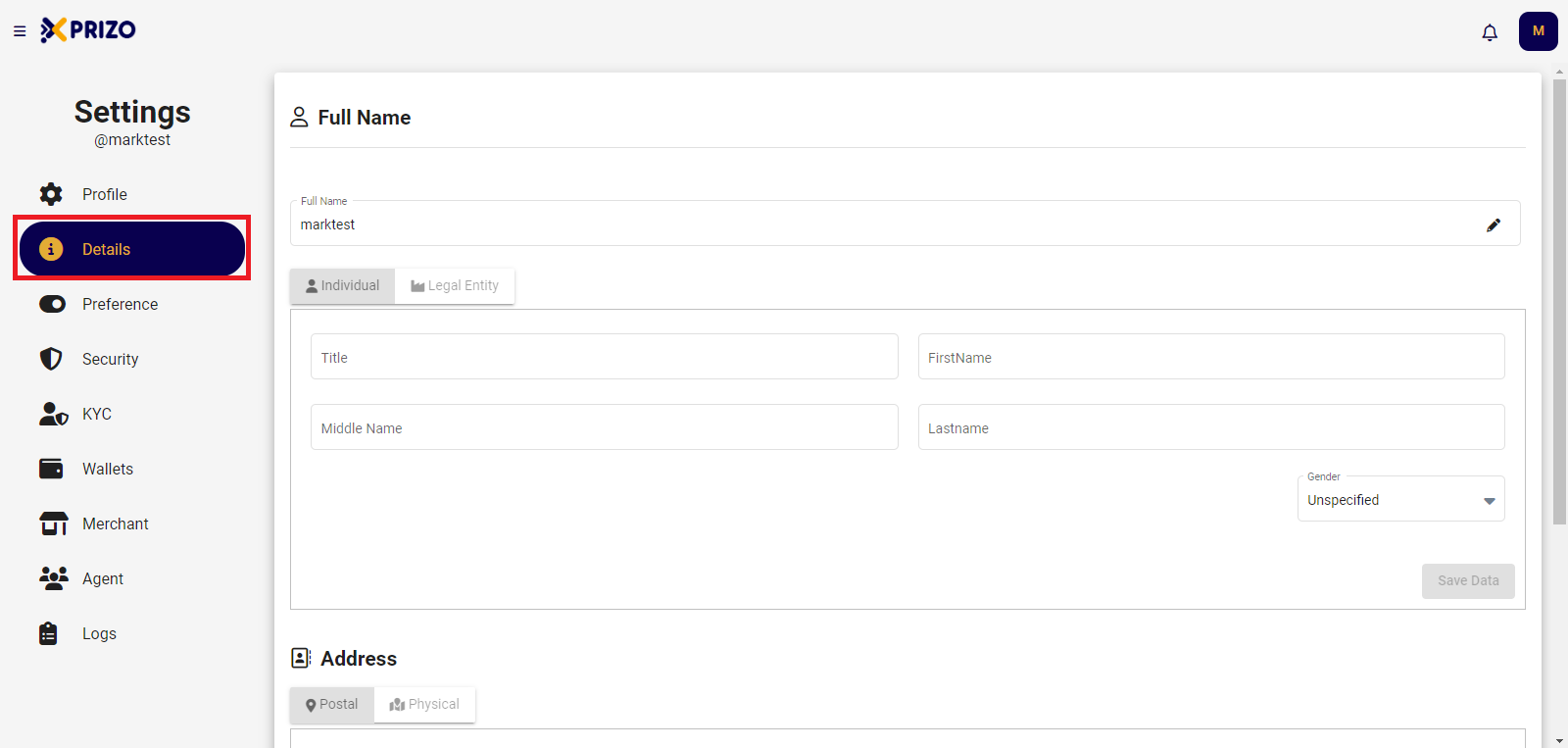
- Go to the "Details" tab to provide complete full name and address information.
-
Once you have entered information in both the Full Name and Address fields, click on "Save Data" to update the entered information.