How to become a Merchant?
1. Registration
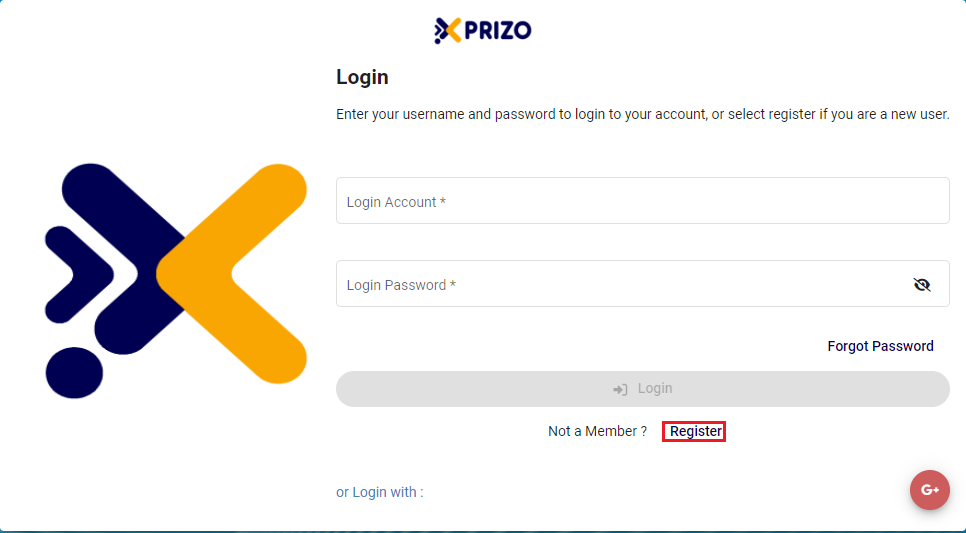
- Click on the Register button to sign up for Xprizo.
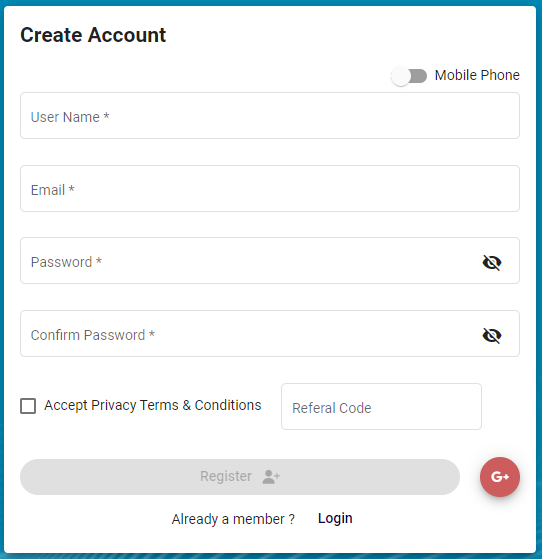
- To establish your account, complete the required information for email registration. Alternatively, for registration via mobile number, toggle the button
 accordingly. Users may also input a referral code if referred by someone.
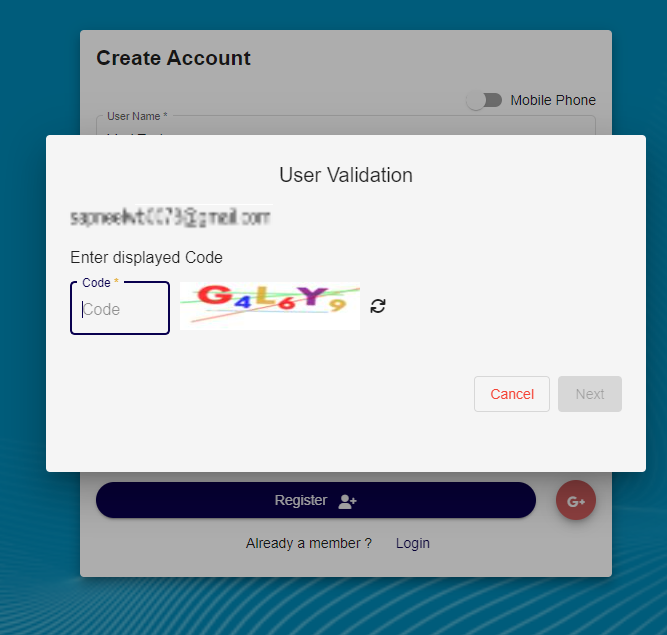
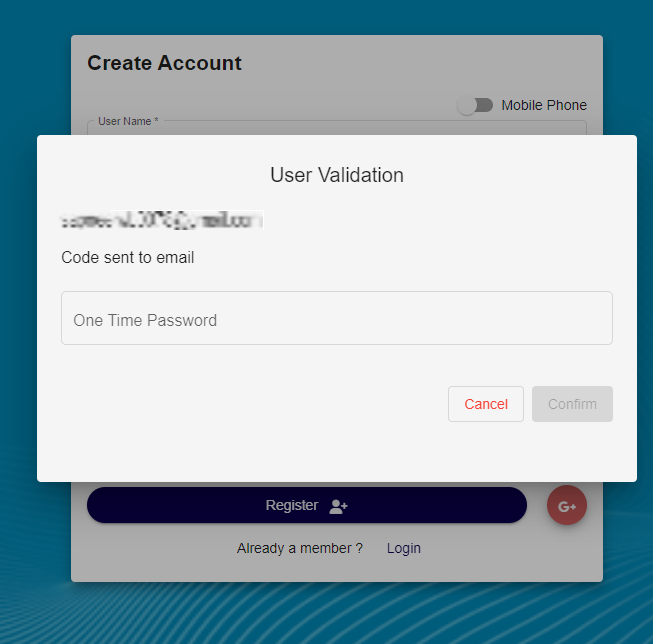
- Enter the code displayed to validate the email or mobile number.
-
Subsequently, input the One-Time Password sent to either your email or mobile number to finalize the validation process.
2. Setting Up Wallet
-
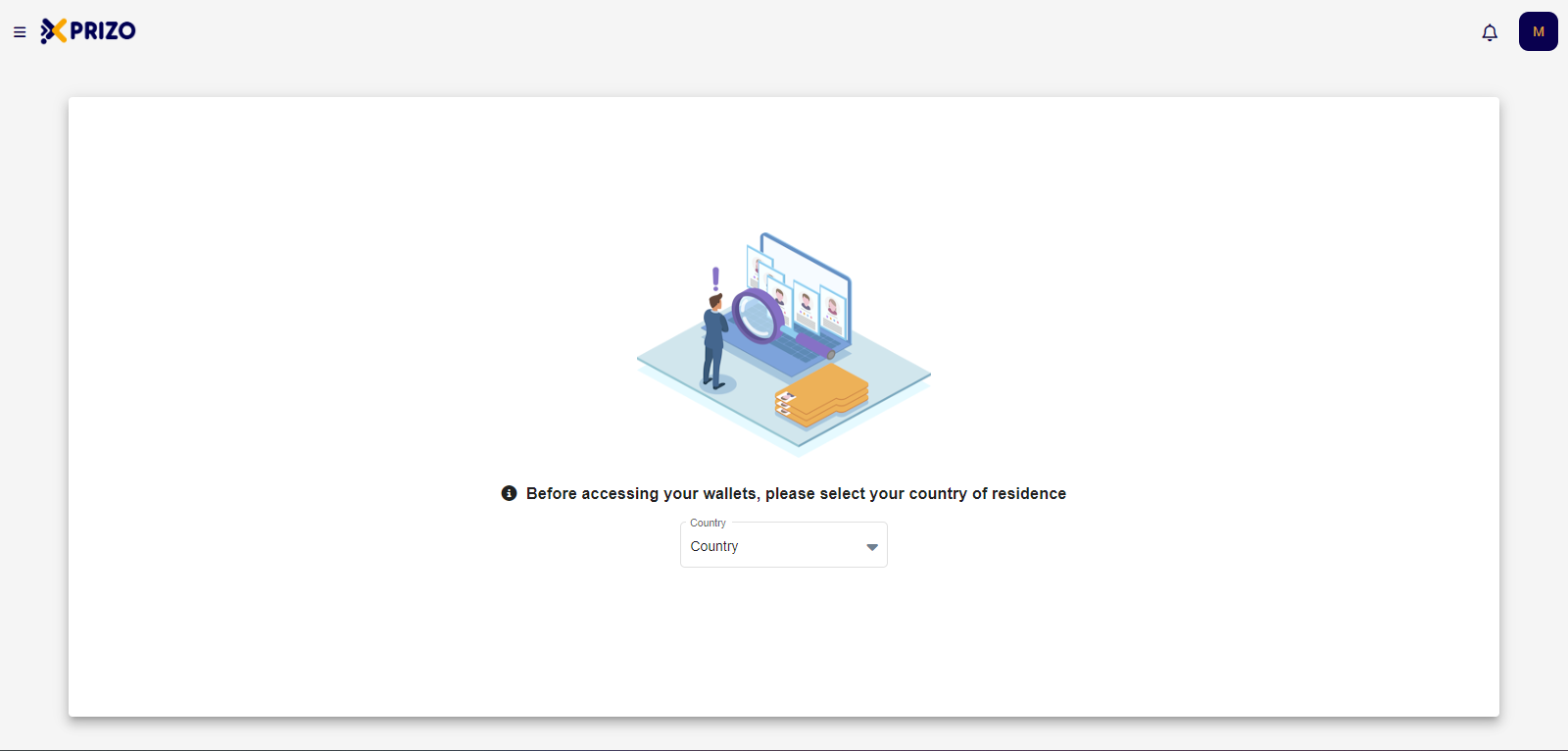
Upon successful registration, users will be logged in and prompted to choose their country of residence before gaining access to their wallets.
-
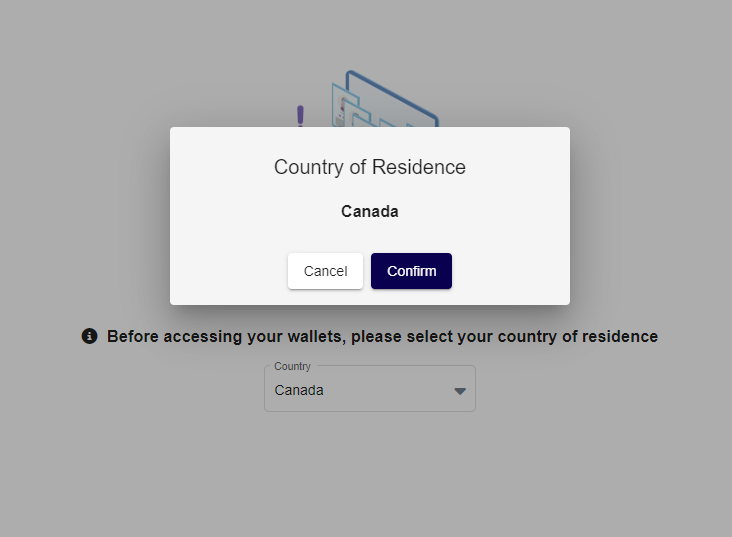
Choose your country from the dropdown menu, and affirm your selection by clicking the "Confirm" button.
-
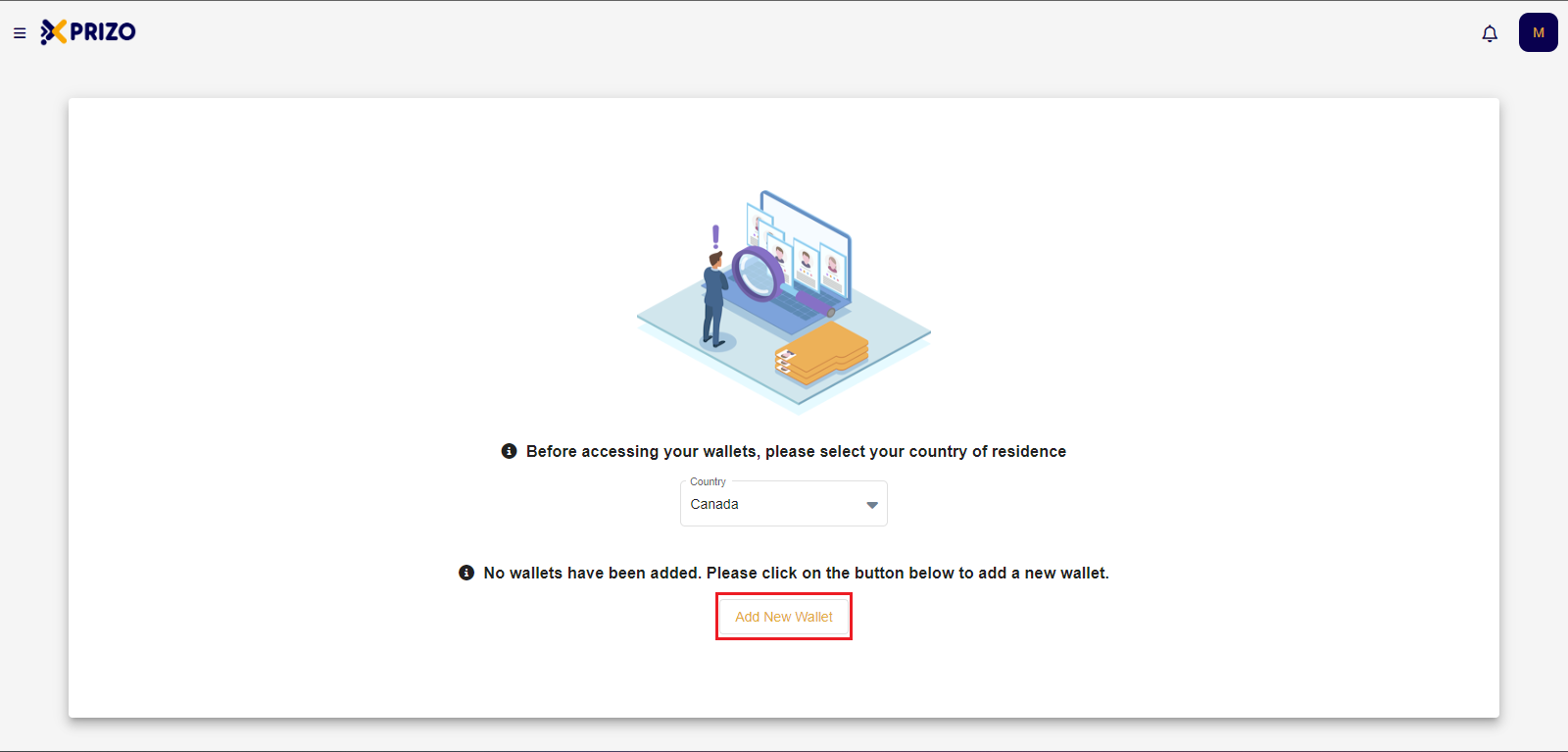
After selecting the country, users need to add a new wallet by clicking on the "Add New Wallet" button.
-
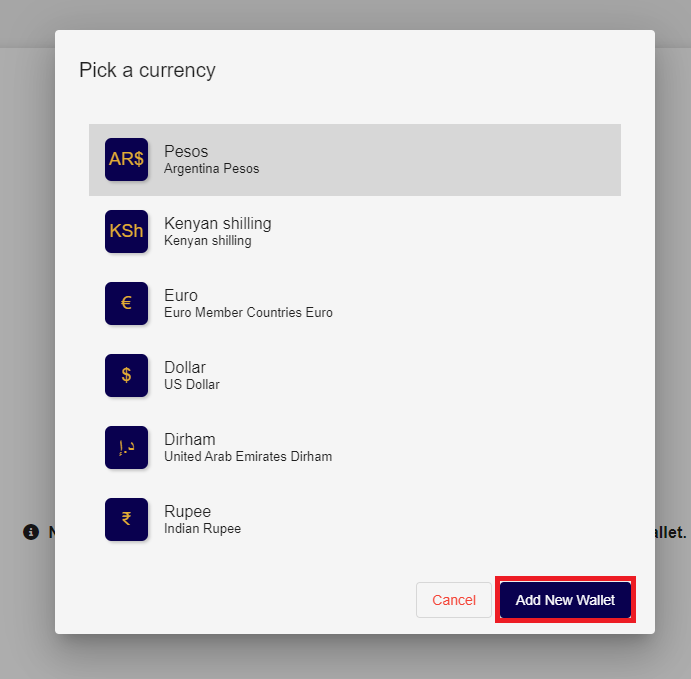
Following that, users should choose the wallet corresponding to the desired currency and then click on "Add New Wallet" to incorporate the wallet in the selected currency.
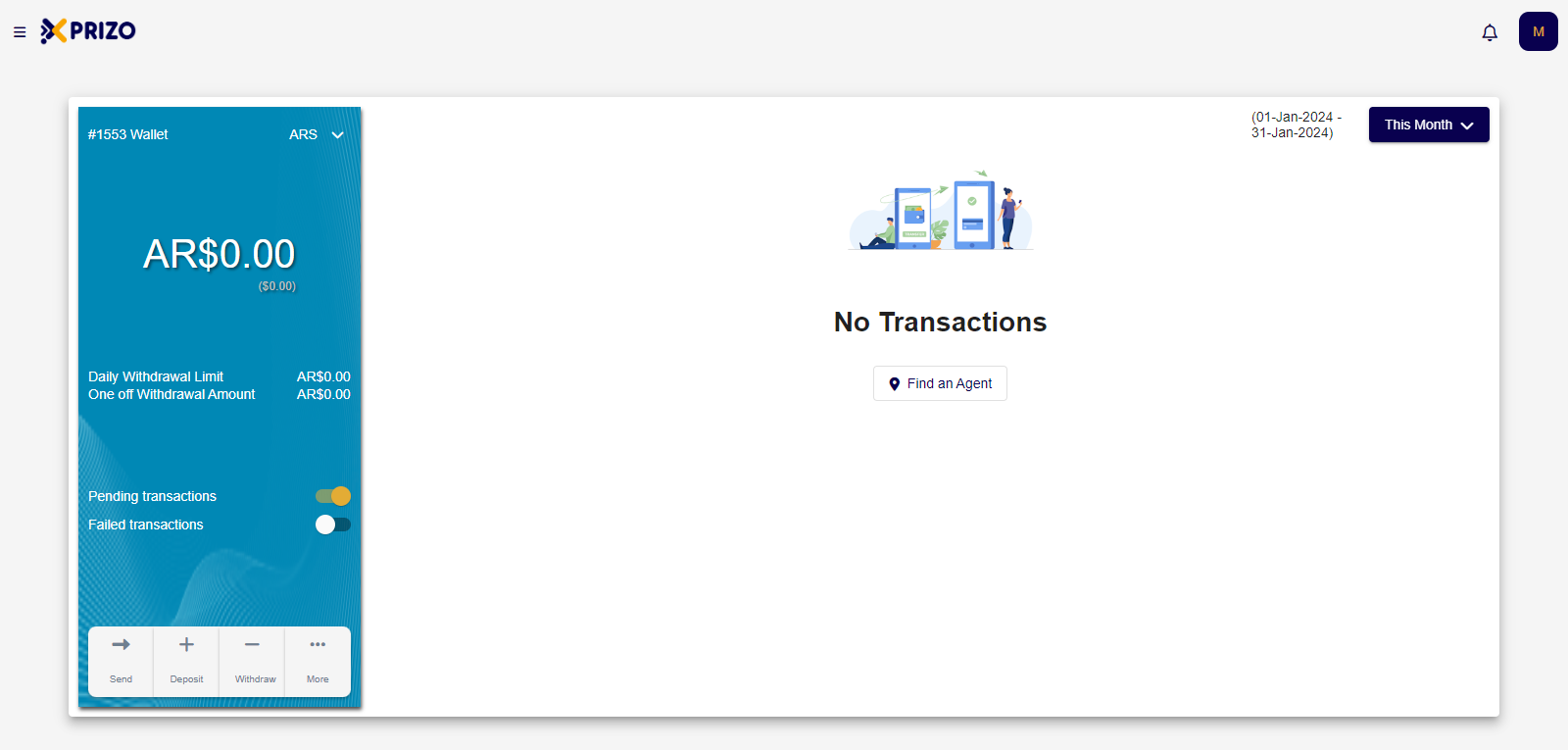
- Upon successfully adding the wallet, users will be directed to the home screen, providing them access to the wallet.
3. Request to become a Merchant
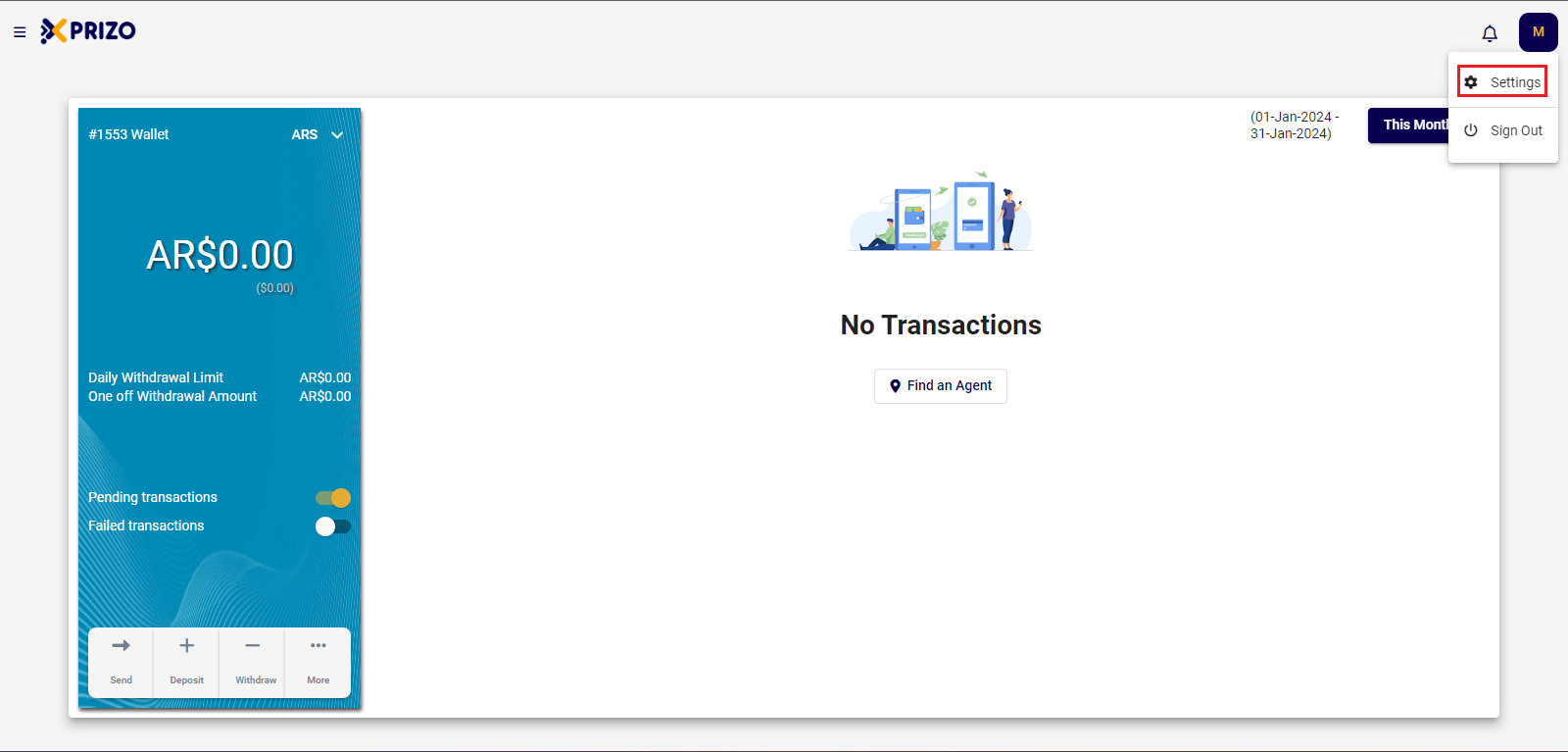
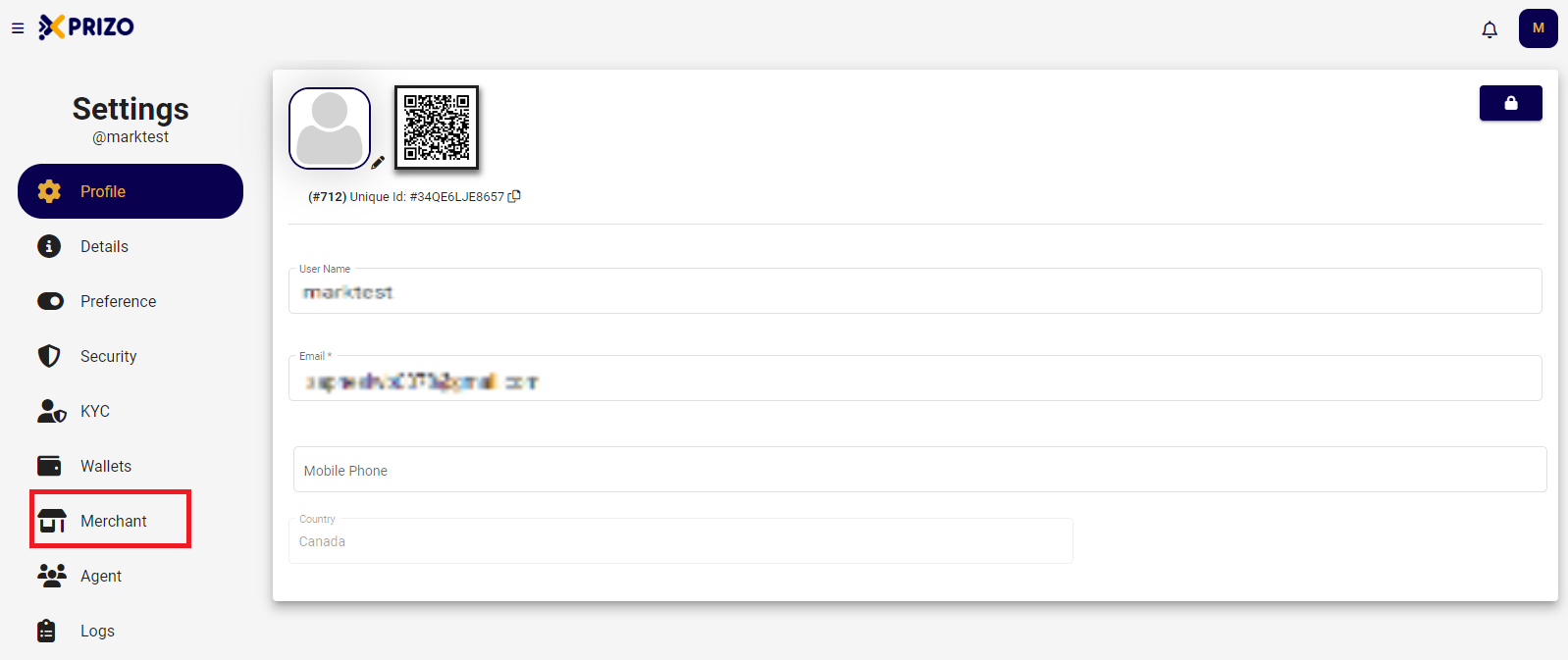
- Select the profile button at the top right, then click on "Settings" to be redirected to the profile section.
-
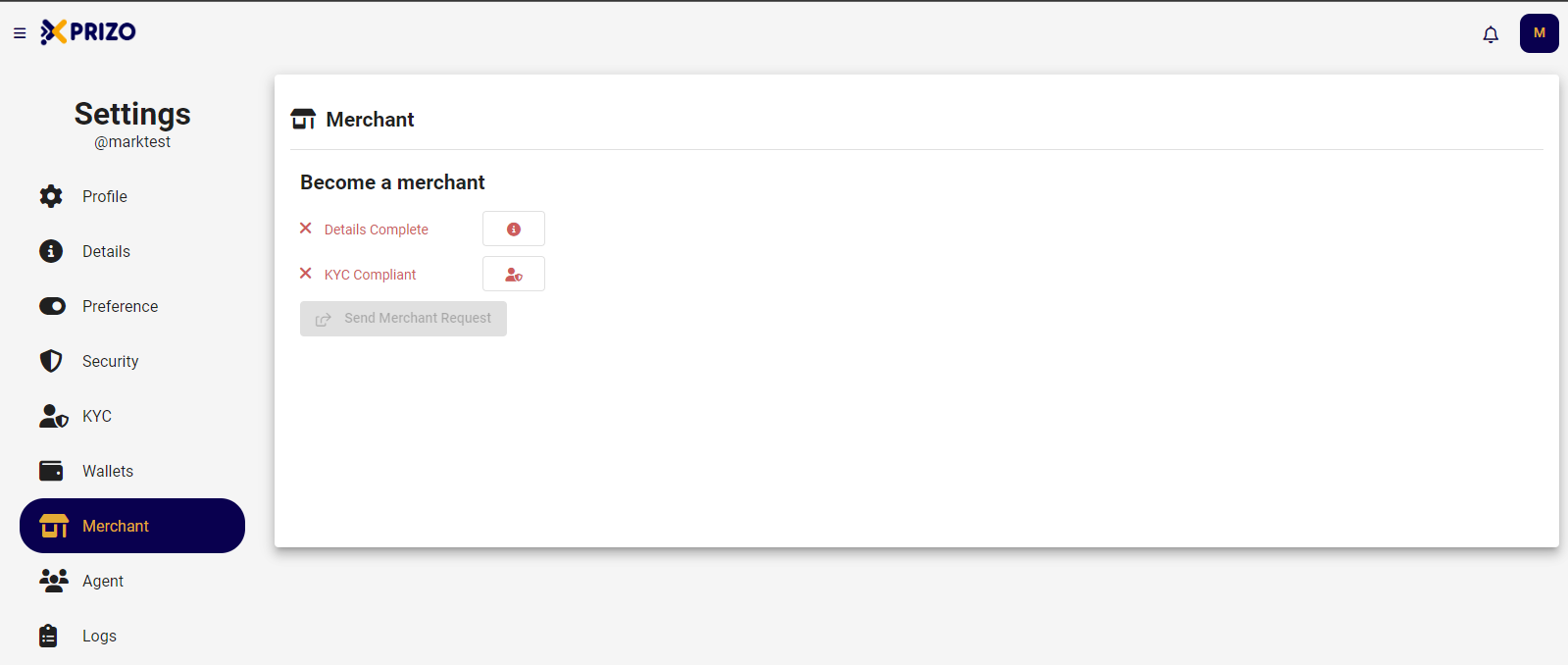
To qualify as a merchant, users need to complete their details and the Know Your Customer (KYC) process before sending a merchant request.
4. Details
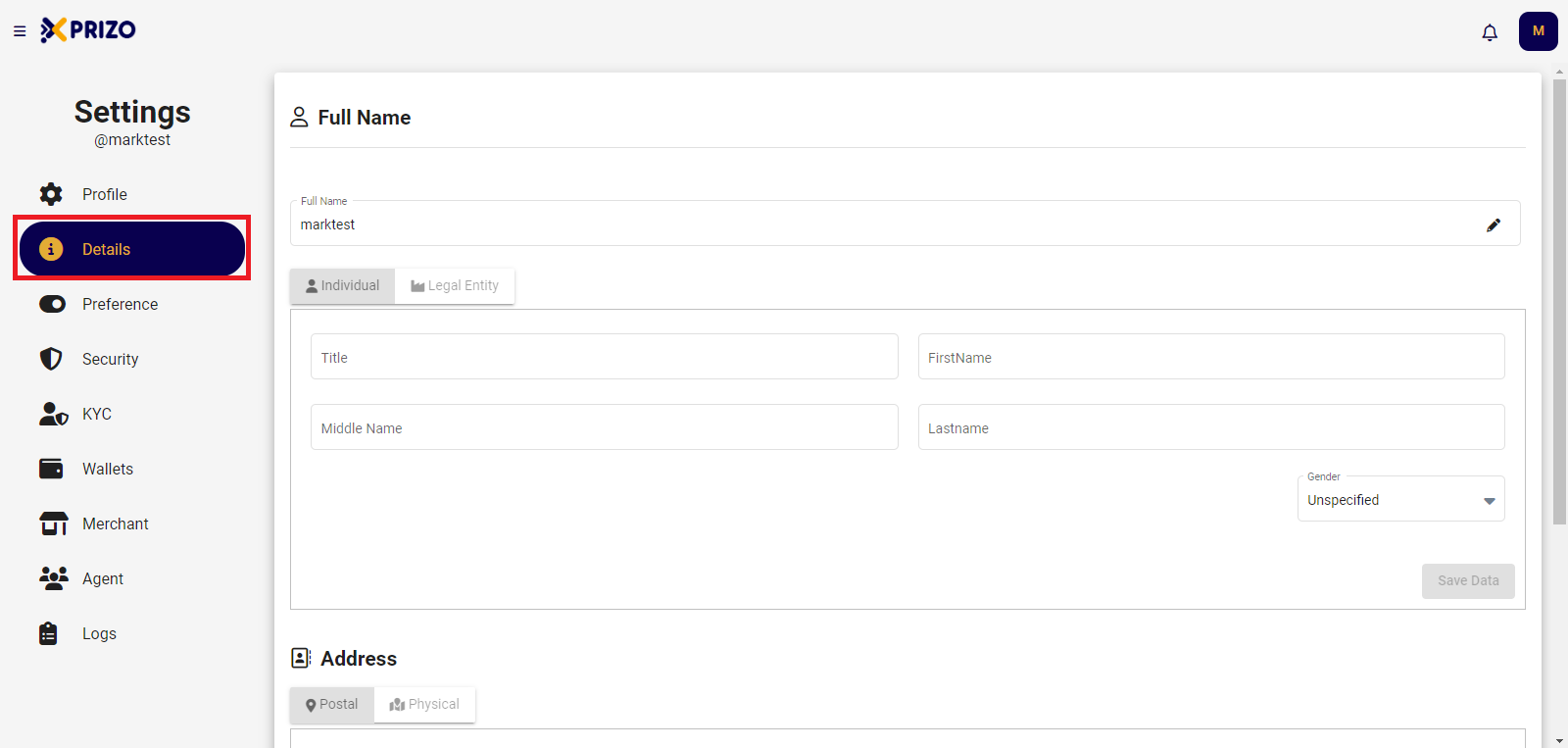
- Go to the "Details" tab to provide complete full name and address information.
-
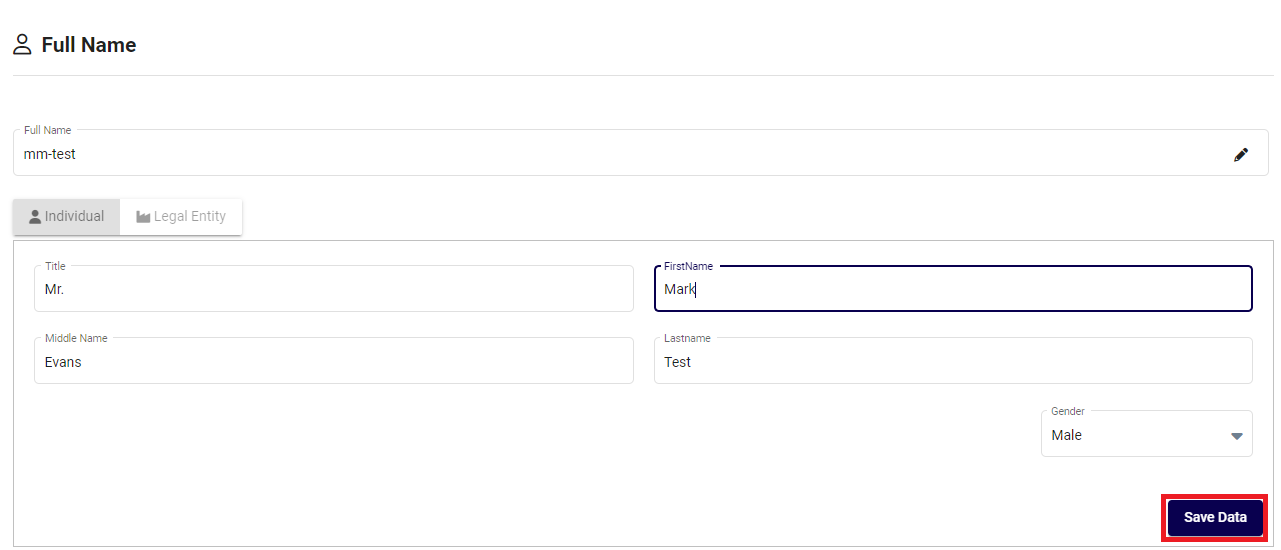
Once you have entered information in both the Full Name and Address fields, click on "Save Data" to update the entered information.
5. KYC
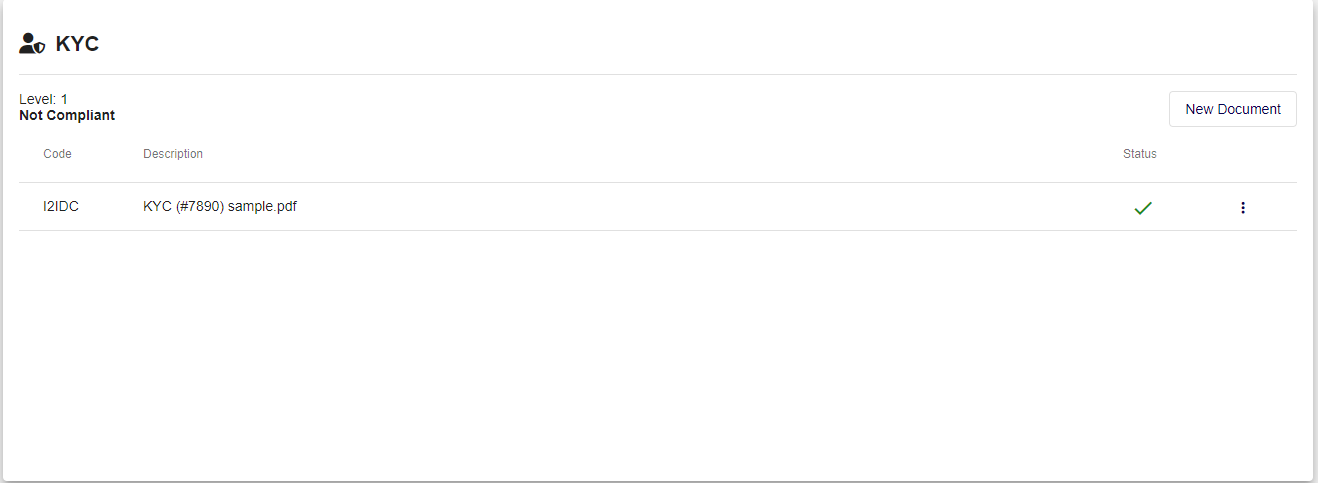
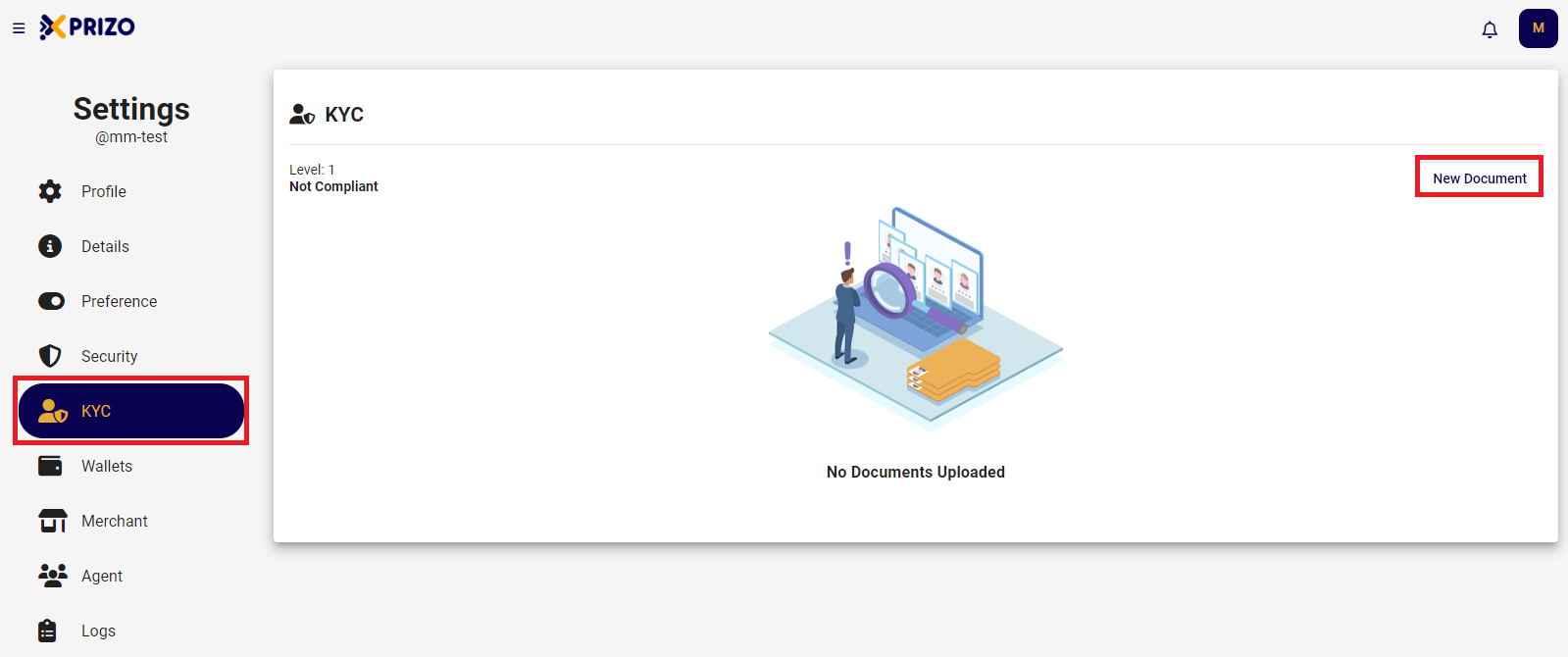
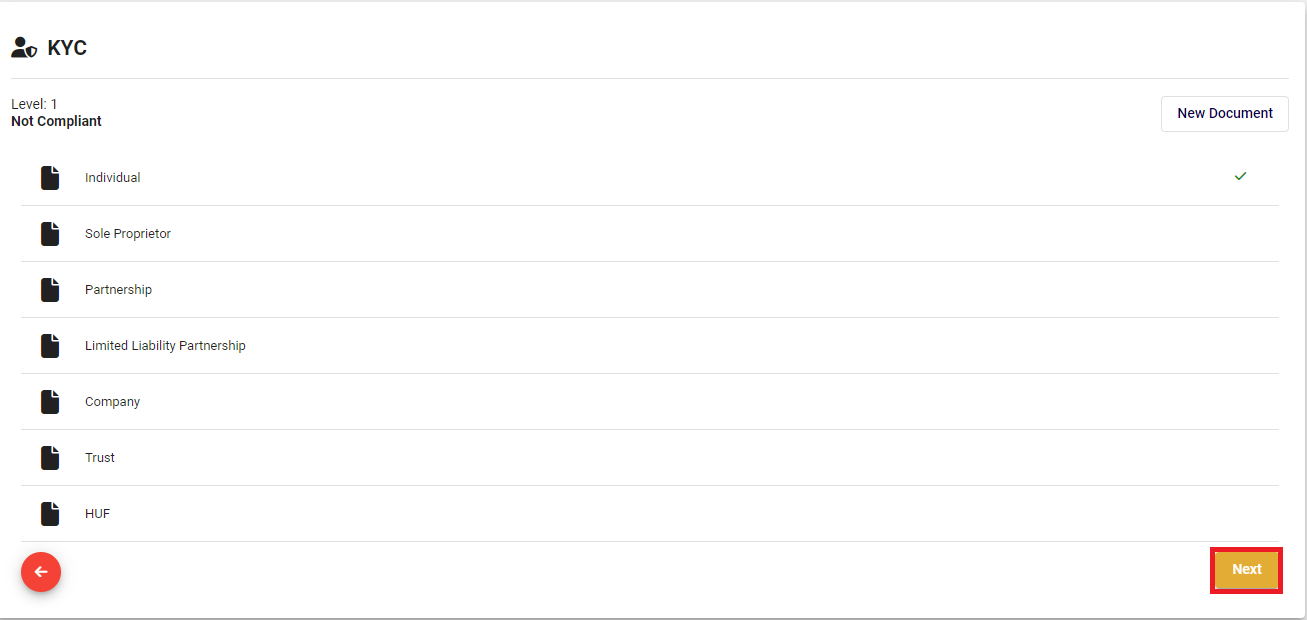
- Switch to KYC tab in navigation bar and click on the New Document to start the KYC process.
- Now select the option most suitable to you and click on Next to proceed forward.
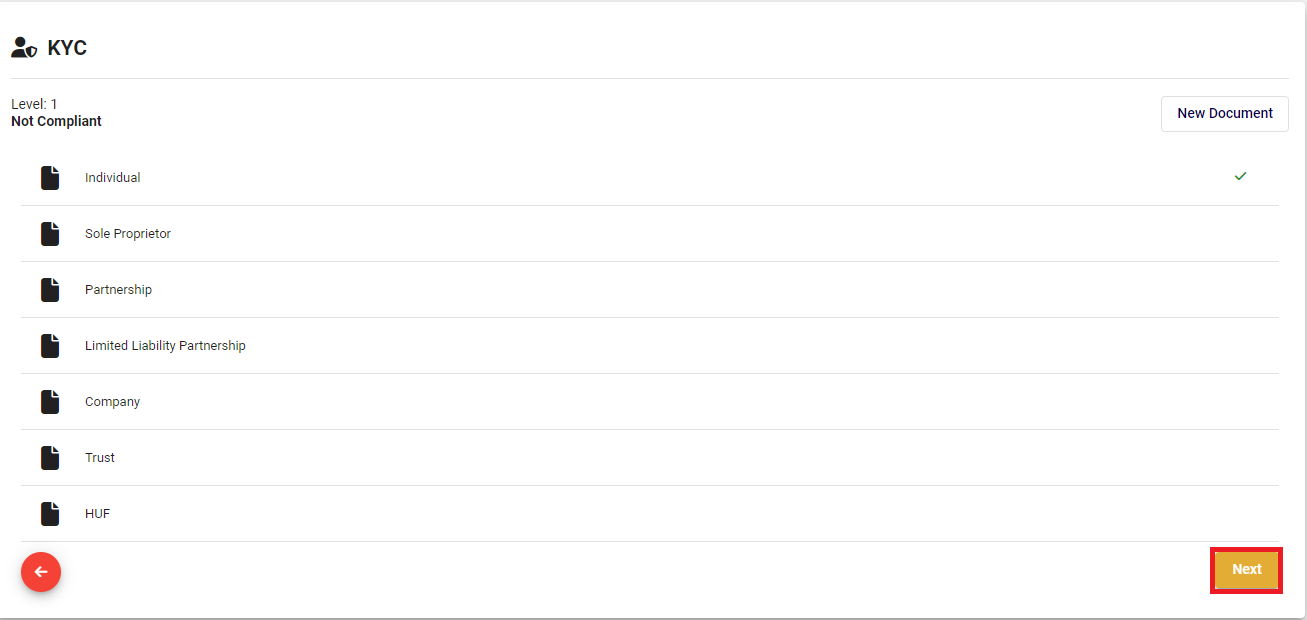
- Then select the document with which you wish to proceed forward and click Next. To change click on the
 to go back to change the selection.
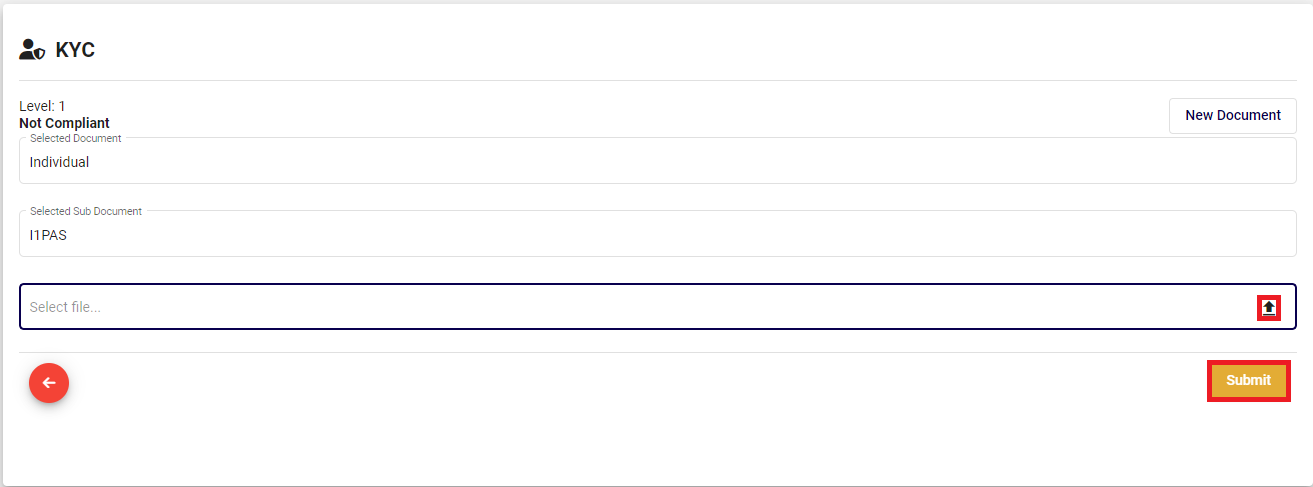
- Then click on the upload
 button to select the file to upload or click on the
  to remove the selected file. Once selected click on the Submit button to complete the KYC process.
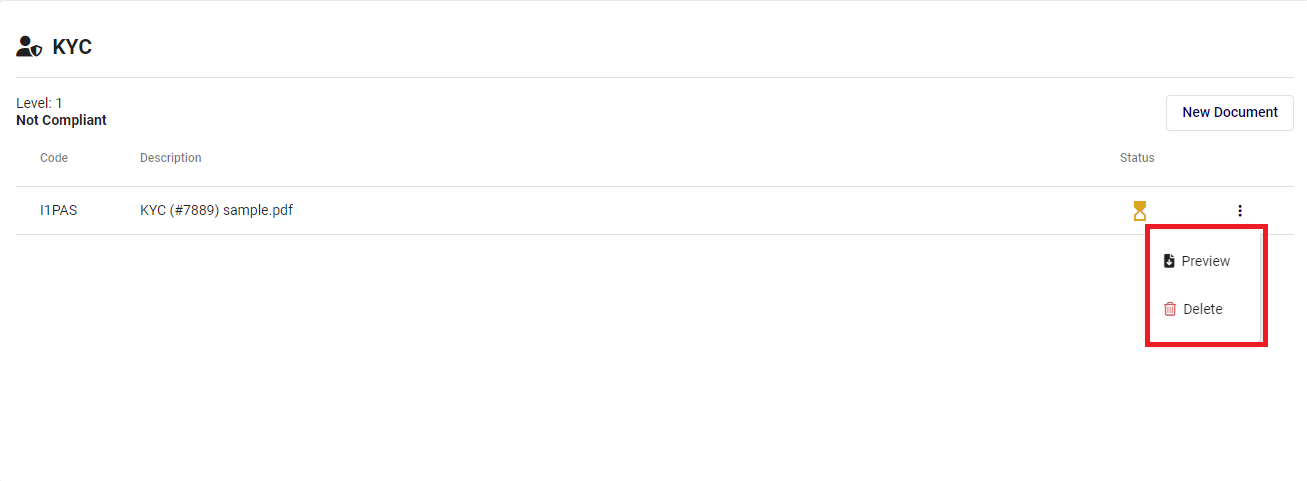
- Once complete the KYC will be under process where the back office will verify the documents uploaded.
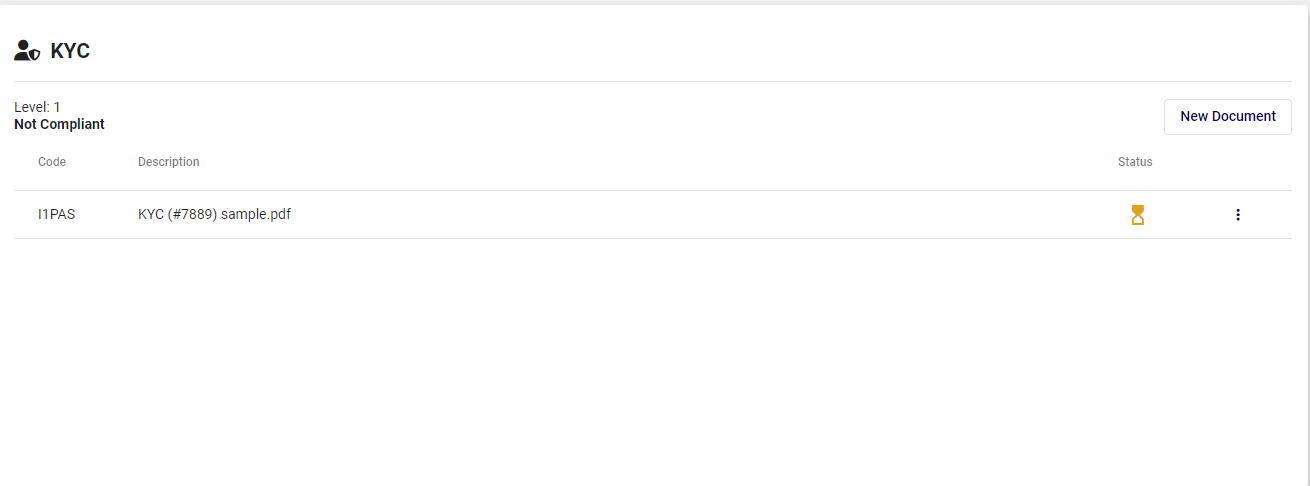
- Click on the ellipsis button
 to Preview the file uploaded or to Delete the file uploaded.

- KYC will be marked complete once the status changes to
 . User can now proceed forward to send request to become a Merchant.