
How to Float Money from User Wallet to Agent Wallet?
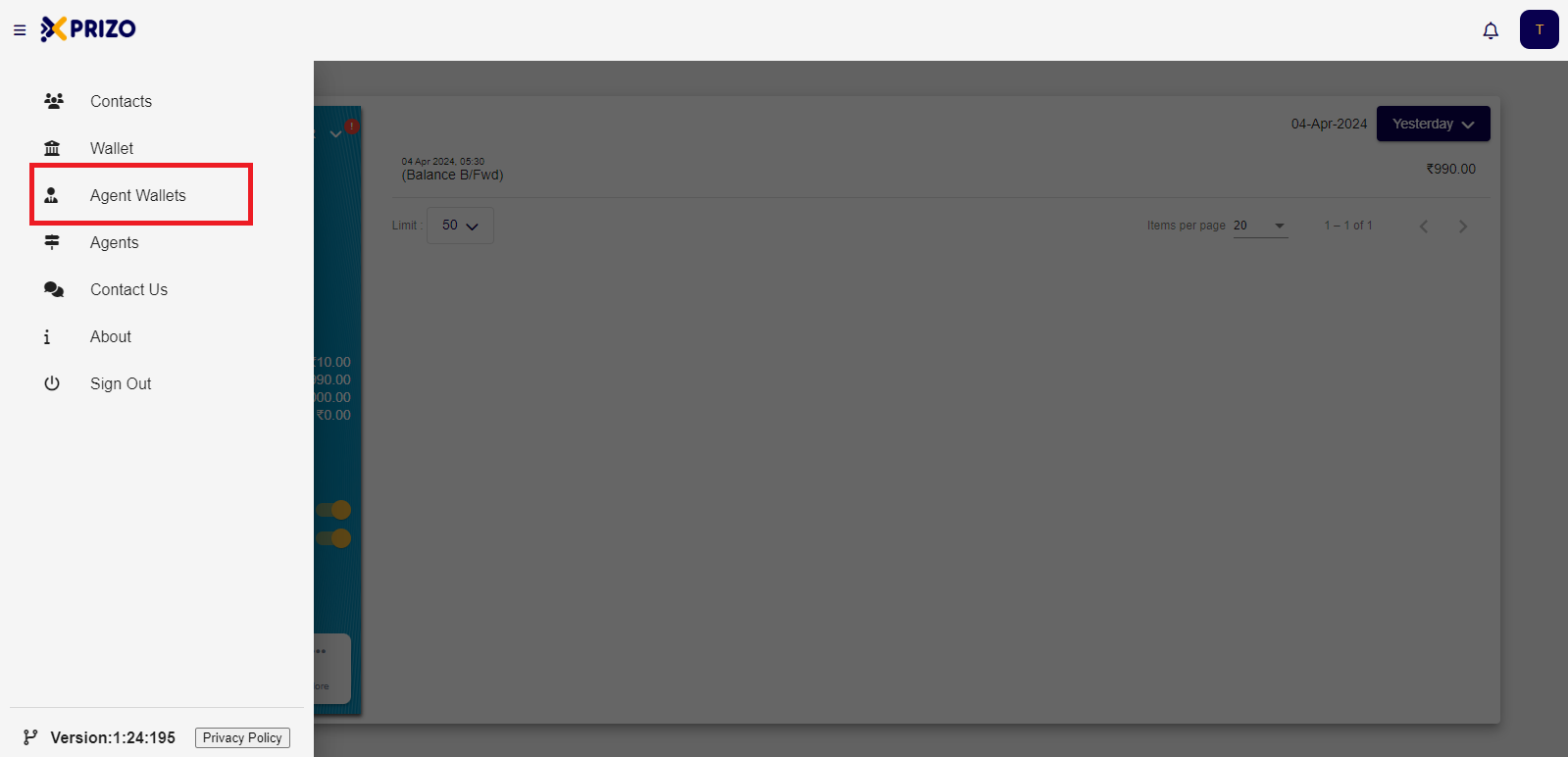
- Sign in to your account with your credentials, then access the agent wallets section by clicking on the hamburger menu.
- Select the "Top up" option to add funds to your agent wallet from your user wallet.
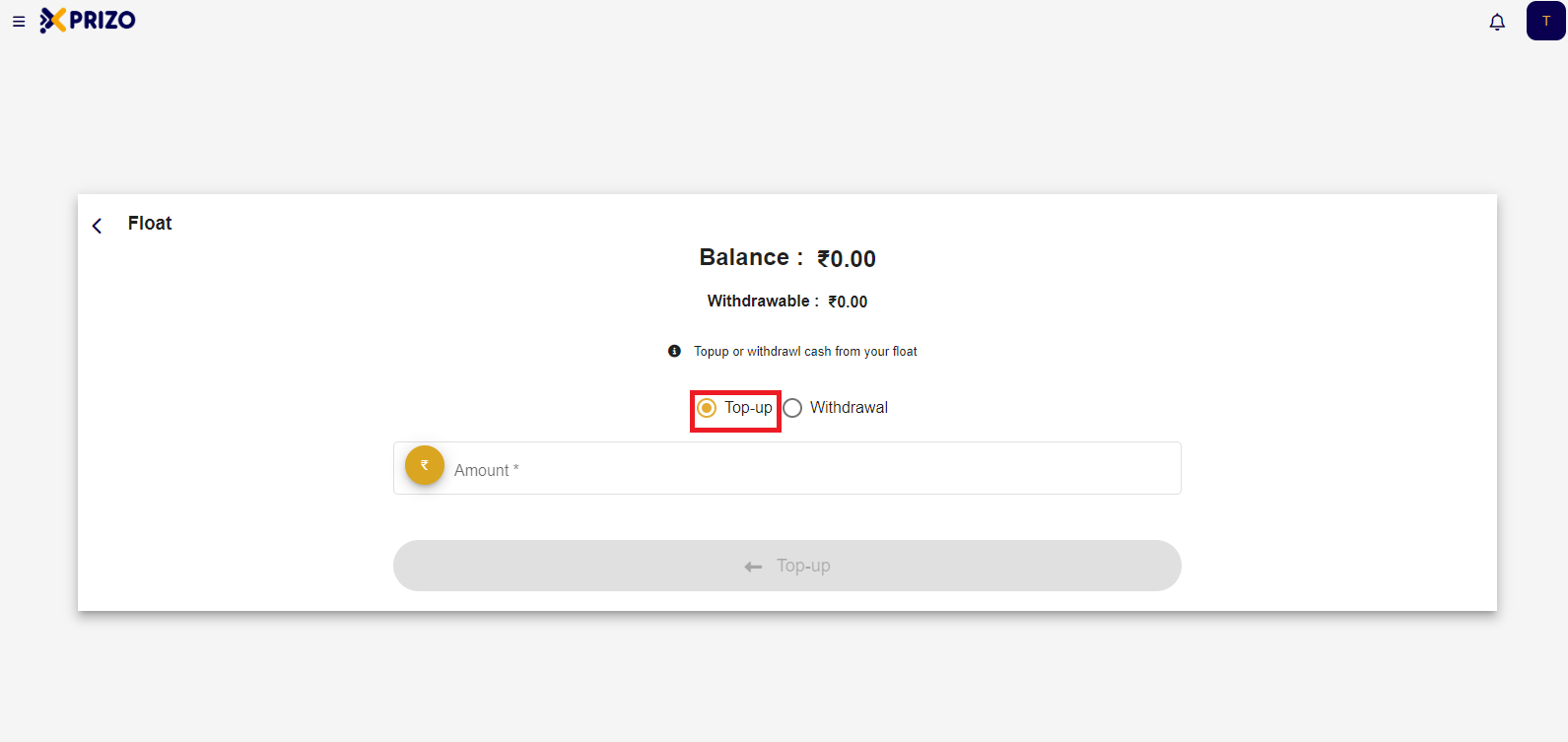
-
Next, input the desired amount into the designated text field.
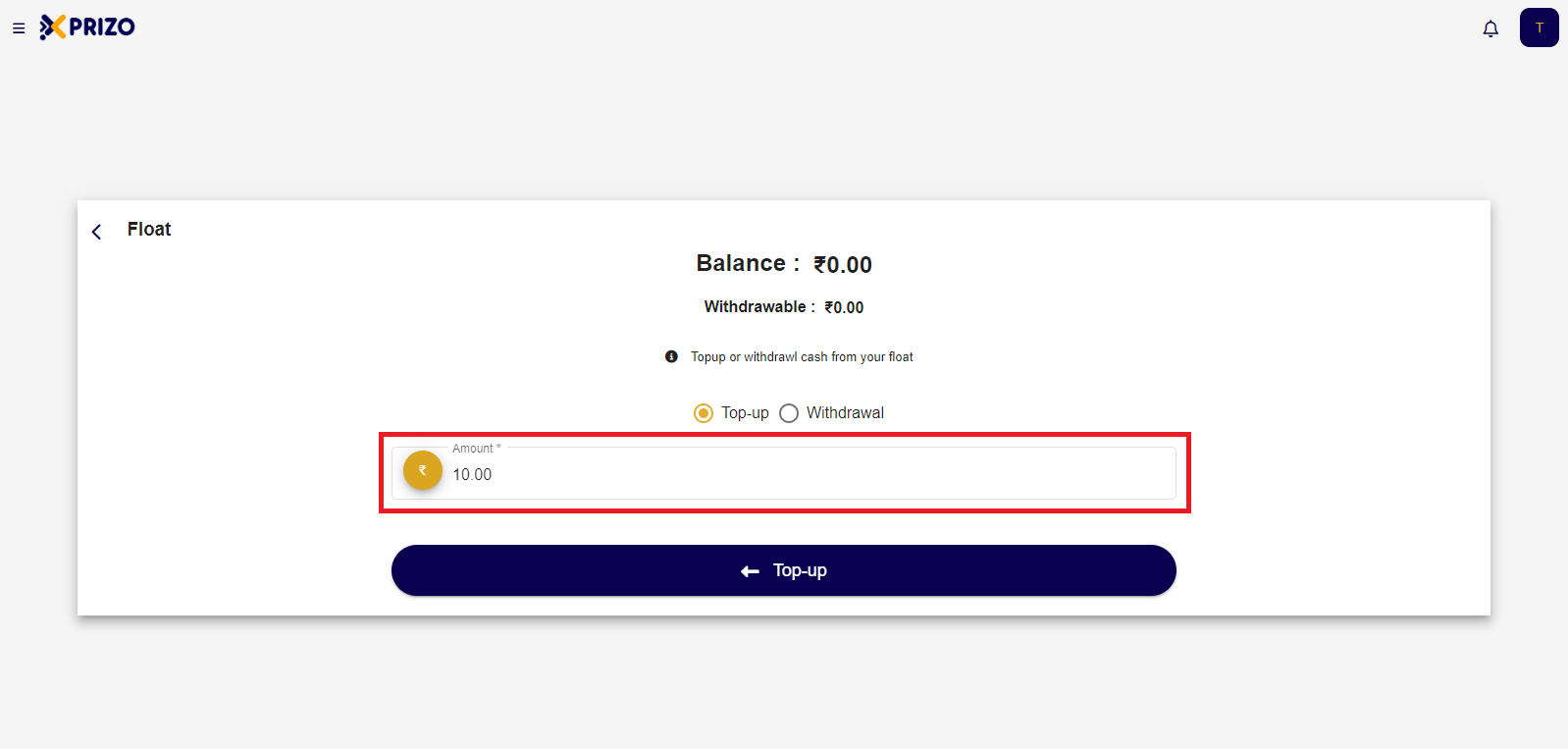
- Click on the Top-up button to add the entered money to your agent wallet.
OnceYou'lldonethenyou will be redirected backreturn toyourthe agent wallet screen whereyou will seethe latest transactionrequest.
will
be- displayed.
Click the
"Top-up"checkbuttonmark totransferconfirm theenteredtransactionamountorfromselectyourtheuser walletcross toyourdiscardagent wallet.
-
Upon approval, the funds will be deposited into your agent's wallet.
-
To initiate a withdrawal, access the "More" menu and return to the float screen. Then, select the withdrawal option by clicking on the corresponding radio button.
- Next, input the desired amount into the designated field and proceed by clicking on the "Withdrawal" button.
- To approve the transaction, click on the checkmark icon. If you wish to discard the transaction, click on the cross icon.
- After approval, the funds will be withdrawn from the agent wallet and transferred to the user wallet.